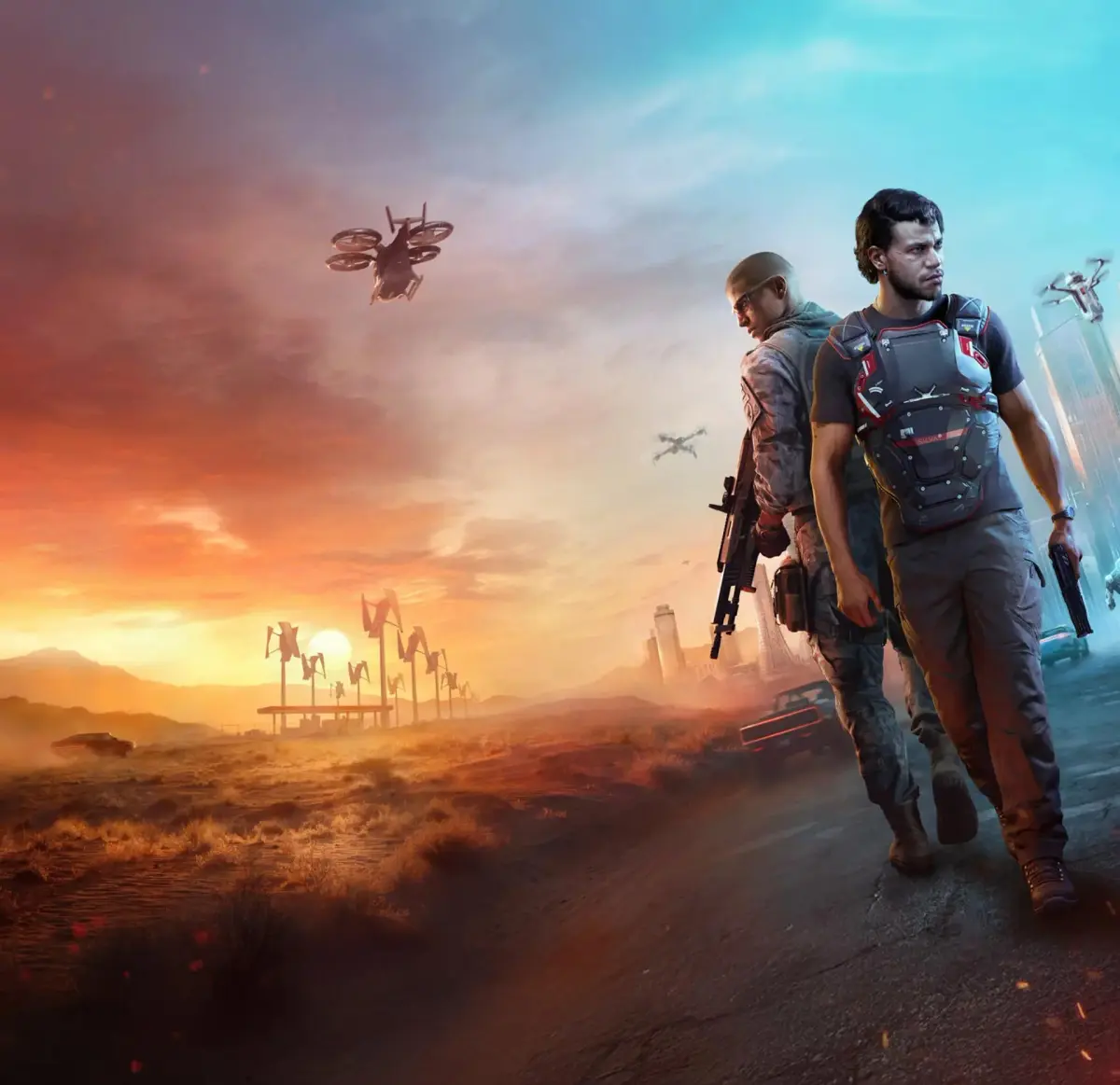
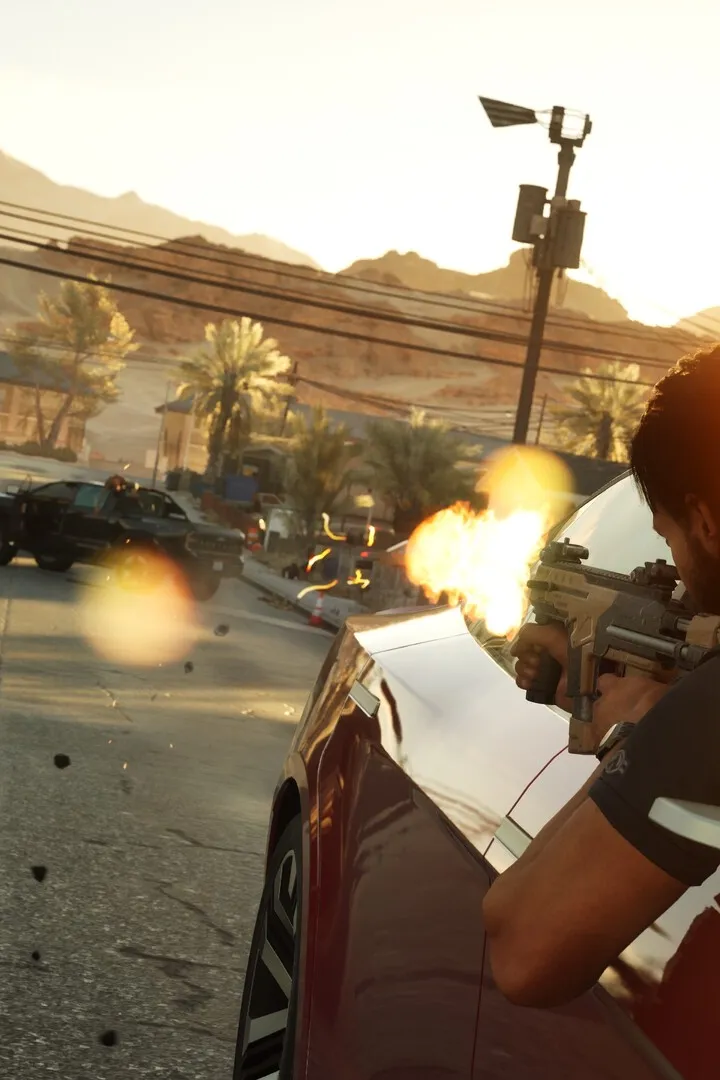
Optimize your gameplay in MindsEye by adjusting game settings. Learn how to customize controls and visual options for the best experience in Redrock.
Welcome, operative! Before you dive headfirst into the neon-drenched streets of Redrock, optimizing your game settings and personalizing your experience in MindsEye is crucial. A finely tuned setup can mean the difference between a successful infiltration and a swift trip back to the respawn point. This comprehensive guide will walk you through every essential menu, ensuring you're ready for anything the near-future city throws at you.
Accessing the Settings Menu
From the main title screen, navigate to the "Options" selection. Alternatively, during gameplay, you can pause the game and select "Settings" from the in-game menu. We recommend making initial adjustments before starting your first mission to ensure a smooth introduction to Redrock.
Graphics Settings
The visual fidelity of MindsEye is stunning, but ensuring optimal performance on your system is key. These settings are found under the "Graphics" tab within the main settings menu.
- Resolution: Set this to your monitor's native resolution for the sharpest image. For PC players, this is typically found in your display settings.
- Display Mode:
- Fullscreen: Recommended for maximum performance and immersion.
- Borderless Window: Allows for quick alt-tabbing without minimizing the game, but may slightly impact performance.
- Windowed: Not recommended for primary gameplay due to reduced immersion and potential performance hits.
- Texture Quality:
- High: For powerful systems, provides the most detailed environments and character models.
- Medium: A good balance between visual quality and performance for most mid-range systems.
- Low: Prioritizes framerate over visual fidelity. Useful for older hardware or if you're experiencing significant lag.
- Shadow Quality: Shadows can be demanding. Adjust this based on your system's capabilities. Lower settings can significantly boost framerate in dense urban areas of Redrock.
- Anti-Aliasing: Smooths jagged edges.
- FXAA: Less demanding, good for a slight visual improvement.
- TAA: More effective at smoothing edges but can introduce a slight blur. Experiment to see what you prefer.
- Off: For maximum performance, but expect more noticeable "jaggies."
- V-Sync: Synchronizes your game's framerate with your monitor's refresh rate to prevent screen tearing.
- On: Eliminates screen tearing but can introduce input lag.
- Off: May result in screen tearing but reduces input lag. Ideal for competitive play if you have a high refresh rate monitor.
- Field of View (FOV): Adjusts how much of the game world you can see on screen. A wider FOV (higher number) can give you a tactical advantage by showing more peripheral vision, but can also cause a "fish-eye" effect. Experiment between 90-110 for optimal results in Redrock's tight alleys and open plazas.
Audio Settings
Sound is your lifeline in MindsEye, especially when tracking enemy patrols or identifying incoming threats. These settings are located under the "Audio" tab.
- Master Volume: Controls the overall game volume.
- Music Volume: Adjust the intensity of the game's soundtrack. Lowering this can help you focus on crucial sound cues.
- SFX Volume: Crucial for hearing footsteps, gunfire, and environmental cues. Keep this high!
- Dialogue Volume: Controls character speech. Important for understanding mission briefings and lore.
- Audio Output:
- Stereo: Standard two-channel audio.
- Headphones: Optimized for headphone use, often enhancing spatial awareness. Highly recommended for competitive play.
- Surround Sound: For systems with multiple speakers, providing a more immersive experience.
Controls & Keybinds
Personalizing your controls is paramount for fluid movement and precise aiming. Access these options via the "Controls" tab.
Mouse & Keyboard
- Mouse Sensitivity: Find a sensitivity that allows for quick turns and precise aiming. A good starting point is to be able to do a 180-degree turn with a single swipe of your mouse.
- Aim Down Sights (ADS) Sensitivity: Often a separate slider, allowing you to fine-tune sensitivity when zoomed in.
- Invert Mouse Y-Axis: For players who prefer inverted vertical camera movement.
- Keybindings: This is where you can remap every action to your preferred keys.
- Movement: Standard WASD, but consider remapping crouch/prone to easily accessible keys like 'C' or 'Ctrl'.
- Weapon Swap: Often '1', '2', '3'. Ensure these are comfortable for quick weapon changes during firefights.
- Grenade/Utility: Consider binding these to mouse buttons or easily reachable keys for rapid deployment.
- Interact: Usually 'E' or 'F'.
- Strategy: Experiment in the training zone (accessible from the main menu under "Training") to find a setup that feels natural and efficient. Prioritize actions you use frequently.
Controller
- Controller Layout: Choose from several preset layouts (e.g., "Default," "Tactical," "Southpaw").
- Look Sensitivity: Adjust the speed of your camera movement.
- Aim Assist: (If available) Can help with target acquisition. Experiment with the strength to find a balance that feels helpful without being intrusive.
- Vibration: Toggle controller rumble feedback.
- Button Mapping: Customize individual button functions. This is particularly useful if you have a controller with paddle attachments.
Gameplay Settings
These settings, found under the "Gameplay" tab, affect your in-game experience and user interface.
- HUD Visibility: Toggle elements of the Heads-Up Display. You can hide the minimap, health bar, or ammo counter for a more immersive experience, but be warned – this increases the challenge significantly!
- Crosshair Type: Choose from various crosshair styles and colors. Find one that stands out against the varied backdrops of Redrock.
- Hit Markers: Visual and audio cues when you land a shot. Essential for feedback during combat.
- Damage Numbers: Displays numerical damage values when you hit enemies. Useful for understanding weapon effectiveness.
- Language: Change the game's language.
- Subtitles: Enable or disable subtitles for dialogue.
By taking the time to thoroughly customize these settings, you'll ensure your journey through MindsEye is as smooth, responsive, and enjoyable as possible. Get ready to dominate the streets of Redrock!
100% Human-Written. AI Fact-Checked. Community Verified. Learn how AntMag verifies content