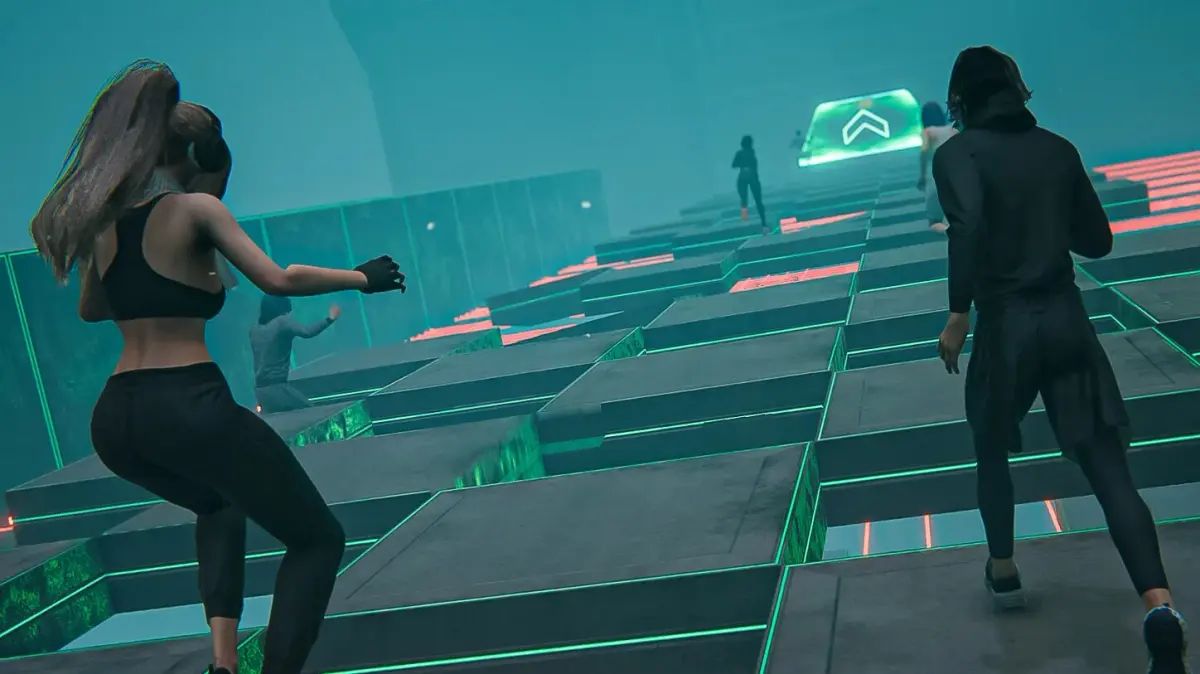
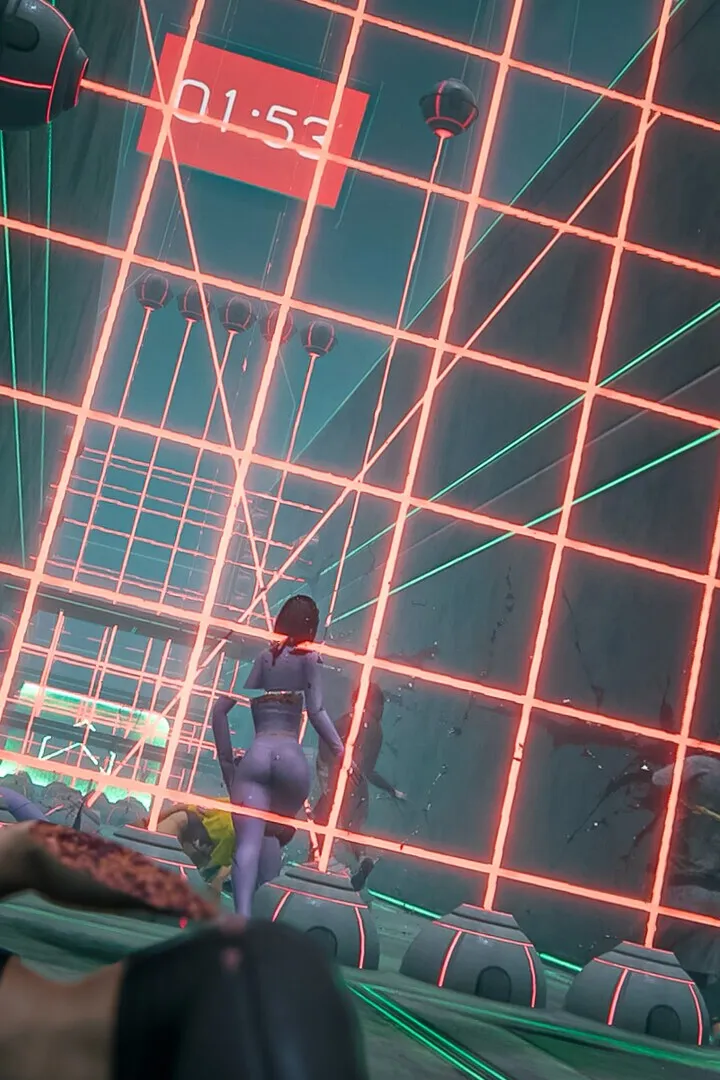
Master LASERS controls and user interface. Learn every input, on-screen element, and menu function to achieve lightning-speed reactions and precise vehicular m.
Welcome, aspiring Laser Racer, to the crucial section on Controls & UI. This guide will meticulously break down every input, every on-screen element, and every menu you'll encounter in LASERS. Understanding these fundamentals isn't just about knowing which button to press; it's about developing an intuitive connection with your vehicle, allowing you to react with lightning speed and precision when every millisecond counts.
From the subtle nuances of steering to the critical information conveyed by your HUD, mastering this section will transform you from a fumbling novice into a fluid, responsive pilot. We'll cover the default keybindings for PC, offer advice on customization, and dissect the various user interface elements that provide vital real-time feedback during your high-octane races. Prepare to internalize these mechanics, as they are the bedrock upon which all your future victories will be built.
Default PC Controls
LASERS on PC offers a highly customizable control scheme, but we'll start with the default keyboard and mouse bindings. While a gamepad is often preferred by many for racing games, the keyboard offers precise digital input that can be advantageous for certain maneuvers, especially when combined with mouse-based camera control. Familiarize yourself with these core actions:
- W: Accelerate - Your primary forward thrust. Holding this down is essential for maintaining speed.
- S: Brake/Reverse - Tapping will apply brakes; holding will engage reverse. Crucial for tight turns and recovering from overshoots.
- A: Steer Left - Initiates a left turn. Combine with acceleration for smooth cornering.
- D: Steer Right - Initiates a right turn. Combine with acceleration for smooth cornering.
- Spacebar: Boost - Consumes a portion of your energy bar for a temporary burst of speed. Timing boosts is critical for overtaking and escaping hazards.
- Left Shift: Drift - Initiates a controlled slide, allowing for sharper turns without losing too much speed. Mastering drifting is a key skill in LASERS.
- Left Mouse Button: Fire Primary Weapon - Unleashes your equipped primary weapon. Aiming is typically automatic or assisted.
- Right Mouse Button: Fire Secondary Weapon/Ability - Activates your equipped secondary weapon or special ability. These often have cooldowns or limited charges.
- Mouse Movement: Camera Control (Look Around) - Allows you to freely look around your vehicle, providing better situational awareness.
- Tab: Scoreboard/Race Info - Toggles the display of current race standings, lap times, and other vital statistics.
- Esc: Pause Menu - Accesses game options, restarts, and exits.
Pro Tip: While the default bindings are a good starting point, don't hesitate to experiment with custom keybinds in the "Options > Controls" menu. Many players rebind Boost or Drift to mouse buttons for quicker access.
The Heads-Up Display (HUD)
Your HUD is your window into the race, providing critical real-time information without obstructing your view of the track. Understanding each element is vital for making informed decisions on the fly:
| HUD Element | Location | Function | Strategic Importance |
|---|---|---|---|
| Speedometer | Bottom-center | Displays your current vehicle speed in units per second. | Monitor for optimal speed through corners and straightaways. |
| Energy Bar | Bottom-left | Indicates available energy for Boost and certain abilities. Replenishes over time or via pickups. | Crucial for managing Boost usage; never let it deplete completely unless necessary. |
| Weapon/Ability Icons | Bottom-right | Shows your equipped primary and secondary weapons/abilities, including ammo counts or cooldowns. | Track weapon availability for offensive and defensive maneuvers. |
| Lap Counter/Position | Top-left | Displays current lap number out of total laps, and your current race position. | Essential for understanding race progress and your standing against opponents. |
| Mini-Map | Top-right | Provides an overhead view of the track, showing your position, opponents, and upcoming turns. | Use for anticipating corners, spotting opponents, and identifying shortcuts. |
| Damage Indicator | Around vehicle icon (bottom-center) | Flashes or changes color to indicate damage taken by your vehicle. | Alerts you to potential risks; seek repairs if damage is critical. |
Pro Tip: While the Mini-Map is invaluable, avoid staring at it. Use quick glances to orient yourself, but keep your primary focus on the track ahead.
100% Human-Written. AI Fact-Checked. Community Verified. Learn how AntMag verifies content