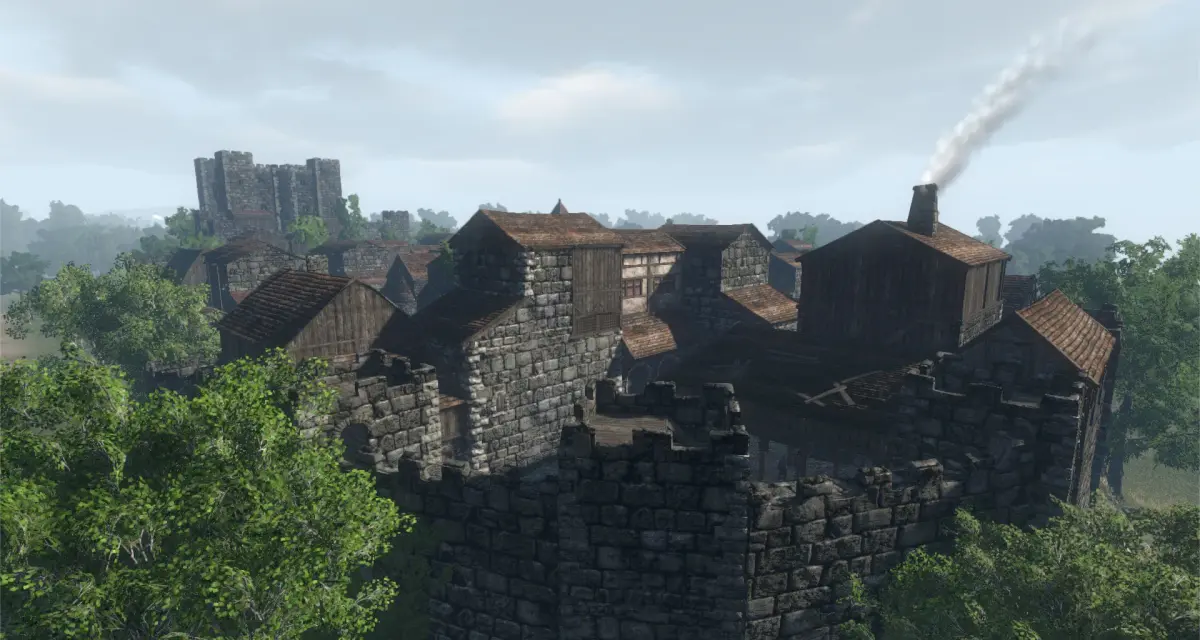
Tailor your playstyle and enhance survival in Gloria Victis by customizing controls. Optimize keybinds for sieges, skirmishes, and overall immersion.
Mastering your controls in Gloria Victis is paramount for survival and success, whether you're engaging in a large-scale siege or a tense skirmish in the open world. The game offers extensive customization options, allowing you to tailor your keybinds to your personal playstyle and hardware. This detailed guide will walk you through accessing and optimizing these settings.
Accessing the Control Settings
To begin customizing your controls, follow these simple steps:
- Launch Gloria Victis: Start the game from your preferred platform (e.g., Steam).
- Navigate to the Main Menu: Once the game loads, you'll be presented with the main menu.
- Open Options: Locate and click on the "Options" button. This is typically found near the bottom or side of the main menu screen.
- Select "Controls": Within the Options menu, you will see several tabs or categories. Click on the "Controls" tab to access all keybinding and input settings.
Keybinding Categories and Optimization Strategies
The "Controls" menu is organized into several logical categories to help you find and modify specific actions. We recommend reviewing each section carefully.
- Movement:
- Default:
W(Forward),S(Backward),A(Strafe Left),D(Strafe Right),Spacebar(Jump). - Optimization: Consider binding strafing to mouse buttons if you prefer to keep your left hand free for ability usage. Some players rebind
Jumpto a more accessible key likeMouse Wheel Upfor quicker evasive maneuvers.
- Default:
- Combat Actions:
- Default:
Left Mouse Button(Light Attack),Right Mouse Button(Block/Heavy Attack),Q(Ability 1),E(Ability 2),R(Ability 3),F(Interact). - Optimization: This is where personal preference truly shines. Many players rebind their primary abilities (
Q,E,R) to easily reachable keys or even dedicated mouse buttons (e.g.,Mouse Button 4,Mouse Button 5) for rapid execution during combat. Experiment with different layouts to find what feels most natural for your combat rotations. For instance, if you frequently use a shield, ensuringBlockis comfortable is crucial.
- Default:
- Targeting & Camera:
- Default:
Middle Mouse Button(Toggle Target Lock),Mouse Movement(Camera Control). - Optimization: While camera control is generally best left to the mouse, consider if you want to rebind
Target Lock. Some players find it more intuitive on a keyboard key (e.g.,Tab) to avoid accidental clicks during intense combat.
- Default:
- Inventory & UI Navigation:
- Default:
I(Inventory),M(Map),C(Character Sheet),P(Party Panel),K(Skills). - Optimization: These keys are less critical for real-time combat but can still be optimized for efficiency. If you frequently check your map or inventory, ensure these keys are within comfortable reach. For example, some players prefer
Bfor Inventory orNfor Map.
- Default:
- Miscellaneous:
- This category includes actions like
Mount/Dismount,Sheathe Weapon, and various emotes. - Optimization: While not directly combat-related, having
Mount/Dismounton an easily accessible key (e.g.,ZorX) can save precious seconds when escaping or engaging.
- This category includes actions like
Advanced Tips for Control Customization
- Consider Your Hardware: If you have a gaming mouse with extra programmable buttons, leverage them! Binding frequently used abilities or consumables to these buttons can significantly improve your reaction time and overall gameplay fluidity.
- Consistency is Key: Try to maintain a consistent control scheme across different characters or weapon types if possible. This reduces the learning curve and muscle memory adjustments.
- Test in Safe Zones: After making significant changes, always test your new keybinds in a safe area like the training grounds or a non-combat zone before venturing into PvP or dangerous PvE encounters.
- Reset to Default: Don't be afraid to experiment. If a new binding doesn't feel right, you can always revert to the default settings using the "Reset to Default" button found within the Controls menu.
- Macro Considerations: While Gloria Victis supports basic key remapping, using third-party macro software for complex sequences of actions is generally discouraged and may violate the game's terms of service. Focus on optimizing individual keybinds for a fair and enjoyable experience.
By investing time in customizing your controls, you'll gain a significant advantage on the battlefields of Gloria Victis, allowing you to react faster, execute abilities more precisely, and ultimately, triumph over your adversaries.
100% Human-Written. AI Fact-Checked. Community Verified. Learn how AntMag verifies content