Learn to customize your EverQuest II UI by resizing and moving windows. Master the modular interface for efficient gameplay and access the Alt+O options menu.
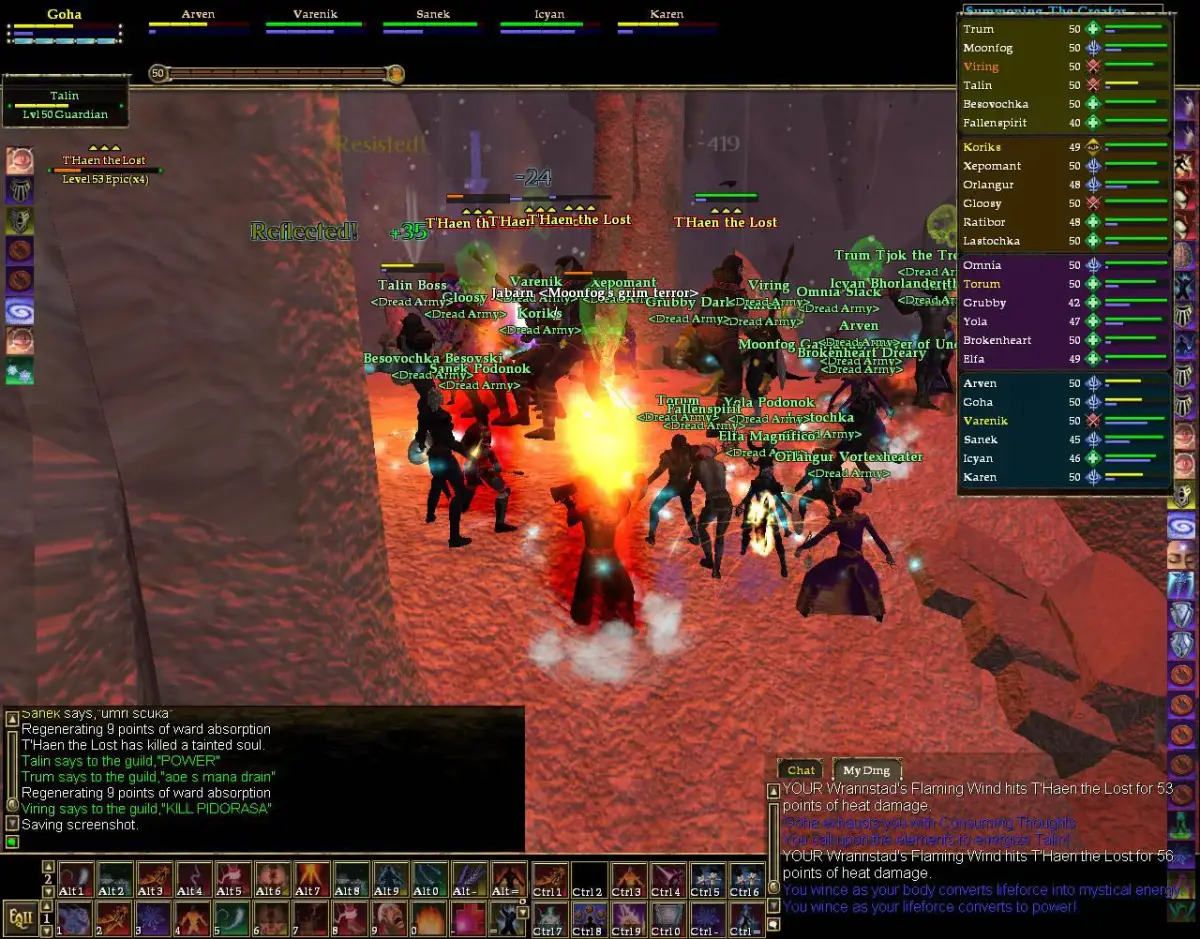
The EverQuest II UI can seem daunting at first due to its extensive customization options, but understanding its core components is essential for efficient gameplay. The UI is highly modular, meaning you can move, resize, and even hide most windows to suit your preferences. Pressing Alt+O opens the Options menu, where you can find UI settings under the 'User Interface' tab.
Key UI Elements:
- Hotbars: These are where you place your abilities, spells, items, and macros. You can have multiple hotbars and cycle through them using the mouse wheel or assigned keybinds. To add an ability, open your Knowledge Book (K) and drag the spell/ability icon to a hotbar slot.
- Chat Window: Located typically at the bottom left, this displays all game messages, including chat from other players, system messages, combat logs, and quest updates. You can create multiple chat tabs to filter specific types of messages (e.g., 'Group Chat', 'Combat Log').
- Target Window: Displays information about your current target, including their health, power, buffs, and debuffs. Essential for combat.
- Player Window: Shows your character's health, power, status effects, and current experience bar.
- Group/Raid Window: Appears when you are in a group or raid, showing the health and power of your allies.
- Compass/Minimap: Usually at the top right, this helps you navigate the world, showing quest objectives, points of interest, and nearby NPCs.
- Knowledge Book (K): Contains all your learned spells, combat arts, and tradeskill recipes.
- Inventory (I): Manages your equipped gear, bags, and items.
- Map (M): A larger, more detailed map of your current zone.
- Quest Journal (J): Tracks all your active and completed quests.
Don't be afraid to experiment with moving windows around. Many players prefer to customize their UI to place frequently used information closer to the center of the screen, or to minimize clutter during combat. You can lock your UI layout once you're satisfied by right-clicking on any UI element and selecting 'Lock UI'.
100% Human-Written. AI Fact-Checked. Community Verified. Learn how AntMag verifies content