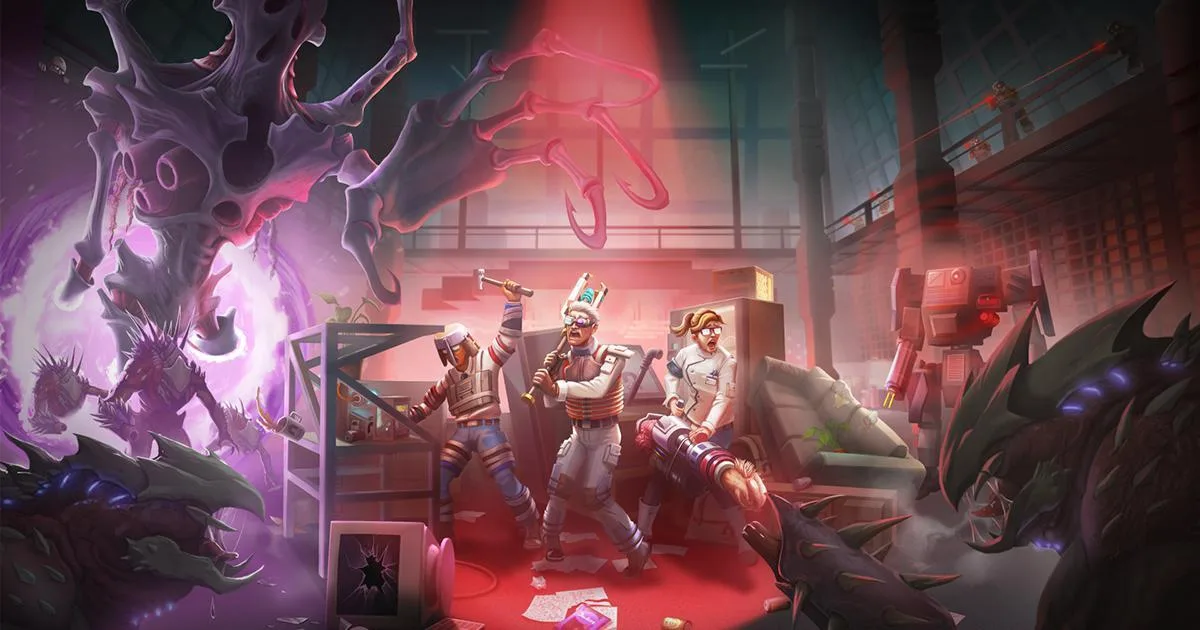
Master Abiotic Factor's controls and UI! Learn movement, interaction, inventory management, and essential HUD elements to survive the underground.
Hey there! So you've found yourself in the depths of the underground in Abiotic Factor, huh? It can be a bit overwhelming at first, but don't worry, I've got your back. Let's break down the controls and the user interface so you can navigate this place like a pro. ## Movement and Interaction Getting around and interacting with the world is pretty straightforward, but there are a few things to keep in mind. * Movement: You'll use the standard WASD keys to move around. Holding down Shift will make you sprint, which is super handy for escaping danger or just getting to that next objective faster. Crouching with Ctrl can help you stay out of sight or fit through smaller gaps. * Looking Around: The mouse is your best friend here. Move it to look around your environment. This is crucial for spotting threats or finding those hidden resources. * Interacting: Most of the time, you'll be pressing E to interact with objects. This could be picking up items, opening doors, pulling levers, or using terminals. Keep an eye on the prompt that pops up – it'll tell you exactly what button to press. * Using Items: Once you've picked up an item, you'll usually press Left Mouse Button to use it. This could be anything from drinking a health potion to activating a piece of equipment. * Dropping Items: Sometimes you'll need to make space in your inventory. Pressing G will drop the item you're currently holding. ## Inventory and Equipment Managing your gear is key to survival. You'll be juggling a lot of different items, so getting a handle on the inventory screen is important. * Opening Inventory: Press Tab to bring up your inventory. Here you'll see all the items you've collected. * Equipping Items: You can equip weapons and tools directly from your inventory. Just select the item and choose the equip option. * Using Items from Inventory: You can also use certain items, like consumables, directly from the inventory screen by right-clicking on them and selecting 'Use'. * Crafting: As you find components, you'll want to craft new items. The crafting menu is usually accessible from your inventory or a dedicated crafting station. Keep an eye out for recipes! ## The Heads-Up Display (HUD) The HUD is your main source of information while you're out in the world. It might seem like a lot at first, but you'll get used to it quickly. * Health Bar: This is usually in a corner of the screen (often the bottom left). Keep an eye on this – when it gets low, you're in trouble! * Stamina Bar: If you're sprinting or performing strenuous actions, you'll see a stamina bar. It depletes with use and regenerates over time. Don't run out of stamina at the wrong moment! * Objective Marker: A compass or a marker on the edge of your screen will usually point you towards your current objective. Don't ignore this – it's your main guide! * Item Hotbar: You'll likely have a row of slots at the bottom of your screen where you can assign your most frequently used items or weapons. You can cycle through these with the number keys (1-9) or the mouse wheel. * Interaction Prompts: As mentioned before, keep an eye out for prompts that tell you what to do with nearby objects. ## Other Important Controls * Map: Press M to open your map. This is essential for navigating the complex underground facility. * Journal/Log: You might have a journal or log to track your progress, quests, and discovered lore. Check the keybind for this, often J or L. * Pause Menu: Press Esc to bring up the pause menu, where you can save your game, adjust settings, or quit. Remember, practice makes perfect! The more you play, the more intuitive these controls will become. Don't be afraid to experiment a little, and always keep an eye on your surroundings. Good luck down there!100% Human-Written. AI Fact-Checked. Community Verified. Learn how AntMag verifies content