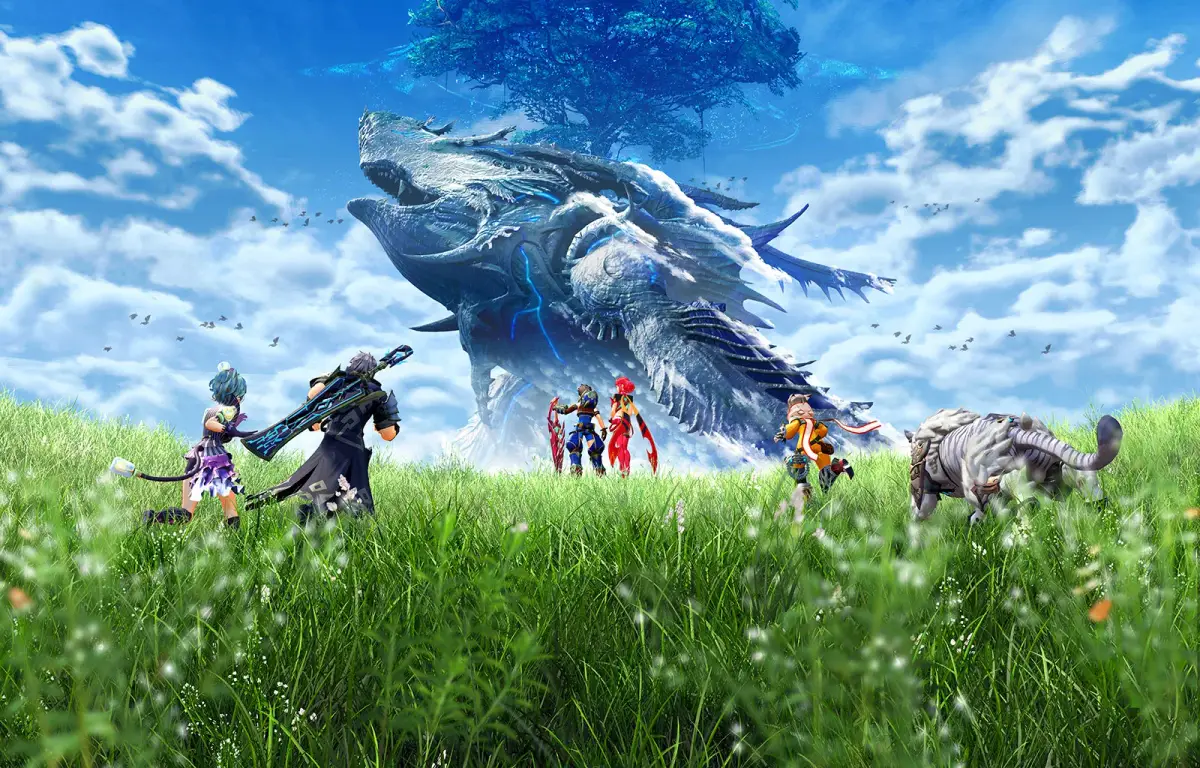
Learn the core mechanics of Xenoblade Chronicles 2's combat system, including initiating battles, understanding enemy weaknesses, managing aggro, auto-attacking, Arts, and Special attacks.
The combat in Xenoblade Chronicles 2 can seem daunting at first, but as you learn to use the mechanics, it can become much easier to utilize. How easy or difficult this game is largely depends on your understanding of the battle systems, and how well you utilize the tools available to you, so it is very worth your time to practice.
Most battle mechanics are presented to you inside the game through the tutorial system, but seeing as this can sometimes be overwhelming, and you cannot currently review tutorials in-game, you might miss things, and even forget some of the basics. As such, this section will endeavor to explain the systems as clearly as possible. No spoilers will be included in this section, so you will not need to worry about that either.
Initiating Battle
A lot of enemies are aggressive and will target you regardless of if you want to fight or not, but there are quite a few docile enemies that you may wish/need to battle that won't. Also, if you are eight or more levels higher than a monster, they will ignore you, even if they would have fought you before. The one exception to this rule is Unique Monsters, who will target you no matter what level you are, or if their species is generally docile. To initiate battle yourself, you can target an enemy with the R button. If you would like to change targets, hold down the R button and then press Y to switch to the left or A to switch to the right; this works both in and out of battle. After targeting an enemy, press the A button to take out your weapon, and the battle will begin if you are in range for your weapon to land a hit. Another way to start a battle is to target an enemy and press the down button to toss a rock and lure an enemy toward you from a distance, and/or in a group of enemies if you would only like to face off against the one. Be warned, however, that some enemies will not come alone and will always alert others around it. If you would like to stop targeting an enemy, you can hold R and press B to sheathe your weapon; this works in battle as well, however you will need to flee the area as well, but the battle will end once you are out of range of the monster. If you change targets, and would like the rest of your party to do the same, press the left button to have them focus on the same target.
Battle Information
When in battle, the enemy's information will be displayed at the top of the screen. The name of the enemy you are targeting is displayed. On the left side of the bar is the enemy's level, which will give a rough indication of its relative difficulty. On the right side, you will see an icon indicating its _weakness_. This icon is often misunderstood to be the enemy's element, not weakness. Each element is opposed by another, and they are weak to each other. Attacks and Specials of the weakness will do extra damage to the enemy, whereas attacks of the same element will do less damage.
- Fire <-> Water
- Wind <-> Ice
- Earth <-> Electric
- Light <-> Dark
Aggro
When in battle, the enemies will only target one party member at time. Whom is being targeted is indicated by a red ring encircling the party member. On this ring are yellow indicators showing you which direction they are in relation to you. Certain Drivers are more capable of surviving with Aggro than others, and this is largely determined by equipped Blades and accessories. Certain Arts and accessories also allow you to either increase or decrease the amount of Aggro you are receiving.
Auto Attacking
Auto attacks are at the core of the battle system. You need not press a button to attack, you merely need to stand still. If you move around the battlefield, you will stop attacking. As you attack, you will notice that the attacks always come in sets of three, with each hit becoming more powerful than the last. (some weapons do attack more the three times in a series. However, while more hits may land, for all intents and purposes, these still only count as three main attacks)
Arts
Arts are very important to battle. The auto-attacks may be your default method of attack, but Arts will be your main way of dealing damage. Your available arts are located on the lower right corner of your screen. Arts will recharge with each auto-attack you land, and each art requires a certain number of hits to activate. (how many attacks are required to recharge each art can be found in the Enhance Arts menu) To use the art, press the button corresponding to each art. (X tor the top, Y for the left, and B for the bottom) Each weapon has it's own set of Arts that can be used, and these usually vary from Driver to Diver. (i.e. Rex has access to different Arts when using Twin Rings than Nia does) By unlocking specific skills for your Drivers, you will be able to use an Art assigned to a specific button at the start of the battle.
Attack Cancelling
If you use an Art at the precise moment that your auto-attack finishes, you will perform an auto-attack cancel, which will increase the power of your Art. If you succeed, you will see visual cue in the form of a white circle. Each stage of the auto-attack sequence will boost the power even more, so using an Art as you land your final hit in the sequence will be boosted by more than the first attack. Each driver has a skill that can be unlocked that will allow them to cancel an Art into another Art, making it easier to land stronger hits. Attack cancelling can be tricky to learn, but learning how to do it properly will increase the amount of damage you do in battle, making fights much easier. There are certain accessories that can increase the window of opportunity for cancelling if you need the help in learning the timing.
Specials
The icon on the right, beside your Arts, is your Special. Specials are charged by using your Arts in battle. The Special can be charged quicker if you succeed at attack cancelling into the A
100% Human-Written. AI Fact-Checked. Community Verified. Learn how AntMag verifies content