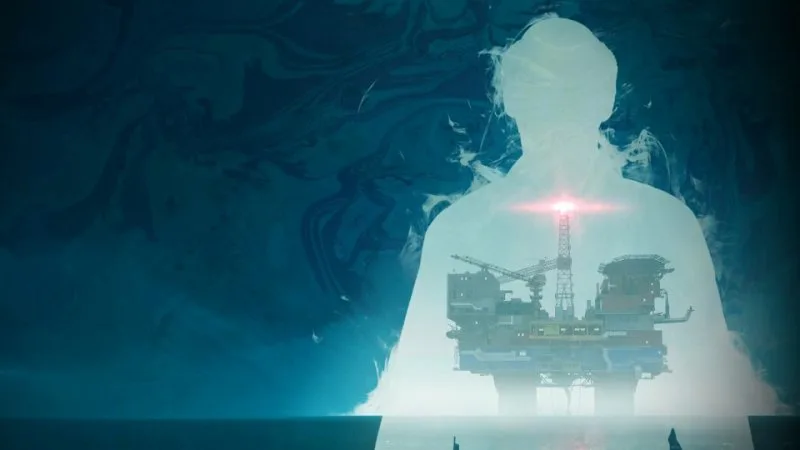
Resolve technical issues in Still Wakes the Deep. Find solutions for common problems, performance tips, and troubleshooting steps for the Beira D.
Experiencing technical difficulties with Still Wakes the Deep? This section provides solutions to common issues, performance tips, and troubleshooting steps to ensure a smooth, terrifying journey aboard the Beira D.
Common Issues & Solutions
Game Crashes or Freezes
If your game is unexpectedly closing or becoming unresponsive, try the following:
- Update Graphics Drivers: Ensure your NVIDIA, AMD, or Intel graphics drivers are up to date. Visit your manufacturer's website for the latest versions.
- Verify Game Files: On platforms like Steam, right-click Still Wakes the Deep in your library, select 'Properties,' then 'Local Files,' and choose 'Verify integrity of game files.' This checks for and repairs any corrupted or missing game data.
- Close Background Applications: Other demanding programs running in the background can consume system resources. Close unnecessary applications before launching the game.
- Lower Graphics Settings: Temporarily reduce graphical options like texture quality, shadows, and anti-aliasing in the game's settings menu to see if stability improves.
Performance Drops (Low FPS)
Struggling with choppy frame rates? These steps can help boost performance:
- Adjust Display Settings:
- Resolution: Lowering the game's resolution can significantly impact performance. Experiment with resolutions that match your monitor's native aspect ratio.
- V-Sync: While V-Sync can prevent screen tearing, it can also introduce input lag and cap your frame rate. Try disabling it to see if your FPS increases.
- Frame Rate Limit: If your system is struggling to maintain a consistent frame rate, consider setting a specific frame rate limit in the game's graphics options (e.g., 30 or 45 FPS) to avoid drastic drops.
- Optimize Graphics Options:
- Shadow Quality: This is often one of the most performance-intensive settings. Reducing it from 'Ultra' or 'High' to 'Medium' or 'Low' can yield substantial gains.
- Texture Quality: While visually impactful, high-resolution textures require more VRAM. If you have limited VRAM, lowering this setting can help.
- Ambient Occlusion & Volumetric Fog: These effects add depth and atmosphere but are also demanding. Try disabling or lowering them.
- Check System Requirements: Ensure your PC meets or exceeds the recommended system requirements for Still Wakes the Deep.
Audio Issues (No Sound, Stuttering Audio)
If you're not hearing the chilling sounds of the Ios or the audio is distorted:
- Check Audio Output Device: In your operating system's sound settings, ensure the correct playback device (speakers or headphones) is selected and set as the default.
- Update Audio Drivers: Similar to graphics drivers, outdated audio drivers can cause problems. Visit your motherboard or sound card manufacturer's website.
- In-Game Audio Settings: Navigate to the audio options within Still Wakes the Deep and verify that the master volume and other relevant sliders are not muted or set too low.
- Restart the Game: Sometimes a simple restart can resolve temporary audio glitches.
Input Lag or Unresponsive Controls
If your character's actions feel delayed or unresponsive:
- Controller vs. Keyboard/Mouse: If using a controller, try switching to keyboard and mouse, or vice-versa, to see if the issue persists. Ensure your controller is properly connected and recognized by your system.
- Disable Steam Input (if applicable): For Steam users, go to Steam > Settings > Controller > General Controller Settings and try disabling 'PlayStation Configuration Support' or 'Xbox Configuration Support' if you're experiencing issues with a specific controller.
- Check for Driver Conflicts: Other input devices or software that emulate input could be causing conflicts. Temporarily disable them.
- Reduce Graphics Settings: As mentioned in performance tips, lower graphics settings can indirectly improve input responsiveness by ensuring a smoother frame rate.
Advanced Troubleshooting
Corrupted Save Files
While rare, save files can become corrupted. If you suspect this is the case:
- Use Older Saves: If the game offers multiple save slots, try loading an earlier save file.
- Cloud Saves: If you use cloud saving services (like Steam Cloud), try disabling it, launching the game to see if the issue is resolved with a local save, and then re-enabling it.
Shader Compilation Issues
Some games perform shader compilation upon first launch or after driver updates, which can sometimes cause stuttering or temporary freezes. Ensure the game has sufficient time to complete this process, especially after initial installation or updates.
Reporting Bugs
If you encounter a persistent bug or technical issue not covered here, consider reporting it to the developers. Check the game's official website or community forums for information on how to submit bug reports.
100% Human-Written. AI Fact-Checked. Community Verified. Learn how AntMag verifies content