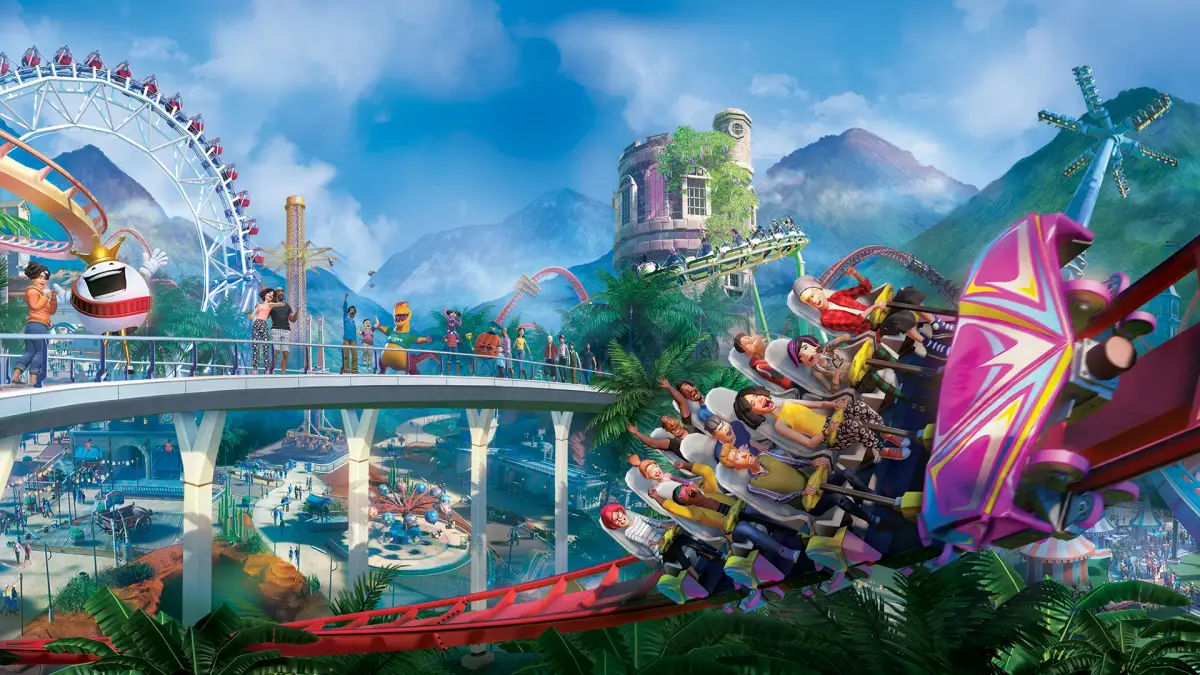
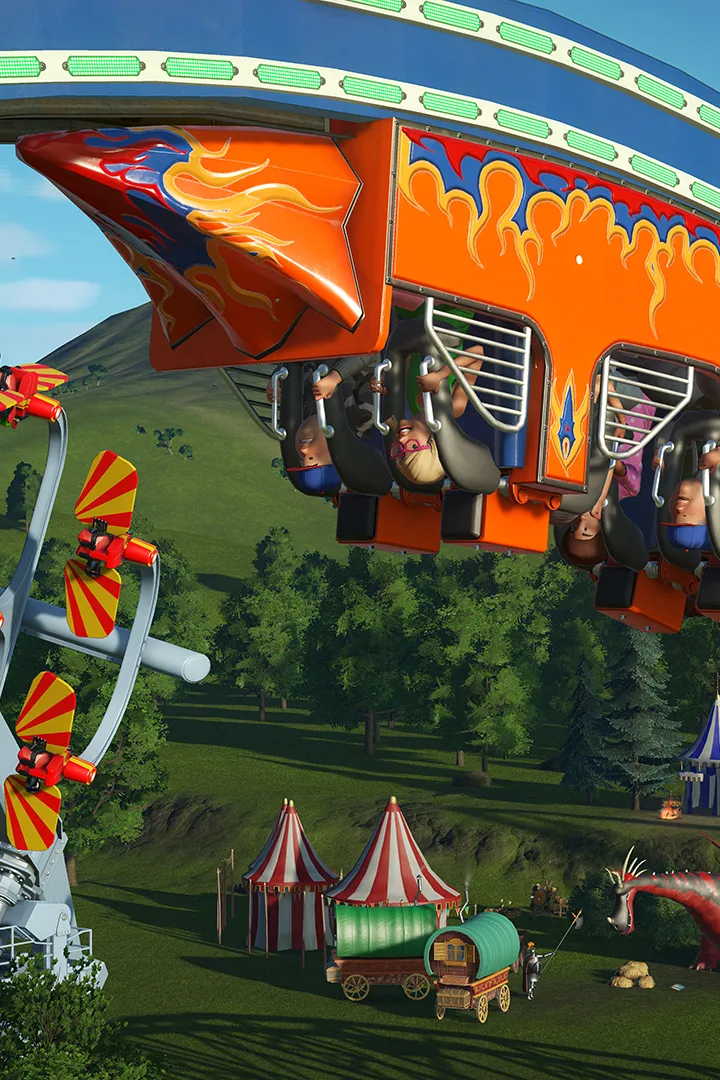
Master advanced scenery placement and building in Planet Coaster. Learn intricate detailing techniques to create immersive environments, enhance guest experien.
Moving beyond simply dropping down a few trees, advanced scenery placement in Planet Coaster is about creating immersive environments, enhancing guest experience, and even subtly guiding park flow. This section will delve into techniques for intricate detailing, thematic cohesion, and leveraging the game's powerful building tools to elevate your park's aesthetic.
Mastering the Grid and Beyond
While the grid is your friend for foundational structures, true mastery of scenery involves breaking free from its rigid constraints. Understanding how to manipulate placement options is key.
- Grid Placement (Default): Most scenery items, especially larger structures, will snap to the park's underlying grid. This is excellent for creating uniform paths, building walls, and aligning large props like the "Grand Entrance Arch" (found under Buildings > Entrances).
- Advanced Move (X): This is your most powerful tool. Pressing 'X' after selecting an item allows for precise, free-form movement.
- Vertical Adjustment: Use the 'Z' key (or corresponding controller input) to raise or lower objects, allowing you to embed items into terrain, create floating elements, or finely adjust heights. This is crucial for placing items like the "Small Rock Cluster" (Scenery > Rocks & Cliffs) naturally into a hillside or positioning a "Hanging Basket" (Scenery > Decorations > Flowers) at just the right height on a building.
- Rotation: Use the 'Z' key again (or controller input) while in Advanced Move mode to rotate objects on their axis. This is vital for breaking up repetition. Instead of placing identical "Oak Trees" (Scenery > Trees > Deciduous) in a straight line, rotate them slightly to create a more organic forest feel.
- Fine Movement: Hold 'Shift' while moving an object with 'X' for even finer adjustments, perfect for nudging a "Park Bench" (Scenery > Benches) into a snug corner or aligning a "Wooden Fence Post" (Scenery > Fences > Wooden) perfectly with another.
- Angle Snap (Ctrl + Z): Toggle this feature to snap rotations to specific angles (e.g., 45 degrees). Useful for creating symmetrical designs or aligning multiple pieces of a modular building kit, such as the "Frontier Wall Set" (Buildings > Wall Sets).
- Collision Toggle (V): Sometimes, you'll want objects to overlap or clip slightly for a more natural look. Press 'V' to toggle collision detection on or off. This is invaluable when creating dense foliage with "Bushy Shrubs" (Scenery > Shrubs & Bushes) or when building intricate rock formations using various "Cliff Face" pieces (Scenery > Rocks & Cliffs).
Modular Building Techniques
Planet Coaster's modular building system allows for incredible flexibility. Don't just use pre-built structures; construct your own unique buildings and facades.
- Foundation First: Start with a solid base. Use "Basic Wall Panels" (Buildings > Wall Panels > Basic) or "Stone Wall Panels" (Buildings > Wall Panels > Stone) to define the footprint of your structure.
- Layering Details: Add architectural elements.
- Windows & Doors: Integrate "Wooden Window Frames" (Buildings > Windows & Doors > Wooden) or "Arched Doorways" (Buildings > Windows & Doors > Arched) into your walls. Use Advanced Move ('X') to precisely position them.
- Roofs: Experiment with different roof types like "Sloped Roof Tiles" (Buildings > Roofs > Tiled) or "Flat Roof Panels" (Buildings > Roofs > Flat). Remember to use Angle Snap (Ctrl + Z) for consistent slopes.
- Trim & Accents: Use smaller pieces like "Wooden Beams" (Buildings > Structural > Wooden) or "Decorative Cornices" (Buildings > Architectural > Ornaments) to add depth and character. These are excellent for breaking up large, flat surfaces.
- Grouping (Ctrl + G): Once you've built a section or an entire building, select all its components and press 'Ctrl + G' to group them. This allows you to move, copy, and save the entire structure as a blueprint, making it reusable. This is particularly useful for creating themed building sets like "Medieval Cottages" or "Sci-Fi Outposts."
- Saving Blueprints: After grouping, click the "Save as Blueprint" icon (the floppy disk icon) in the bottom right menu. Name your blueprint appropriately (e.g., "Pirate Tavern - Main Building") and categorize it for easy access in your "My Blueprints" tab.
Thematic Cohesion and Storytelling
Great scenery tells a story and creates a consistent theme throughout your park.
- Zoning: Divide your park into distinct themed zones (e.g., "Adventureland," "Frontier Town," "Sci-Fi Sector"). Each zone should have its own unique set of scenery, architecture, and even path types. For an "Adventureland" zone, focus on items like "Jungle Trees" (Scenery > Trees > Tropical), "Ancient Ruins" (Scenery > Themed > Ancient), and "Rope Bridges" (Scenery > Fences > Themed).
- Path Decor: Don't neglect your paths! Place "Street Lamps" (Scenery > Lighting > Street), "Trash Bins" (Scenery > Bins), and "Information Boards" (Scenery > Information) that match your theme. Consider using different path textures available under the Paths menu for each zone.
- Foliage Density: Use several plants to create natural-looking landscapes.
- Canopy: Large trees like "Giant Redwood" (Scenery > Trees > Coniferous) provide height and shade.
- Mid-level: Medium-sized trees and tall shrubs like "Flowering Bushes" (Scenery > Shrubs & Bushes) fill in the space.
- Ground Cover: Small plants, flowers, and even rocks like "Pebble Clusters" (Scenery > Rocks & Cliffs) add detail at ground level.
- Lighting: Strategic lighting can dramatically change the mood of an area. Use "Spotlights" (Scenery > Lighting > Spotlights) to highlight key features, "Fairy Lights" (Scenery > Lighting > Decorative) for a festive atmosphere, or "Torch Sconces" (Scenery > Lighting > Themed) for a medieval or fantasy theme. Remember to adjust their color and intensity.
- Sound Effects: Don't forget the auditory experience! Place "Audio Emitters" (Scenery > Special Effects > Audio) to play ambient sounds like "Jungle Sounds" or "Ocean Waves" to further immerse guests in your themed areas.
Terraforming and Scenery Integration
Seamlessly blending your scenery with the terrain is crucial for a professional look.
- Terrain Tools: Use the Terrain menu to sculpt hills, valleys, and water features.
- Raise/Lower Terrain: Create natural undulations.
- Flatten Terrain: Essential for creating building plots.
- Smooth Terrain: Softens harsh edges for a more organic look.
- Paint Terrain: Apply different textures like "Grass," "Dirt," "Rock," or "Sand" to match your theme.
- Embedding Objects: Use the Advanced Move ('X') and vertical adjustment ('Z') to embed rocks, trees, and even parts of buildings into the terrain. This makes them look like they belong there, rather than just being placed on top. For example, partially bury "Large Boulders" (Scenery > Rocks & Cliffs) into a hillside.
- Water Features: Integrate scenery around lakes and rivers. Place "Reeds" (Scenery > Plants > Aquatic) along the banks, or build a "Wooden Dock" (using "Wooden Planks" from Buildings > Structural > Wooden) extending into the water.
By diligently applying these advanced techniques, your Planet Coaster parks will transform from functional amusement hubs into breathtaking, immersive worlds that captivate your guests and showcase your creative vision.
100% Human-Written. AI Fact-Checked. Community Verified. Learn how AntMag verifies content