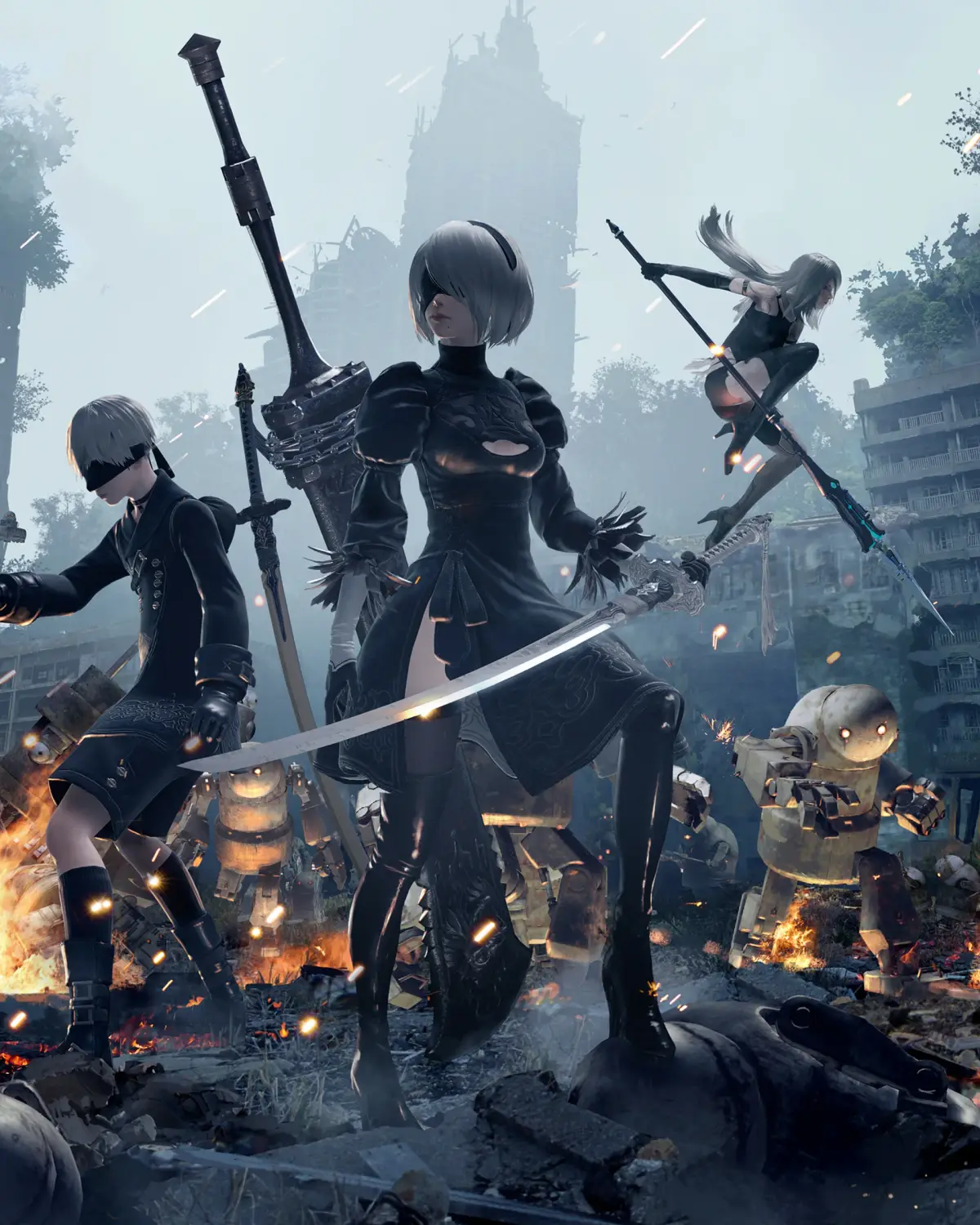
Confused by Nier: Automata's controls? This guide breaks down Type A, B, and C button mappings for Pod Programs, attacks, evasion, and more. Get a grip on combat!
Alright, let's get you sorted with how to actually *play* Nier: Automata. It can be a bit overwhelming at first with all the different button assignments, especially since there are a few control schemes you can choose from. Don't sweat it, though! We'll break down exactly what each button does for the main control types.
Think of these as different ways to set up your controller. You can usually switch between them in the game's options menu, so if one feels weird, you can always try another. The core actions are the same, but who does what button is what changes.
Type A Controls
This is likely the most standard setup you'll find. It feels pretty intuitive if you've played action games before.
| BUTTON | FUNCTION | |
| L1 Button | Pod Program | |
| L2 Button | Lock-on | |
| L3 Button | Toggle Light | |
| R1 Button | Fire | |
| R2 Button | Evade | |
| R3 Button | Reset Camera | |
| TRIANGLE Button | Heavy Attack | |
| CIRCLE Button | Action | |
| SQUARE Button | Light Attack | |
| CROSS Button | Jump | |
| Touch Pad | Shortcuts (left), System Menu (right) | |
| D-Pad | System Menu |
Type B Controls
This setup swaps a couple of key functions around, most notably how you trigger your Pod Programs and fire your weapons. Some players prefer this for quicker access to certain abilities.
| BUTTON | FUNCTION | |
| L1 Button | Lock-on | |
| L2 Button | Pod Program | |
| L3 Button | Toggle Light | |
| R1 Button | Evade | |
| R2 Button | Fire | |
| R3 Button | Reset Camera | |
| TRIANGLE Button | Heavy Attack | |
| CIRCLE Button | Action | |
| SQUARE Button | Light Attack | |
| CROSS Button | Jump | |
| Touch Pad | Shortcuts (left), System Menu (right) | |
| D-Pad | System Menu |
Type C Controls
This scheme is a bit more unconventional, moving attacks and pod programs to the shoulder buttons. It might take some getting used to, but it could offer a unique flow for your combat.
| BUTTON | FUNCTION | |
| L1 Button | Heavy Attack | |
| L2 Button | Fire | |
| L3 Button | Lock-on | |
| R1 Button | Light Attack | |
| R2 Button | Evade | |
| R3 Button | Reset Camera | |
| TRIANGLE Button | Pod Program | |
| CIRCLE Button | Action | |
| SQUARE Button | Toggle Light | |
| CROSS Button | Jump | |
| Touch Pad | Shortcuts (left), System Menu (right) | |
| D-Pad | System Menu |
No matter which type you choose, remember that the Touch Pad and D-Pad are your go-to for system menus and shortcuts. Don't forget to experiment and find the control scheme that feels best for you!
100% Human-Written. AI Fact-Checked. Community Verified. Learn how AntMag verifies content