Fix common problems in Just Dance 2024 Edition. This guide offers solutions for connection issues and other groove-disrupting snags.
Even the most seasoned dancers can hit a snag! This section will help you diagnose and resolve common issues you might encounter while grooving in Just Dance 2024 Edition. Follow these detailed steps to get back to the dance floor without missing a beat.
Controller Connection Problems
Is your controller acting up or refusing to connect? Don't let a faulty connection ruin your dance party!
Nintendo Switch Joy-Cons/Pro Controller
- Check Battery Levels: Ensure your Joy-Cons or Pro Controller are sufficiently charged. Low battery can cause intermittent disconnections or failure to pair.
- Re-sync Controller:
- From the Nintendo Switch HOME Menu, select "Controllers."
- Choose "Change Grip/Order."
- On the controller you wish to re-sync, press and hold the SYNC Button (small, round button located between the SR and SL buttons on Joy-Cons, or on the top edge of the Pro Controller near the USB-C port) for at least one second.
- You indicator lights will flash, and once connected, they will remain solid.
- Interference Check: Ensure there are no large metal objects, other wireless devices, or excessive distance between your controller and the Nintendo Switch console.
- Restart Console: Sometimes a full system restart can resolve connectivity glitches. Hold down the POWER Button on the console for three seconds, then select "Power Options" > "Restart."
PlayStation/Xbox Controllers
- Battery Check: Confirm your controller has enough charge. Connect it via USB cable to your console to charge and test the connection simultaneously.
- Re-pair Controller:
- PlayStation: Turn off your controller. On your PS5/PS4, go to "Settings" > "Devices" > "Bluetooth Devices" (PS4) or "Accessories" > "Bluetooth Accessories" (PS5). Select your controller and choose "Forget Device." Then, press and hold the PS button and Share button simultaneously on your controller until the light bar flashes, indicating pairing mode. On your console, select "Add Bluetooth Device" and choose your controller.
- Xbox: Turn off your controller. Press the Pair button on your console (small button on the front or side, depending on model) until the console's power button flashes. Then, press and hold the Pair button on the top of your controller until the Xbox button flashes rapidly. Once paired, the Xbox button will remain solid.
- USB Connection Test: If wireless pairing fails, try connecting your controller directly to the console using a USB cable. If it works, the issue might be with the wireless module or interference.
- Console Restart: Perform a full power cycle of your console. Turn it off completely, unplug it from the power outlet for 30 seconds, then plug it back in and restart.
Just Dance Controller App (Mobile Devices)
- Wi-Fi Connection: Both your mobile device running the Just Dance Controller app and your game console MUST be connected to the SAME Wi-Fi network. Check your device's Wi-Fi settings and your console's network settings to confirm.
- App Permissions: Ensure the Just Dance Controller app has all necessary permissions enabled on your mobile device (e.g., local network access, microphone if applicable). You can usually find these in your device's "Settings" under "Apps" or "Privacy."
- App and Game Updates: Make sure both the Just Dance 2024 Edition game on your console and the Just Dance Controller app on your mobile device are updated to their latest versions. Outdated software can cause compatibility issues.
- Restart App and Console: Close the Just Dance Controller app completely on your mobile device and restart it. Also, exit and relaunch Just Dance 2024 Edition on your console.
- Firewall/Router Settings: In rare cases, your router's firewall settings might be blocking communication between devices. Consult your router's manual or ISP for instructions on temporarily disabling or adjusting firewall settings for testing purposes.
Lag or Performance Issues
Experiencing choppy gameplay or delayed reactions? Optimize your setup for a smoother dance experience.
Input Lag
- TV Game Mode: Many modern TVs have a "Game Mode" setting that reduces input lag by bypassing certain image processing. Access your TV's picture settings (often found under "Picture," "Display," or "Advanced Settings") and enable "Game Mode" for the HDMI input your console is connected to.
- Disable Post-Processing: Turn off any unnecessary picture enhancements on your TV, such as motion smoothing, dynamic contrast, or noise reduction, as these can introduce lag.
- Direct HDMI Connection: Ensure your console is connected directly to your TV via HDMI, not through an A/V receiver or soundbar that might add processing delay.
- Controller Type: Wireless controllers generally have minimal lag, but if you're experiencing significant issues, try a wired connection if your controller supports it (e.g., a Pro Controller connected via USB to the Switch dock).
Graphical Stuttering/Framerate Drops
- Close Background Applications: On consoles that support it (like Xbox Series X/S or PS5), ensure no other demanding games or applications are running in the background.
- Console Storage: While less common for Just Dance, a nearly full console hard drive can sometimes impact performance. Ensure you have adequate free space.
- Restart Game/Console: A simple restart of the game or the entire console can often clear up temporary performance hiccups.
Online Connectivity Problems (Just Dance+)
Having trouble accessing Just Dance+ content or playing online with friends?
- Internet Connection Stability:
- Wired Connection: For the most stable online experience, connect your console directly to your router using an Ethernet cable.
- Wi-Fi Signal Strength: If using Wi-Fi, ensure your console has a strong signal. Move closer to your router or consider using a Wi-Fi extender.
- Other Devices: Temporarily disconnect other devices from your network that might be consuming significant bandwidth (e.g., streaming 4K video, large downloads).
- Check Service Status: Occasionally, Ubisoft or your console's online services (Nintendo eShop, PlayStation Network, Xbox Live) might be experiencing outages. Check their official status pages online.
- Router Reboot: Power cycle your router and modem. Unplug them from the power outlet for 60 seconds, then plug them back in and wait for them to fully restart before testing your connection.
- NAT Type: Your Network Address Translation (NAT) type can affect online multiplayer. An "Open" or "Type 1" NAT is ideal. "Moderate" or "Type 2" might work, but "Strict" or "Type 3" can cause significant connection issues. Consult your router's manual or ISP for information on how to adjust NAT settings (often involves port forwarding).
- Game Updates: Ensure your Just Dance 2024 Edition game is fully updated. Online features often require the latest patches.
Scoring Inaccuracies
Feeling like your moves aren't being recognized correctly, even when you're nailing the choreography?
- Controller Grip:
- Joy-Cons: Hold the right Joy-Con firmly in your right hand, ensuring your wrist strap is secure. The game primarily tracks the movement of this hand.
- Mobile App: Hold your mobile device securely in your right hand. Avoid gripping it too tightly or too loosely, as this can affect its ability to track motion accurately.
- Clear Space: Ensure you have enough space to move freely without hitting anything. Restricted movement can lead to less expressive and therefore less accurately tracked motions.
- Lighting Conditions (Camera-based tracking - if applicable for your setup): If you are using a camera for tracking (e.g., PS Camera on PS4, Kinect on Xbox One - though less common for JD2024), ensure the room is well-lit and there are no strong backlights or reflections that could interfere with the camera's ability to see you clearly.
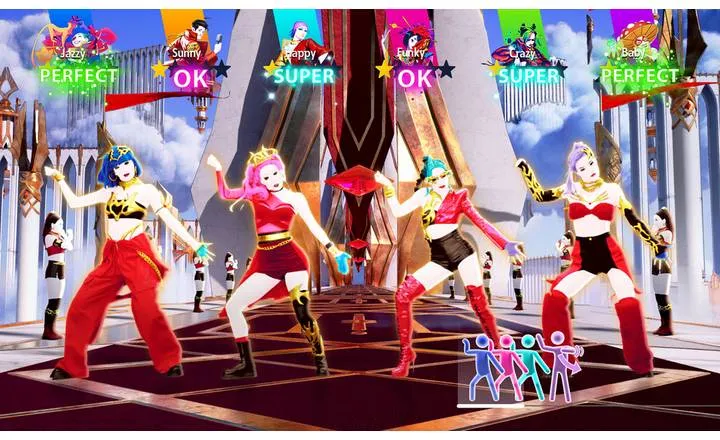
- Follow the Coach: Pay close attention to the on-screen coach's movements and the pictograms. Sometimes, a slight adjustment to your timing or the angle of your hand can make a big difference in score recognition.
- Calibrate Controller (if option available): Some console systems or games offer controller calibration. Check your console's settings or the Just Dance 2024 Edition options menu for any calibration tools.
If you've tried all these steps and are still experiencing persistent issues, consider reaching out to Ubisoft Support or your console's customer service for further assistance. Happy dancing!
100% Human-Written. AI Fact-Checked. Community Verified. Learn how AntMag verifies content