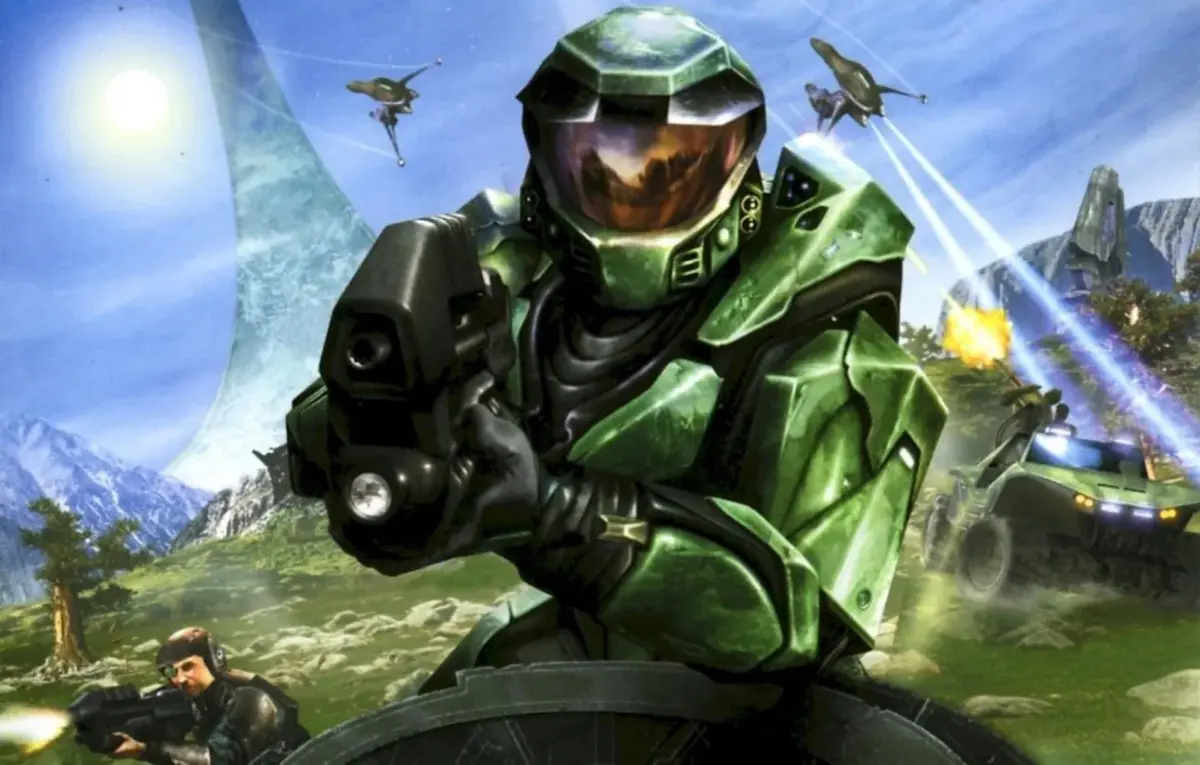
Learn how to adjust player name, controls, audio, video, and network settings for Halo: Combat Evolved to optimize your gameplay experience.
When you pause the game or select "Settings" from the main menu, you can access various options to customize your Halo: Combat Evolved experience. Remember to hit "Ok" on the settings section and then "Ok" on the options list to save your changes. A "Default" button is available in each section to revert settings.
Change Name: You can change your player name for multiplayer games. Names can be up to 12 characters long.
Customize Controls: If the default controls are uncomfortable, you can rebind actions like movement and firing. You can assign one keyboard and one mouse control per action. Mouse scroll wheel actions are also supported.
GamePad: If you are using a gamepad, this option allows you to customize its controls.
Mouse Setup:
- Horizontal Sensitivity: Adjusts turning speed left and right. Default is 3.
- Vertical Sensitivity: Adjusts turning speed up and down. Default is 3.
- Invert Vertical Axis: When set to "No" (default), moving the mouse forward looks up. When set to "Yes", moving the mouse forward looks down.
Audio Setup:
- Master Volume: Controls overall sound effects and music volume. Default is 10.
- Music Volume: Controls music volume. Default is 10. Setting to 0 turns music off.
- Effects Volume: Controls sound effects volume. Default is 10. Setting to 0 turns effects off.
- Hardware Acceleration: "No" (default) does not use sound buffers; "Yes" uses them.
- Sound Quality: Options are Low, Normal (default), and High, affecting audio fidelity based on PC performance.
- Environmental Sound: This setting is off and cannot be adjusted, controlling DirectX environmental sounds like echoes.
- Sound Variety: Default is High. Lowering to Normal or Low reduces sound variety, which can help performance on slower computers.
Video Setup:
- Resolution: Default is 800x600. Higher resolutions offer sharper visuals but require better PC performance. The latest patch supports higher resolutions.
- Refresh Rate: Default is 60HZ. Higher rates may cause display issues and should only be used if your monitor and video card support them.
- Framerate: Adjusts the game's framerate relative to the refresh rate, impacting performance.
- Specular: "On" adds luster to objects; "Off" removes it.
- Shadows: "On" adds dynamic shadows; "Off" removes them.
- Decals: "On" adds details like bullet holes and blood; "Off" removes them, potentially improving performance on slower PCs.
- Particles: Adjusts visual effects like sparks and dust.
- Texture Quality: Options include Low, Medium, and High for texture detail.
- Gamma: Adjusts screen brightness. Lowering darkens, raising brightens.
Network Options:
- Connection Type: Select your internet connection type (e.g., Dial Up, DSL, Cable) to optimize multiplayer performance.
- Server and Client Port: Configure ports for creating a server.
Change Color: This option is for multiplayer only, allowing you to change Master Chief's uniform color from a list of options or the default.
About: Displays your game's current ID and version number for technical support.
100% Human-Written. AI Fact-Checked. Community Verified. Learn how AntMag verifies content