
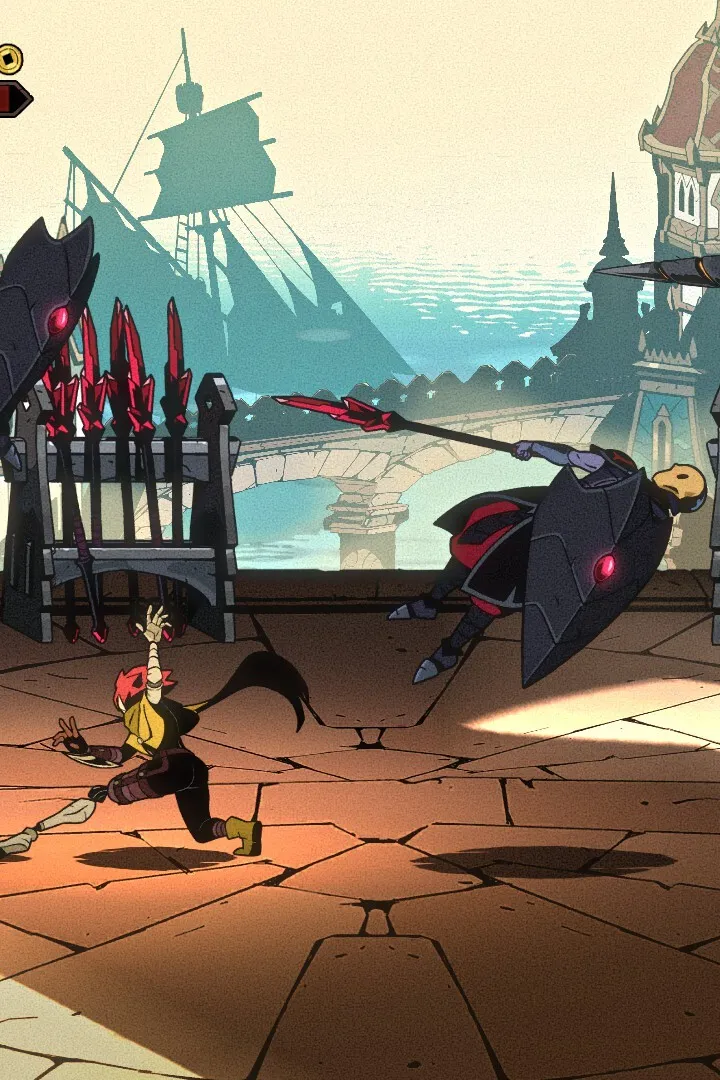
Master Absolum's controls and UI. Learn movement, combat, and menu navigation for a seamless gameplay experience. Optimize your interface.
Controls & UI in Absolum
Navigating the world of Absolum and engaging in its fast-paced combat requires a firm grasp of its controls and user interface. Understanding how to move, attack, use abilities, and manage your inventory efficiently is paramount to survival and progression. The UI provides critical information at a glance, from health and stamina to active buffs and enemy indicators.
Absolum's control scheme is designed for responsiveness, allowing players to execute complex maneuvers with precision. Whether you're on PC with a keyboard and mouse or a controller, the game aims to provide an intuitive experience. Familiarizing yourself with the default keybinds or customizing them to your preference will significantly enhance your gameplay. The UI elements are strategically placed to minimize obstruction while delivering essential data.
Core Movement Controls
- Movement: Typically handled by the WASD keys on PC or the left analog stick on a controller.
- Sprint: Holding down a dedicated key (e.g., Left Shift) or button allows for faster traversal.
- Dodge/Roll: A crucial defensive maneuver, usually mapped to Spacebar or a specific controller button. Timing this correctly is key to avoiding damage.
- Jump: While not always a primary combat mechanic, jumping can be used for minor environmental interaction or evasion.
Combat Controls
- Primary Attack: Left Mouse Button or a primary attack button on the controller. Used for basic weapon swings.
- Secondary Attack/Skill: Right Mouse Button or a secondary attack button. Often used for special weapon attacks or charged strikes.
- Ability Slots: Dedicated keys or controller buttons for activating character skills and spells. These are usually bound to numbers 1-4 or face buttons.
- Block/Parry: A defensive stance, often mapped to a dedicated button. Successful parries can open enemies to critical counter-attacks.
- Interact: Used for picking up items, opening chests, and interacting with NPCs or environmental objects.
User Interface (UI) Elements
The UI in Absolum is designed to be informative without being overwhelming. Key elements include:
- Health Bar: Displays your current health and maximum health.
- Stamina Bar: Depletes when sprinting, dodging, or performing certain attacks. Regenerates over time.
- Mana/Resource Bar: For characters like the Runeweaver, this shows their magical energy.
- Minimap: Provides a small overview of your immediate surroundings, often showing points of interest.
- Quest Log: Accessible through a menu, detailing active quests and objectives.
- Buff/Debuff Icons: Displayed near your health bar, indicating active positive or negative status effects.
- Targeting Reticle: Shows which enemy or object you are currently targeting.
Menu Navigation
Accessing menus is typically done via the 'Esc' key on PC or a dedicated menu button on a controller. From the main menu, you can access:
- Inventory: Manage your items, equipment, and consumables.
- Character Sheet: View your stats, skills, and equipped gear.
- Skill Tree: Allocate skill points to unlock new abilities.
- Map: View a larger, more detailed map of the areas you've explored.
- Options: Adjust game settings, controls, and audio.
Tips for Effective Control Usage
- Practice Dodging: Master the timing of your dodge roll to avoid damage.
- Keybind Customization: If the default controls feel awkward, rebind keys to a layout that suits you.
- UI Awareness: Regularly glance at your health and stamina bars to manage your combat effectiveness.
100% Human-Written. AI Fact-Checked. Community Verified. Learn how AntMag verifies content