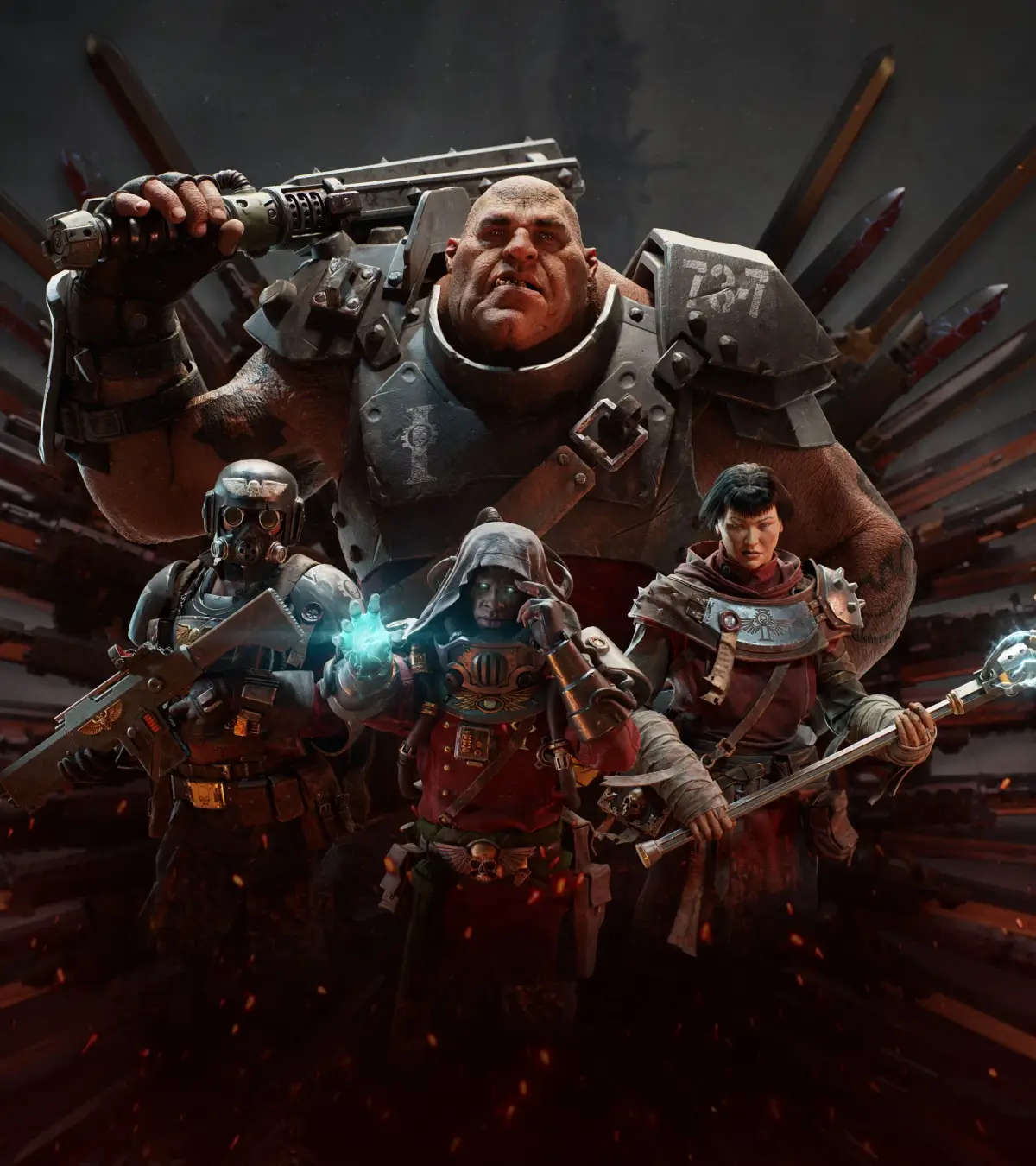
Struggling with performance in Warhammer 40,000: Darktide? Learn how to improve FPS and stability by adjusting in-game settings like Ray Tracing and ragdolls, and by tweaking the user_settings.config file.
If your PC struggles to run Warhammer 40,000: Darktide smoothly, you can implement several targeted tweaks to improve performance. Many of these adjustments can be made through the in-game menus, while advanced users can further optimize settings by editing the game's configuration file.
Note: Always back up your configuration file before making manual edits.
In-Game Settings to Improve FPS
Turn Ray Tracing Down
Initially, running Darktide with Ray Tracing set to High can cause significant performance drops during intense combat, such as large horde ambushes. If you experience stuttering or the game grinding to a halt, reduce the Ray Tracing option to Medium or Low via the in-game menu.
Lower Number of Ragdolls
The number of ragdolls, which affects how characters react to explosions, can also impact framerate during chaotic battles. If you notice performance issues when many enemies are present and being affected by explosions, consider lowering this setting from its default value (e.g., 12) to around eight. This change is often unnoticeable visually but can provide a performance boost.
Update Graphics Drivers
Ensure you have the latest graphics drivers installed for your AMD or Nvidia graphics card. Nvidia, in particular, has released Game Ready Drivers specifically for Darktide, which are likely to offer the best performance improvements.
Using the Darktide Config File to Boost FPS
For more granular control, you can edit the game's configuration file. First, locate the file by navigating to %appdata% in your File Explorer, then going into the Fatshark directory, and finally the Darktide directory. The file you need is named user_settings.config.
Before editing, create a backup copy of user_settings.config.
Open the file with a text editor to access a wider range of options than available in the UI. Some settings you might consider tweaking include:
decals_enabled: Setting this tofalsecan disable visual effects like scars on characters, potentially improving performance.max_worker_threads: Adjust this based on the number of threads your CPU has.
Generally, settings related to lighting, anti-aliasing, and resolution will heavily impact your GPU, while particle and effect generation are more CPU-intensive. Experiment with these settings, as optimal values vary depending on your system's components. Remember that editing this file can potentially cause game instability, but having a backup allows you to revert any changes.
Is Darktide Down?
Darktide launched on November 30th after a beta period. If you are unable to connect, it may be due to server downtime for maintenance or high player volume immediately following the game's release. Check official channels for any announcements regarding server status.
100% Human-Written. AI Fact-Checked. Community Verified. Learn how AntMag verifies content