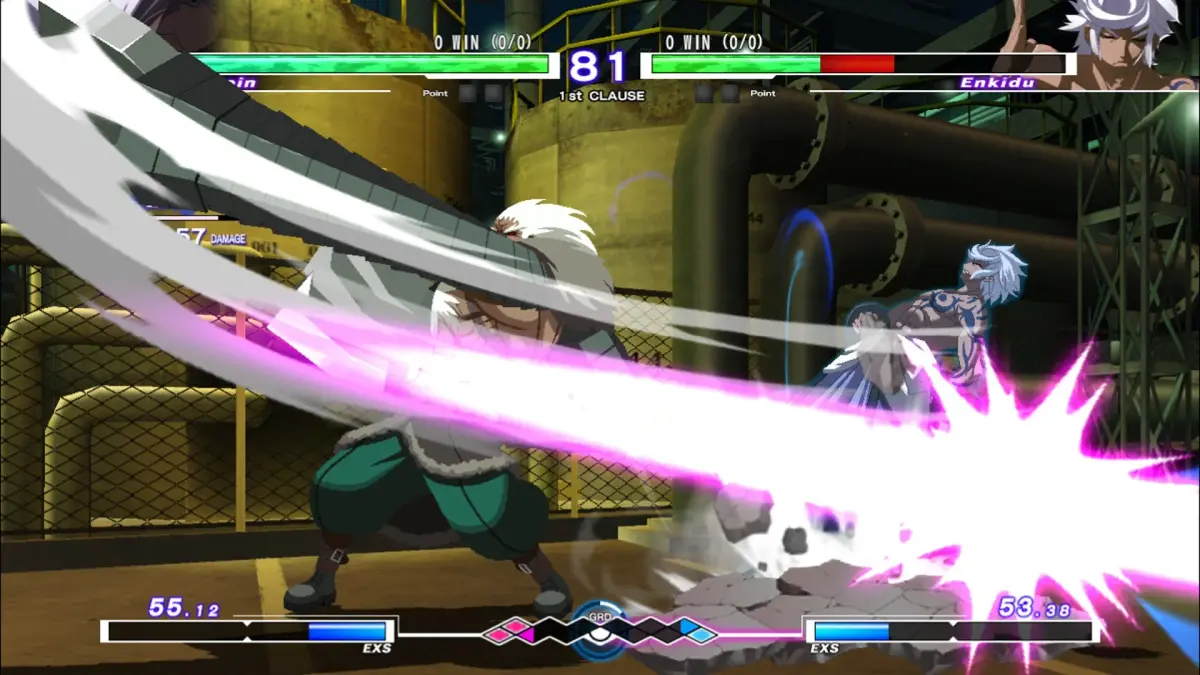
Personalize your fighter in Under Night In-Birth Exe:Late[cl-r] with this guide covering cosmetic changes and profile enhancements.
Character Creation & Customization
While Under Night In-Birth Exe:Late[cl-r] is primarily a fighting game with a fixed roster of unique characters, it offers a robust system for personalizing your chosen fighter's appearance and in-game presentation. This guide will walk you through the various customization options available, from cosmetic changes to profile enhancements.
Accessing Customization Options
To begin customizing your character, navigate to the main menu and select the "Customize" option. From there, you'll be presented with several sub-menus:
- Character Colors: Modify your character's outfit and effect colors.
- Player Icon: Change your profile picture displayed in online matches and leaderboards.
- Plate: Customize the background and border of your player profile.
- Title: Select a unique title to display alongside your username.
- Sound: Adjust character voices and system sounds.
Character Colors: Express Yourself
This is where the bulk of visual customization takes place. Each character has a set number of pre-defined color palettes, but you can also unlock and create your own. Follow these steps:
- From the "Customize" menu, select "Character Colors."
- Choose your desired character from the roster.
- You will see a list of available color palettes. The default palette is usually "Color 01."
- Unlocking New Palettes: Many additional color palettes (e.g., "Color 02" through "Color 10") are unlocked by playing through various game modes, such as Arcade Mode, Chronicle Mode, or by accumulating "IP" (In-Birth Points) which can be spent in the "Gallery" -> "Shop" section. Keep an eye out for specific character challenges that reward unique color sets.
- Custom Color Creation (Advanced): For truly unique looks, some characters offer "Custom Color" slots. To access these:
- Select a character, then scroll to the "Custom Color" slot (often labeled "Color 11" or higher).
- You'll be presented with a color editor. Here, you can individually adjust the hue, saturation, and brightness of various parts of your character's model, such as:
- Main Outfit: The primary clothing color.
- Secondary Outfit: Accent colors on clothing, belts, or straps.
- Hair Color: Change your character's hair.
- Eye Color: A subtle but impactful change.
- Weapon/Accessory Color: Modify the appearance of their unique weapon or accessories.
- EXS Effect Color: Alter the visual effects of their special moves and EXS abilities.
- Experiment with the sliders until you achieve your desired look. Remember to save your custom palette once you're satisfied. You can save multiple custom palettes per character.
Strategy Tip: Consider creating custom palettes that complement your favorite Player Icon and Plate for a cohesive personal brand. Some players even create palettes inspired by other fighting game characters or anime series!
Player Icon: Your Digital Face
Your Player Icon is a small image that represents you in online lobbies, match-ups, and leaderboards. There's a wide variety to choose from:
- From the "Customize" menu, select "Player Icon."
- Browse through the available icons. These typically include:
- Character Portraits: Stylized images of each character.
- Chibi Art: Adorable, super-deformed versions of the cast.
- Logos & Symbols: Icons representing factions, organizations, or general game motifs.
- Unlocking Icons: Many icons are unlocked by:
- Completing specific character's Arcade Mode routes.
- Achieving certain milestones in Score Attack or Time Attack.
- Purchasing them with IP from the "Gallery" -> "Shop." Look for "Icon Pack A," "Icon Pack B," etc., which often contain sets of related icons.
- Participating in limited-time events or owning specific DLC.
- Select the icon you wish to use.
Plate: The Canvas of Your Profile
The Plate acts as the background and border for your player profile, often displayed alongside your Player Icon and Title. It's another layer of personalization:
- From the "Customize" menu, select "Plate."
- You'll see options for "Background" and "Frame."
- Backgrounds: These are larger images that fill the main area of your profile plate. They often feature scenic locations from the game's stages, character-specific artwork, or abstract designs.
- Unlocking Backgrounds: Similar to icons, backgrounds are typically unlocked by:
- Progressing through Chronicle Mode.
- Reaching certain ranks in online play.
- Purchasing "Plate Background Set 1," "Plate Background Set 2," etc., from the "Gallery" -> "Shop" using IP.
- Unlocking Backgrounds: Similar to icons, backgrounds are typically unlocked by:
- Frames: These are decorative borders that surround your Player Icon and Title on the plate. They can range from simple geometric shapes to ornate, character-themed designs.
- Unlocking Frames: Frames are usually unlocked through:
- Completing specific challenges in Mission Mode.
- Achieving high scores in Survival Mode.
- Purchasing "Plate Frame Set A," "Plate Frame Set B," etc., from the "Gallery" -> "Shop" with IP.
- Unlocking Frames: Frames are usually unlocked through:
- Select your preferred Background and Frame to combine them into a unique plate.
Title: Your Personal Moniker
Titles are short phrases or words that appear next to your username, giving other players a quick glimpse into your playstyle, preferences, or achievements. There are hundreds of titles to discover:
- From the "Customize" menu, select "Title."
- You'll be presented with a vast list of titles, often categorized.
- Unlocking Titles: Titles are unlocked through a multitude of in-game actions:
- Character-Specific Titles: Playing a certain number of matches with a character (e.g., "The Void Seeker" for Hyde, "The Eternal Flame" for Linne).
- Mode Completion Titles: Finishing Arcade Mode on various difficulties, clearing all missions for a character, or completing Chronicle Mode chapters.
- Online Rank Titles: Reaching specific ranks in Ranked Match (e.g., "F-Rank Fighter," "C-Rank Combatant," "Master of the Night").
- Achievement Titles: Performing specific actions in battle (e.g., "Perfect Player" for winning without taking damage, "Combo Master" for landing long combos).
- IP Purchases: Many generic or themed titles can be bought from the "Gallery" -> "Shop" under "Title Pack 1," "Title Pack 2," etc.
- Hidden Titles: Some titles are unlocked by obscure conditions, encouraging exploration of all game features.
- Select the title that best represents you.
Strategy Tip: Don't be afraid to experiment with different title combinations. Some players use titles to intimidate opponents, while others use them to show off their favorite character or a sense of humor.
Sound: Fine-Tuning Your Experience
While not strictly "character creation," the Sound options allow you to customize the auditory experience, which can indirectly affect how you perceive your character and the game:
- From the "Customize" menu, select "Sound."
- Here you can adjust various audio settings:
- Voice Language: Switch between Japanese and English voice acting for characters. This is a crucial choice for many players.
- System Voice: Change the announcer's voice. Additional system voices may be unlocked via IP purchase in the "Gallery" -> "Shop" (e.g., "Announcer Voice Pack A").
- BGM Volume: Adjust the background music level.
- SFX Volume: Control the sound effects volume.
- Voice Volume: Adjust character voice volume independently.
Recommendation: Play around with the voice options to find what you prefer. Some players find the Japanese voices more authentic to the game's origin, while others prefer the English dub for clarity. Adjusting individual volumes can help you focus on crucial audio cues during intense matches.
100% Human-Written. AI Fact-Checked. Community Verified. Learn how AntMag verifies content