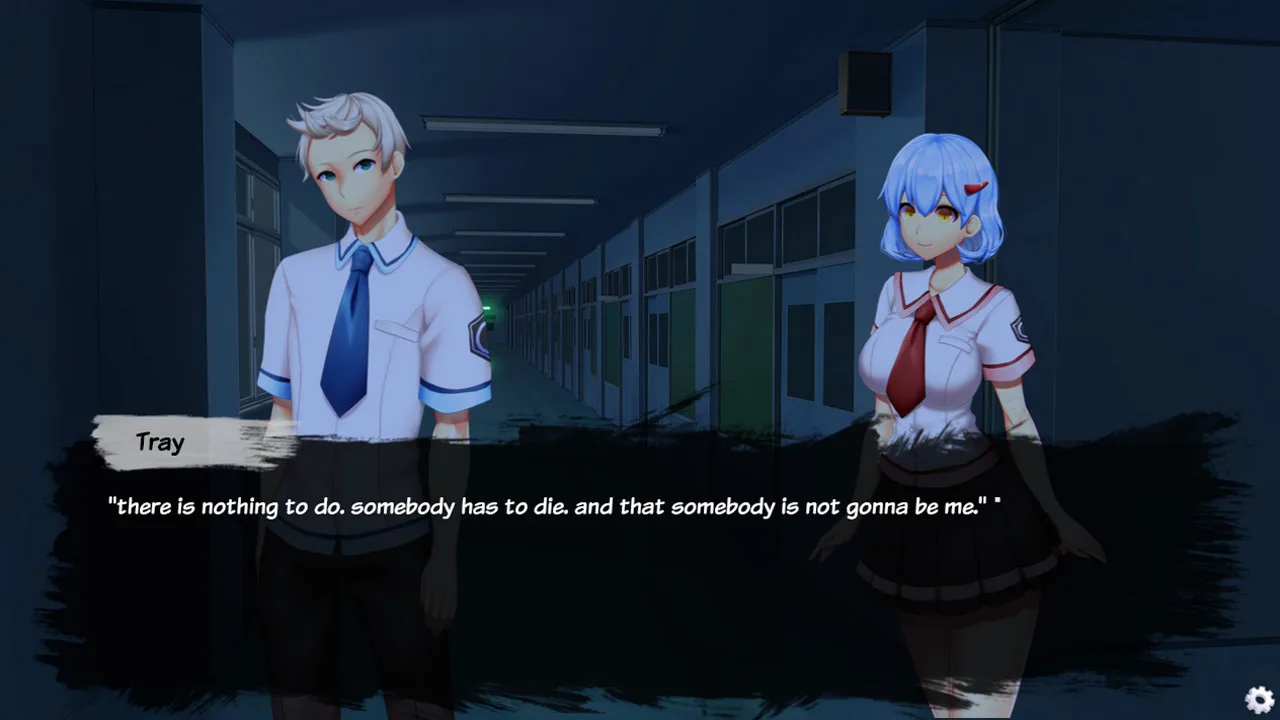
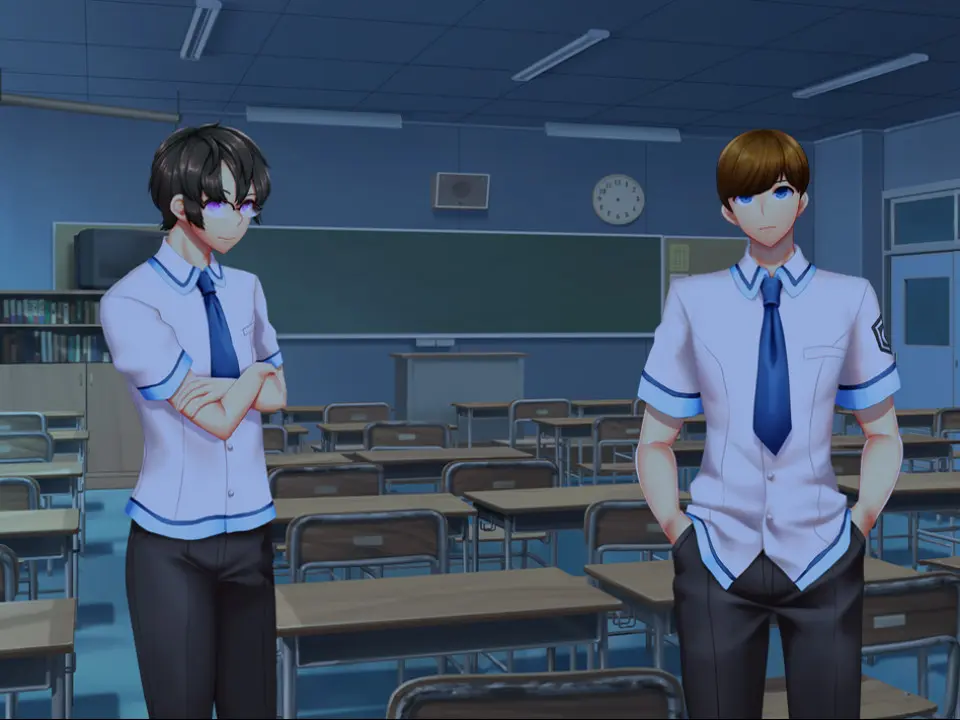
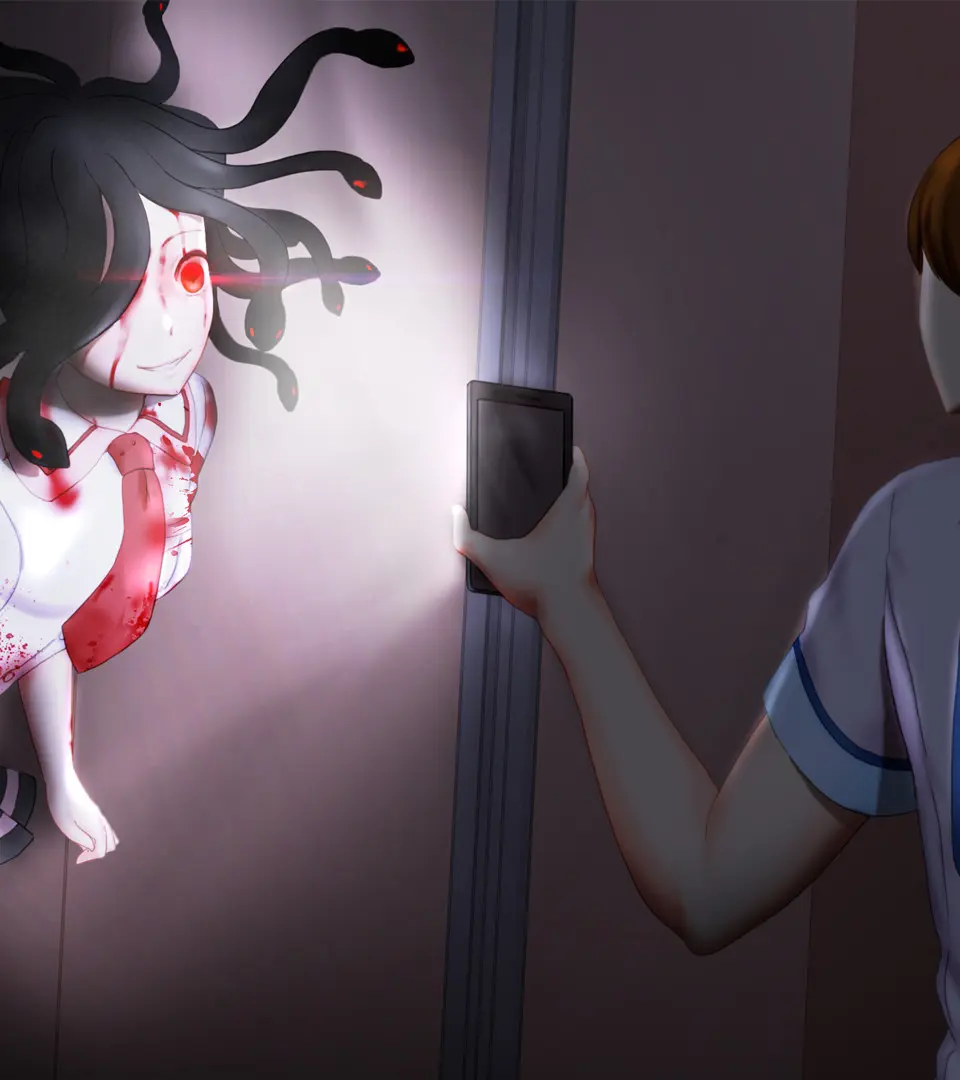
Master Summer Nightmare's basic controls. Learn movement, combat commands, and how to access menus for improved gameplay in this guide.
Mastering the controls is your first step in Summer Nightmare. The game offers intuitive controls, but some nuances can improve your gameplay significantly. This guide is based on a North American console layout, where 'X' is typically confirm and 'O' is cancel, but be aware that this might be reversed on Japanese consoles.
- D-Pad Up: Access your Orders menu, crucial for managing party commands in combat.
- D-Pad Right: Swap your current active combat member with a backup party member, allowing for strategic team changes mid-battle.
- D-Pad Down: Attempt to escape from battle. Note that this is not possible in all encounters, especially boss fights.
- D-Pad Left: Open your Items menu to use consumables or equip gear.
- Triangle: Use Character Crafts, powerful unique abilities specific to each character.
- X: Perform a basic attack with your equipped weapon.
- O: Move your character around the battlefield during tactical combat phases. Use the Left Stick to choose your destination and X to confirm.
- Square: Cast Arts, which are magical spells or special abilities.
- Left Side of Touchpad: Toggle high-speed mode, which accelerates movement and combat animations globally. This is incredibly useful for speeding up grinding or traversing familiar areas.
- Square Button (outside combat): Access the Fast Travel map. This allows you to quickly move between almost all areas, including building interiors and dungeons.
- Down Button (D-Pad): Expand the minimap for a more detailed view of your surroundings.
Familiarize yourself with these controls in the early stages of the game to ensure smooth progression.
100% Human-Written. AI Fact-Checked. Community Verified. Learn how AntMag verifies content