
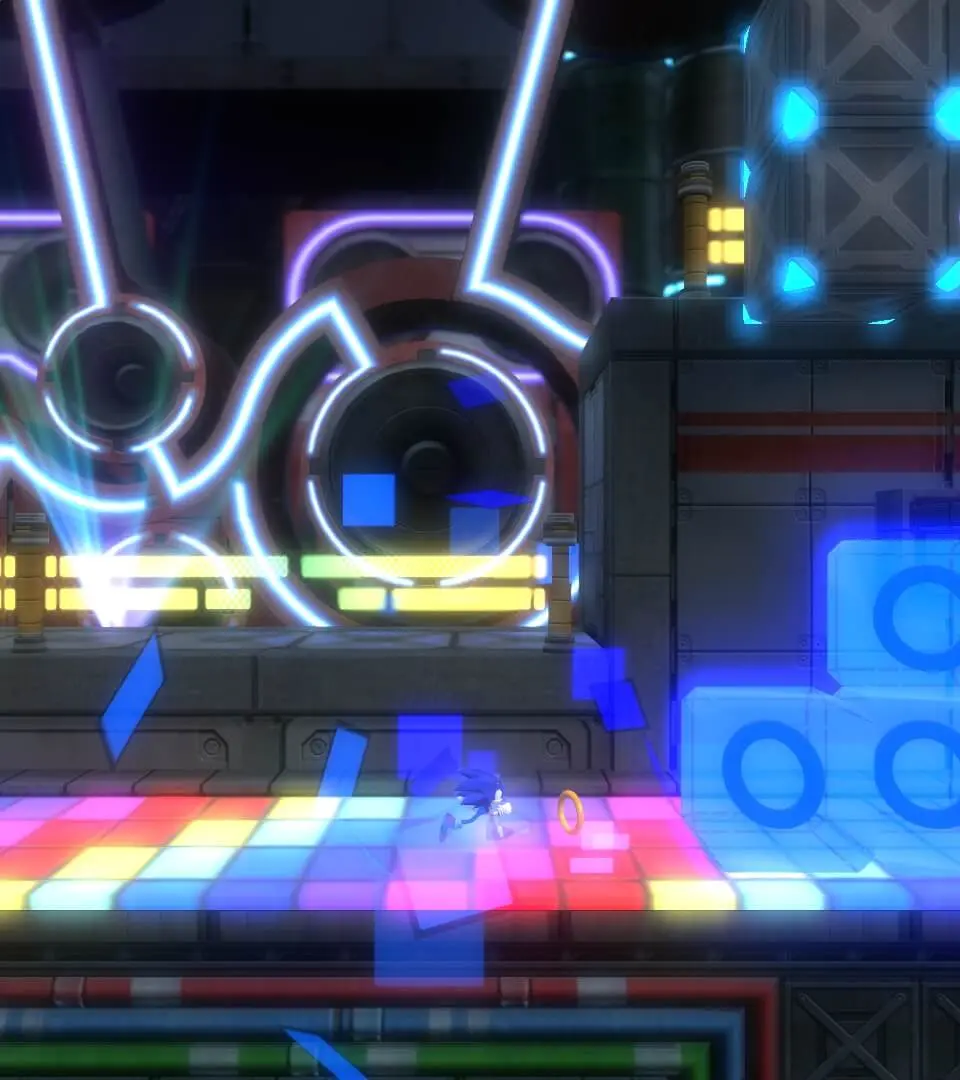
Learn how to save your game progress in Sonic Colors: Ultimate. This guide covers the auto-save system and manual saving options to ensure you don't lose any of your hard-earned progress.
Hey there! So, you're diving into the colorful world of Sonic Colors: Ultimate, huh? Awesome choice! One of the first things you'll want to know is how to make sure all your hard work doesn't go to waste. Don't worry, saving your game is super straightforward in this one, and I'll walk you through it.
How Saving Works:
The good news is that Sonic Colors: Ultimate has a pretty forgiving auto-save system. This means the game automatically saves your progress at key moments, like completing a level, finishing a boss fight, or reaching certain checkpoints within a level. You'll usually see a little icon pop up on screen to let you know it's saving, so keep an eye out for that!
Manual Saving:
While the auto-save is great, sometimes you might want to manually save your game, especially if you've just achieved a high score or completed a particularly tough section and don't want to risk losing it. Here's how you can do that:
- Pause the Game: During gameplay, just hit the pause button (usually the 'Start' or 'Options' button on your controller).
- Select 'Save': In the pause menu, you should see an option for 'Save' or 'Save Game'. Select that.
- Confirm: The game will likely ask you to confirm that you want to save. Go ahead and confirm it.
Important Notes:
- The game will only let you save at specific points, usually when you're not in the middle of a fast-paced action sequence. If the 'Save' option is greyed out, you'll need to play a bit further until you reach a save point.
- Always make sure the save icon appears after you manually save, just to be absolutely sure it went through.
That's pretty much it! With the auto-save and the manual save option, you can rest easy knowing your adventures through Dr. Eggman's amusement park planets are being recorded. Now go out there and collect those Red Rings!
100% Human-Written. AI Fact-Checked. Community Verified. Learn how AntMag verifies content