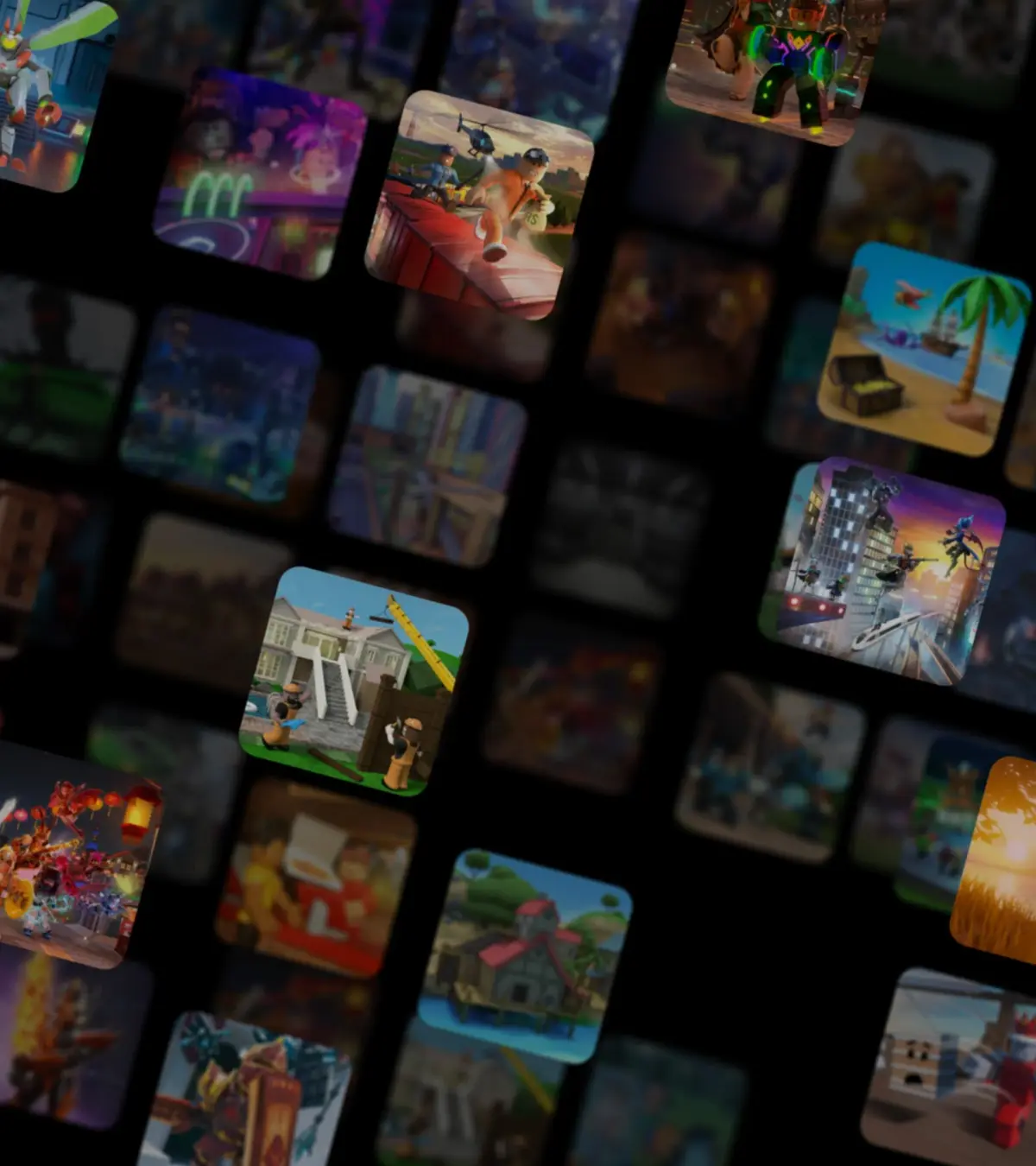
Tour the Roblox client interface. Navigate Home, Games, Avatar Editor, Chat, and Settings for a better playing experience.
Get acquainted with the Roblox client interface, the primary environment for playing games. This tour highlights key sections like the Home page, Games tab, Avatar editor, and Chat, helping you navigate efficiently and discover new experiences with ease.
The Roblox client is your gateway to the vast universe of games and experiences on the platform. Whether you're launching Roblox on your PC, mobile device, or console, understanding its interface is key to a smooth and enjoyable experience. This tour will guide you through the main sections of the Roblox client, familiarizing you with its layout and functionalities.
1. The Home Page:
Upon launching the Roblox client, you'll typically land on the Home page. This is your personalized dashboard, designed to showcase content relevant to you. Key elements include:
- Recommended Games: A curated list of games based on your play history and preferences.
- Friends' Activity: See what games your friends are currently playing or have recently enjoyed.
- Featured Experiences: Highlighting popular or new games promoted by Roblox.
- Continue Playing: Quick access to games you've recently visited.
2. The Games Tab:
This is where you'll discover the vast library of Roblox experiences. The Games tab offers extensive filtering and sorting options:
- Categories: Browse games by genre (e.g., Action, Adventure, Roleplay, Simulation, Tycoon).
- Sort Options: Order games by Popularity, Recommended, Top Earning, Newest, or Rating.
- Search Bar: Directly search for specific game titles or keywords.
- Filters: Narrow down your search by player count, device compatibility, and more.
3. Avatar Editor:
Your avatar is your digital representation on Roblox. The Avatar Editor allows you to customize its appearance:
- Clothing: Equip shirts, t-shirts, pants, and accessories.
- Body: Adjust body colors, head, and body parts.
- Animations: Select and equip animation packs to change your avatar's movements.
- Gear: Equip items that provide special abilities or tools within games.
- Outfits: Save and load custom outfits for quick changes.
4. Chat and Friends List:
Communication is a core part of the Roblox experience:
- Chat Window: Located usually at the bottom of the screen, this is where in-game chat messages appear. You can toggle it on/off.
- Friends List: Accessible from the main interface, this shows your online friends, their current game, and allows you to send messages or join their game.
- Private Messages (PMs): For direct communication with friends outside of active games.
5. Settings Menu:
The Settings menu (often represented by a gear icon) allows you to configure various aspects of your Roblox experience:
- Account Settings: Manage your username, password, email, and privacy settings.
- Privacy: Control who can message you, join your games, and interact with your avatar.
- Audio: Adjust volume levels for music and sound effects.
- Graphics: Toggle graphics quality for performance optimization.
- Controls: Customize keybinds for PC users.
6. Roblox Premium Tab:
If you are a Roblox Premium subscriber, this section provides information about your subscription benefits and allows you to manage your membership.
Familiarizing yourself with these core components of the Roblox client interface will empower you to explore, play, and connect more effectively within the Roblox metaverse.
100% Human-Written. AI Fact-Checked. Community Verified. Learn how AntMag verifies content