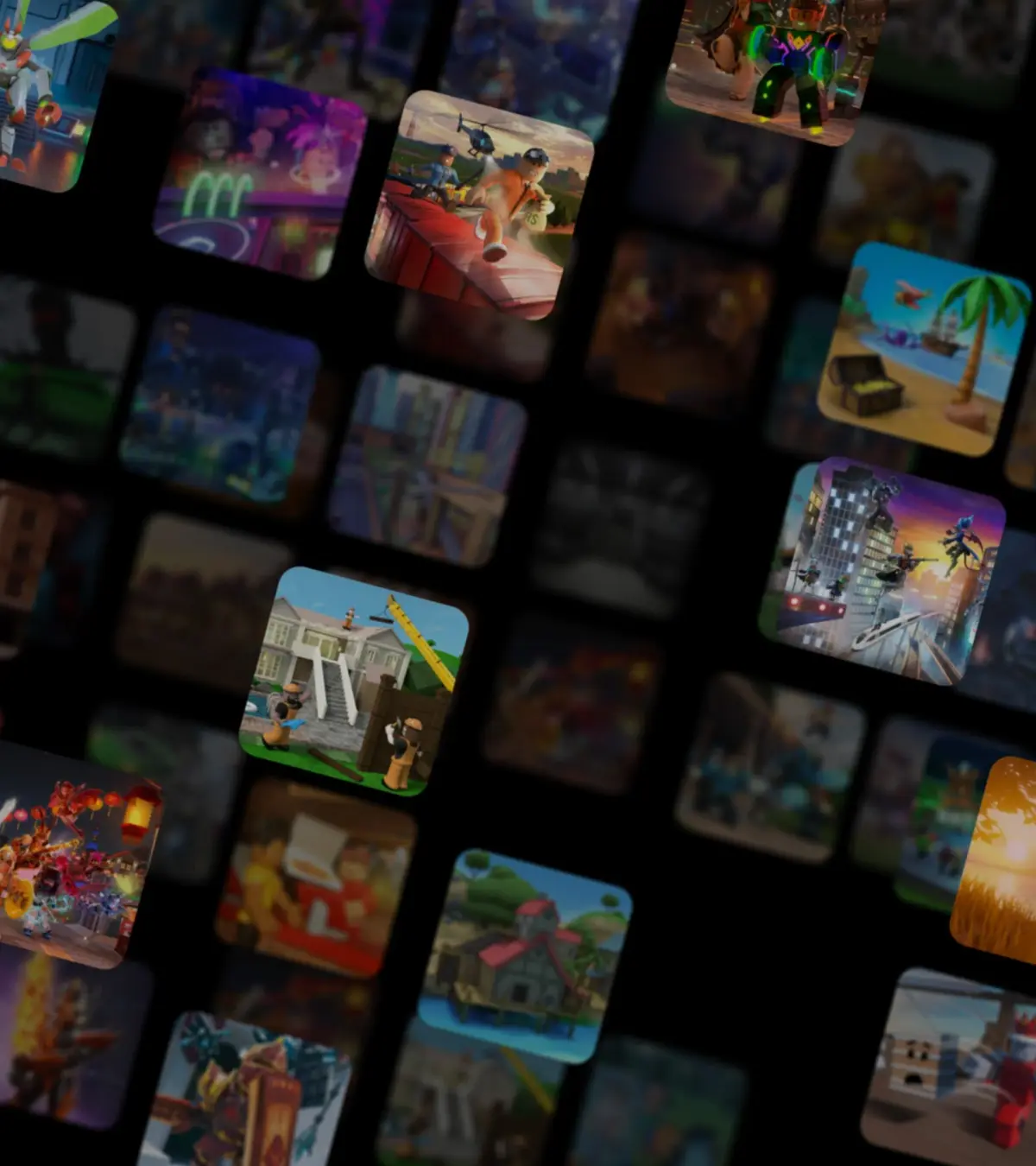
Create Roblox game icons & thumbnails: Use clear, compelling visuals. Follow specs (500x500 icon, 1920x1080 thumbnail) and upload via Configure Experience.
In the vast marketplace of Roblox games, your game's thumbnail and icon are the first impressions players have. These visual elements are critical for attracting attention, conveying the game's essence, and ultimately driving players to click 'Play'.
A well-designed thumbnail and icon can significantly impact your game's discoverability and success. They need to be eye-catching, informative, and representative of the gameplay experience you offer. This section will guide you through creating effective visuals for your Roblox game.
Understanding Thumbnails and Icons:
- Game Icon: This is the small, square image that appears next to your game's name in lists, search results, and on your game's page. It needs to be instantly recognizable and clearly represent your game's brand.
- Game Thumbnail: This is the larger, rectangular image displayed prominently on your game's page. It provides a more detailed visual representation of the game and should entice players to learn more and play.
Key Principles for Effective Visuals:
- Clarity and Readability: Ensure your icon and thumbnail are clear and easy to understand, even at small sizes. Avoid clutter.
- Represent Your Game: The visuals should accurately reflect the genre, theme, and core gameplay of your experience. Don't use misleading imagery.
- Eye-Catching Des: Use vibrant colors, strong composition, and interesting subjects to grab attention.
- Consistency: Maintain a consistent visual style between your icon and thumbnail, and ideally, with your game's in-game aesthetic.
- Focus on Action or Intrigue: Show something exciting happening in your game, a key character, or an element that sparks curiosity.
Technical Specifications:
Roblox has specific requirements for these images:
| Image Type | Dimensions | File Format |
|---|---|---|
| Game Icon | 500x500 pixels | PNG, JPG, GIF |
| Game Thumbnail | 1920x1080 pixels (16:9 aspect ratio) | PNG, JPG, GIF |
Creating Your Visuals: Tools and Techniques:
You can use various graphic des tools to create your thumbnails and icons:
- Free Online Tools: Canva, Photopea (a free Photoshop alternative).
- Professional Software: Adobe Photoshop, GIMP (free).
- In-Game Screenshots: Take high-quality screenshots within Roblox Studio or your live game. Use the highest graphics settings possible.
- 3D Rendering: For more advanced visuals, you can render scenes from your game in Roblox Studio or export assets to 3D modeling software for professional rendering.
Tips for Designing Your Icon:
- Simple and Bold: Use a clear, recognizable symbol or character.
- High Contrast: Ensure the main element stands out from the background.
- Minimal Text: If you use text, keep it very short and legible.
Tips for Designing Your Thumbnail:
- Showcase Gameplay: Depict an exciting moment, a key feature, or the main objective of your game.
- Use Strong Composition: Employ the rule of thirds or other des principles to create a visually appealing layout.
- Highlight Key Elements: Feature your most interesting characters, environments, or mechanics.
- Consider Adding Minimal Text: A short, punchy tagline can sometimes enhance the thumbnail, but ensure it doesn't obscure the main image.
Uploading Your Visuals:
Once your icon and thumbnail are ready:
- Go to your game's page on the Roblox website.
- Click the 'Configure Experience' button.
- Navigate to the 'Icon' and 'Thumbnail' sections and upload your created images.
Investing time and effort into creating compelling game thumbnails and icons is a crucial step in making your Roblox game stand out and attract players.
100% Human-Written. AI Fact-Checked. Community Verified. Learn how AntMag verifies content