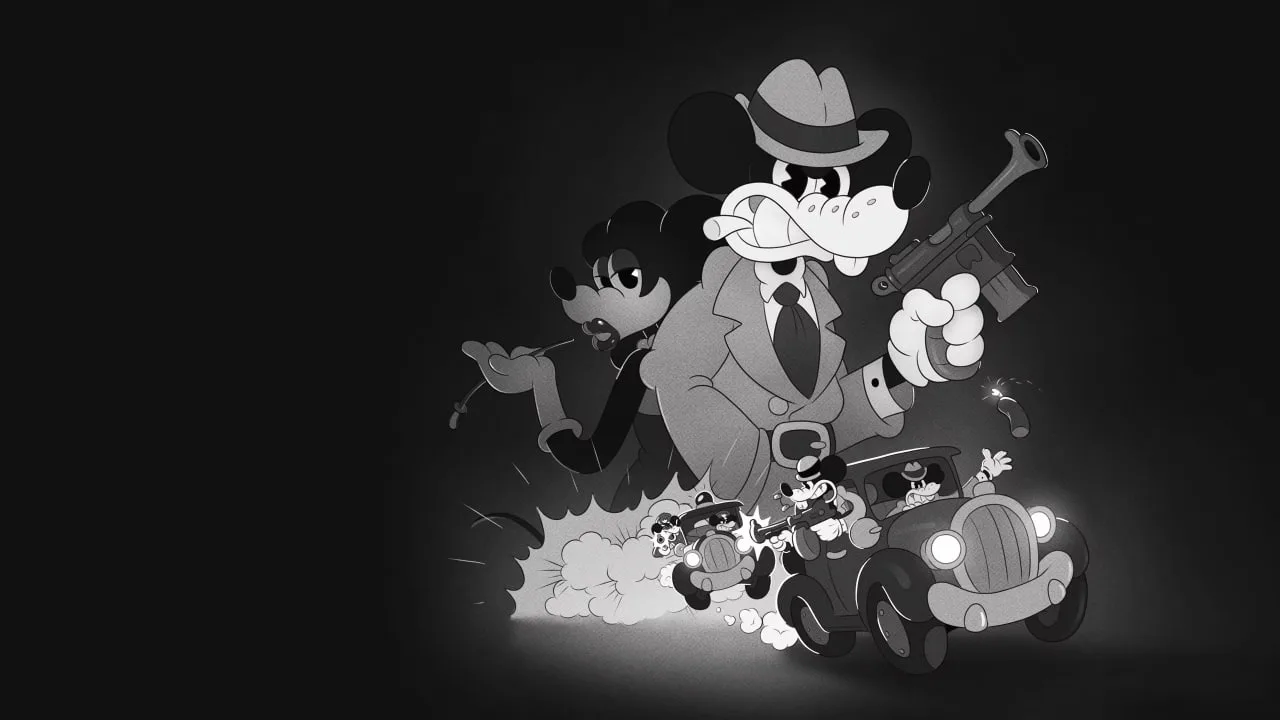
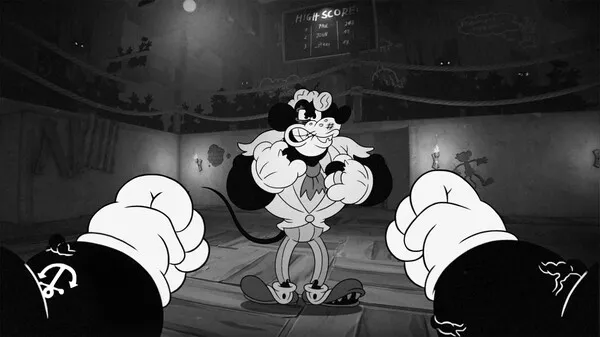
Adjust display and graphics settings in MOUSE: P.I. For Hire to optimize visuals and performance. Tailor resolution and window mode for your detective work.
Tailor your visual experience in MOUSE: P.I. For Hire by adjusting the display and graphics settings. These options allow you to balance visual fidelity with performance to suit your preferences and hardware capabilities.
Display Settings:
- Resolution: Choose the native resolution of your display for the sharpest image. Higher resolutions demand more from your hardware.
- Window Mode: Select between Fullscreen, Windowed, or Borderless Windowed. Fullscreen often provides the best performance, while Windowed modes offer easier alt-tabbing.
- V-Sync: Vertical Synchronization. Enable this to prevent screen tearing by capping your frame rate to your monitor's refresh rate. Disable it for potentially higher, uncapped frame rates, but risk tearing.
- Field of View (FOV): Adjust how much of the game world you can see at once. A wider FOV can be more immersive but may impact performance.
Graphics Settings:
- Texture Quality: Controls the detail of surfaces. Higher settings require more VRAM.
- Shadow Quality: Affects the detail and softness of shadows. Lowering this can significantly boost performance.
- Anti-Aliasing: Smooths out jagged edges on objects. Options like FXAA are less demanding than MSAA.
- Ambient Occlusion: Adds depth and realism to lighting by simulating how light is blocked by objects. Can be performance-intensive.
- Post-Processing Effects: Includes options like bloom, motion blur, and depth of field. Adjust these to your liking for visual flair or performance gains.
Experiment with these settings to find the sweet spot between stunning visuals and smooth gameplay. Lowering demanding settings like shadows and ambient occlusion is often the first step to improving frame rates.
100% Human-Written. AI Fact-Checked. Community Verified. Learn how AntMag verifies content