
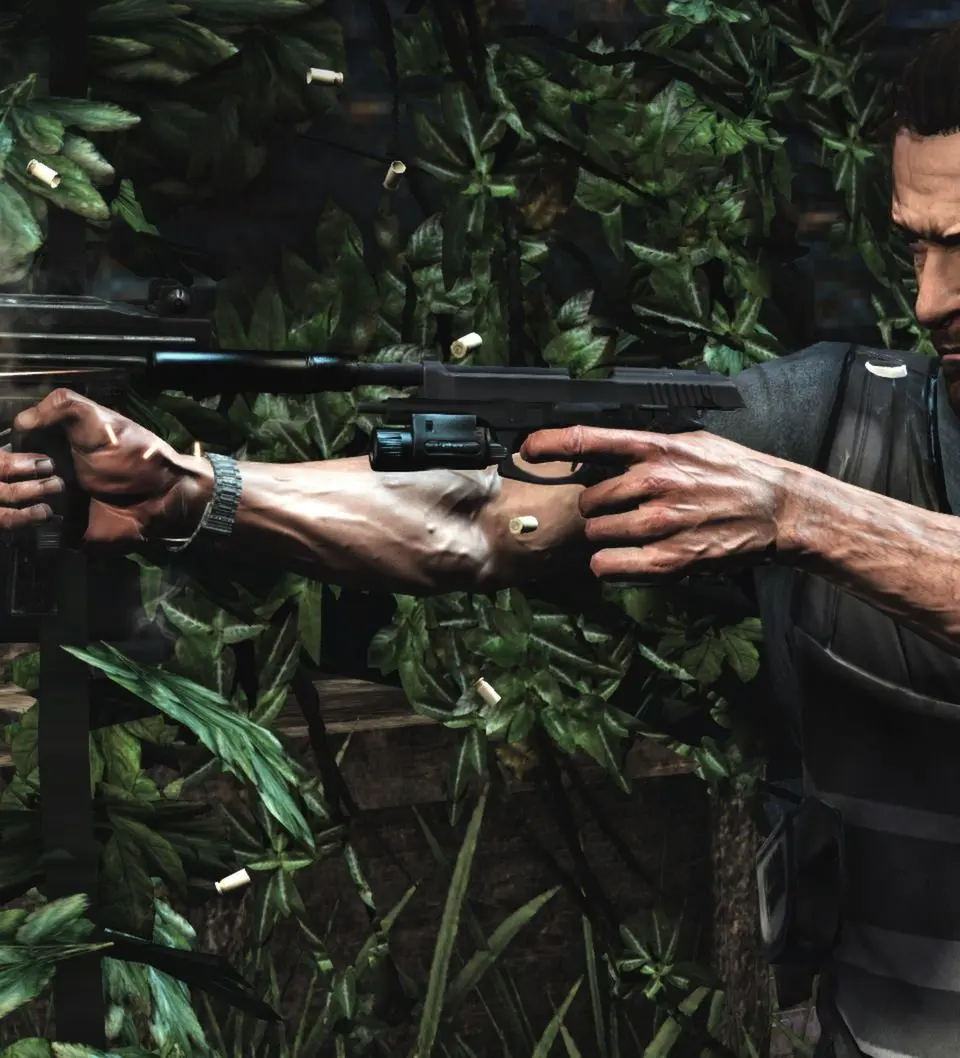
Resolve Max Payne 3 technical issues with our troubleshooting guide. Get solutions for common problems and return to the bullet-time action.
Even the most hardened detective can run into snags. This section details common issues players encounter in Max Payne 3 and provides actionable solutions to get you back into the bullet-time action. While Max Payne 3 is a relatively stable experience, especially on consoles like the Xbox 360 and PlayStation 3, certain technical hiccups can occur. We'll focus on general troubleshooting steps applicable across platforms where possible, with specific callouts for PC players who often face a wider array of configuration-related challenges.
General Performance & Stability
Frequent Crashes or Freezes
If Max is suddenly taking an unscheduled nap, or the game locks up, try these steps:
- Restart Your System: A classic for a reason. Fully power down your Xbox 360, PlayStation 3, or PC, wait 30 seconds, and then restart. This clears temporary data and can resolve many minor issues.
- Check for Game Updates: Ensure your game is fully patched. Connect your console to the internet (Xbox Live or PlayStation Network) or, for PC, verify game files through your platform (e.g., Steam, Rockstar Games Launcher). Outdated versions can lead to instability.
- Clear Cache (Console Specific):
- Xbox 360: Go to System Settings > Storage > Highlight a storage device (e.g., Hard Drive) > Press Y for Device Options > Select "Clear System Cache." Confirm when prompted.
- PlayStation 3: While there isn't a direct "clear cache" option like Xbox, rebuilding the PS3 database can help. Turn off your PS3 completely. Hold the power button until you hear two quick beeps (after the initial single beep). This will boot into Safe Mode. Select "Rebuild Database." Warning: This can take some time and is not a quick fix.
- Reduce Graphics Settings (PC Only): If your PC meets minimum requirements but still struggles, try lowering settings like Texture Quality, Shadow Quality, and Anti-Aliasing in the in-game Graphics menu.
Low Frame Rate (FPS) / Stuttering
When the bullet-time feels less like an artful dodge and more like a slideshow, consider these:
- Close Background Applications (PC Only): Ensure no other demanding programs are running in the background. Close web browsers, streaming services, or other games.
- Update Graphics Drivers (PC Only): Outdated GPU drivers are a common culprit for performance issues. Visit your graphics card manufacturer's website (NVIDIA, AMD, Intel) to download and install the latest drivers.
- Adjust V-Sync: Experiment with V-Sync settings in the game's Graphics menu. Turning it On can reduce screen tearing but might introduce input lag or lower FPS. Turning it Off might increase FPS but could cause tearing. Find what works best for your setup.
- Check Disk Defragmentation (PC Only): If your game is installed on a traditional HDD, defragmenting your drive can improve load times and reduce stuttering. (SSDs do not require defragmentation).
Installation & Launch Issues
Game Won't Launch (PC Only)
If clicking the icon does nothing, or you get an immediate crash:
- Verify Game Files:
- Steam: Right-click Max Payne 3 in your Library > Properties > Local Files > "Verify integrity of game files..."
- Rockstar Games Launcher: Navigate to Max Payne 3 > Settings > "Verify Integrity."
- Run as Administrator: Right-click the game's executable (
MaxPayne3.exe) or the launcher shortcut and select "Run as administrator." - Check for Software Conflicts: Antivirus software or firewalls can sometimes block games. Temporarily disable them (at your own risk) to see if it resolves the issue. If it does, add Max Payne 3 to your antivirus's exception list.
- Reinstall Redistributables: Max Payne 3 relies on various Microsoft Visual C++ Redistributables and DirectX. These are usually found in the game's installation directory (e.g.,
[Game Install Folder]\Max Payne 3\_CommonRedist). Try reinstalling them manually.
"Social Club UI Failed to Initialize" Error (PC Only)
This error often points to issues with the Rockstar Games Social Club client:
- Reinstall Social Club: The most common fix. Uninstall the Rockstar Games Social Club from your computer's "Add or remove programs" settings, then reinstall it. You can usually find the installer within the Max Payne 3 installation directory or download it directly from the Rockstar Games website.
- Check Internet Connection: Social Club requires an active internet connection for initial login and verification.
- Firewall/Antivirus: Ensure your firewall or antivirus isn't blocking Social Club's connection.
In-Game Specific Issues
Missing Audio or Corrupted Sound Effects
If Max's iconic monologues are silent or gunshots sound off:
- Check In-Game Audio Settings: Ensure Master Volume, Music Volume, and SFX Volume are not set to zero in the Audio menu.
- Update Audio Drivers (PC Only): Similar to graphics drivers, outdated audio drivers can cause problems.
- Verify Speaker/Headset Connection: A simple check, but ensure your audio output device is properly connected and selected as the default device in your system settings.
Controller Not Responding (PC Only)
If your Xbox 360 or PS3 controller isn't working on PC:
- Ensure Drivers are Installed: For Xbox 360 controllers, Windows usually installs drivers automatically. For PlayStation 3 controllers, you'll likely need third-party software (e.g., SCPToolkit) to emulate an Xbox controller.
- Check USB Port: Try a different USB port.
- Steam Controller Settings: If launching through Steam, go to Steam > Settings > Controller > General Controller Settings and ensure your controller type is detected and configured.
If you encounter an issue not listed here, we recommend checking the official Rockstar Support website or the GameFAQs community boards for Max Payne 3. Often, other players have found solutions to more obscure problems.
100% Human-Written. AI Fact-Checked. Community Verified. Learn how AntMag verifies content