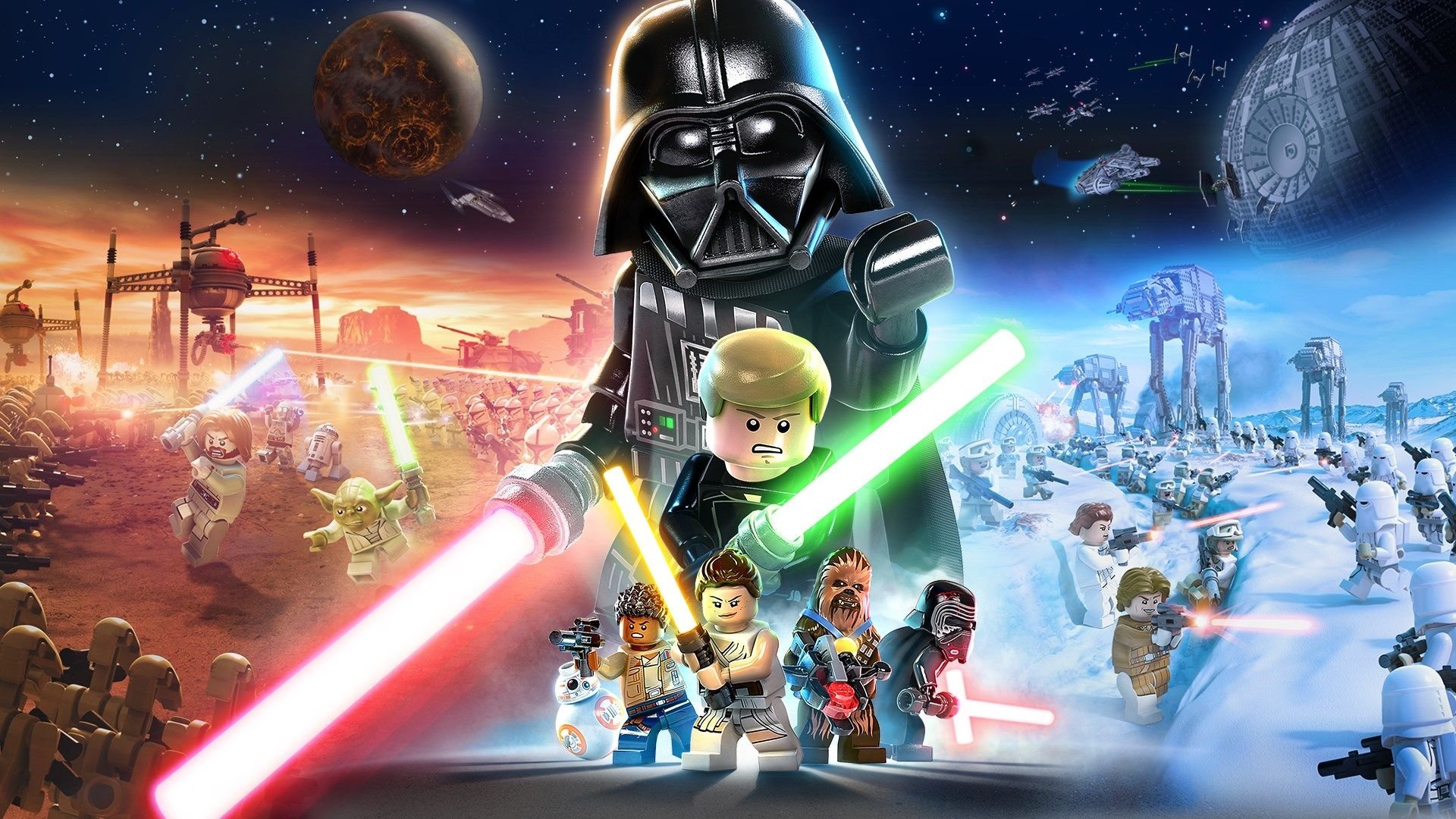
Navigate menus in Lego Star Wars: The Skywalker Saga, including Main Menu, Options, and Accessibility. Adjust gameplay, audio, and display settings.
Main Menu Options:
- New Game: Begin a brand new adventure, selecting your save file first.
- Continue: Resume your adventure from your most recent save.
- Load Game: Choose a specific save file if you have multiple ongoing games.
- Options: Access the Options Menu for detailed settings.
- Accessibility: Open the Accessibility Menu for tailored gameplay adjustments.
- Change Language: Select your preferred text and audio language, which may vary by region.
- Additional Content: Opens your system's store to purchase DLC.
Options Menu Breakdown:
The Options Menu allows extensive customization of your Lego Star Wars: The Skywalker Saga experience.
- Gameplay Options:
- Fall Recovery: Turn off to lose studs upon falling; turn on to negate this penalty.
- Automatic Health Recovery: Enabled by default, slowly recovers health when damaged. Turning it off requires relying on Hearts from defeated enemies.
- Hints: Set to "Always On" to constantly display hints, "New Only" for first-time relevance, or "Off" to disable them.
- Analytics Preference: Choose whether to send data to developers; this does not affect bug fixes.
- Vibration: Toggle controller vibration on or off.
- Hold Button for Quick Taps: When enabled, hold buttons instead of mashing them during quick-time events (QTEs).
- Camera Sensitivity: Adjusts the speed of camera movement using the Right Stick.
- Invert Camera X-Axis (Left/Right): Reverses horizontal camera control with the Right Stick.
- Invert Camera Y-Axis (Up/Down): Reverses vertical camera control with the Right Stick.
- Camera Bob: When on, the camera shakes on uneven terrain in first-person mode.
- Invert Flight X-Axis (Left/Right): Reverses horizontal flight control with the Left Stick. Recommended for flight sim enthusiasts.
- Invert Flight Y-Axis (Up/Down): Reverses vertical flight control with the Left Stick. Recommended for flight sim enthusiasts.
- Flight Sensitivity: Adjusts the turning speed of starships in flight using the Left Stick.
- Invert Aim X-Axis (Left/Right): Reverses horizontal aiming camera control with the Right Stick.
- Invert Aim Y-Axis (Up/Down): Reverses vertical aiming camera control with the Right Stick.
- Aim Sensitivity: Adjusts the camera movement speed while aiming.
- Aim Assist: Improves accuracy with ranged weapons.
- Target Lock-on: Automatically snaps aim to the nearest enemy when the Aim button is pressed.
- Near-Target Slowdown: Slows aiming reticle movement as it approaches a valid target.
- On-Target Slowdown: Slows aiming reticle movement while focused on a target.
- Homing Shots: Provides assistance in aiming at targets not directly in your crosshairs.
- Controller Config: Customize input assignments, with exceptions for Pause and Holoprojector buttons.
- Audio Options:
- Master Volume: Controls overall game sound.
- Music Volume: Adjusts music playback level.
- Sound Effects Volume: Modifies the volume of sound effects.
- Dialogue Volume: Controls the loudness of spoken dialogue.
- Subtitles: Enable to display text for all spoken dialogue.
- Subtitles Text Size: Adjust the font size for subtitles.
- Dialogue Box Text Size: Modify the text size within dialogue boxes.
- HDR Calibration: Adjust White Level and Brightness using provided graphical scenarios.
- Display Options:
- Minimap (the small circular map in the bottom-left corner of your screen): Set to "On (Static)" for a non-rotating map, "On (Rotate)" for a map that turns with the camera, or "Off" to disable it.
- Map Icon Visibility: Choose "All Floors" to see icons on nearby levels or "Current Floor Only" for icons on your present level.
- Player Floor Markers: "Permanent" keeps markers on always, "Temporary" shows them upon switching characters, and "Off" hides them.
- Objective Text: "Always On" displays objectives constantly, "New Only" shows them when they change, and "Off" disables them.
- Objective Waypoint (a marker on your map you've manually placed as a destination) Arrows: Toggle directional arrows guiding you to objectives on or off.
- Regions: Displays the current map region in the lower left corner, above the minimap (cosmetic).
- Plug Guide Arrow: Shows purple arrows indicating where to place or retrieve items like batteries and keycards.
- Hint Alert: Displays a quick marker in the screen's center when a new hint appears.
- Tooltips: Enable to see control descriptions for specific states (e.g., saber dueling, flying) at the bottom of the screen. Options include regular size, small size, or off.
- Tooltip Alert: Shows a quick marker in the screen's center when a new tooltip appears.
- Credits: View the list of individuals who contributed to the game's development.
- EULA: Access the End User License Agreement.
Accessibility Options:
Adjust settings for a more comfortable gameplay experience.
- Subtitles: Turn on to display subtitles for spoken dialogue.
100% Human-Written. AI Fact-Checked. Community Verified. Learn how AntMag verifies content