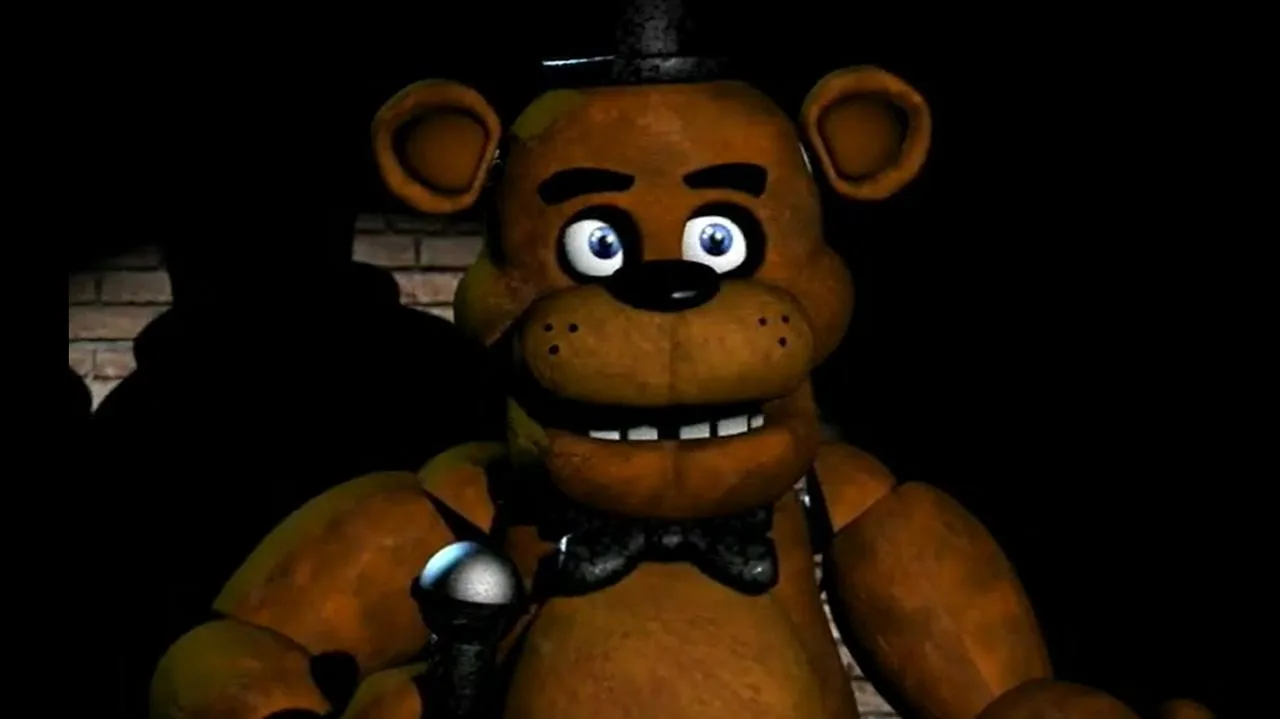
Learn about the security equipment, camera feeds, and power management in Five Nights at Freddy's Orientation. Defend yourself against animatronics.
Walkthrough
- 1Access your tablet by moving your mouse over the double-arrow icon at the bottom of the screen. Click on each camera feed to view different areas of the pizzeria and track the animatronics.
- 2Use the lights by pressing the button for each side of your office to illuminate the hallways.
- 3Close the doors on each side of your office as your last line of defense.
Camera Feeds:
- Cam 1A - Show Stage: Starting location for Freddy, Bonnie, and Chica. They do not return once they leave.
- Cam 1B - Dining Area: All three main animatronics can occupy this area.
- Cam 1C - Pirate Cove: Foxy the Pirate Fox's location, behind a purple curtain and an "Out of Order" sign.
- Cam 2A - West Hall: Connects the dining area to the left side of your office. Triggers Foxy's attack if he leaves Pirate Cove.
- Cam 2B - West Hall Corner: Located to the left of your office.
- Cam 3 - Storage Room: Located off the West Hall. Generally ignorable.
- Cam 4A - East Hall: Similar to the West Hall, but Foxy does not attack from this side.
- Cam 4B - East Hall Corner: Chica and Freddy often linger here before attacking.
- Cam 5 - Backstage Area: Located off the left side of the dining area.
- Cam 6 - Kitchen: This camera feed has issues; you primarily hear sounds from this area.
- Cam 7 - Restrooms: Located off the right side of the dining area. Far from your office.
Tips
- Keep track of animatronic locations using the cameras to stay ahead.
- Be ready to react quickly if you see an animatronic in the hallway lights.
- Closing doors is effective, but remember you have limited power.
- Power drains faster when doors are closed, hallway lights are on, or you are viewing cameras.
- The Usage bar at the bottom left shows your power consumption. It starts with one bar for necessities (office light and desk fan) and adds a bar for each additional electric device used (doors, lights, cameras), up to four bars.
- If you run out of power, the building goes on auxiliary power, leaving doors open permanently. If backup power fails, you will not survive the night.
- Only one light can be on at a time, and both lights turn off if you pull up the cameras.
100% Human-Written. AI Fact-Checked. Community Verified. Learn how AntMag verifies content