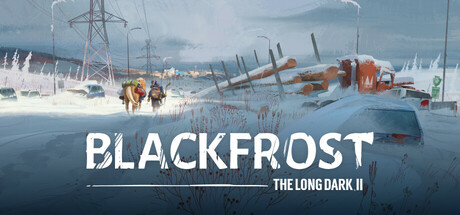

Master the graphics settings in Blackfrost: The Long Dark II for optimal performance and visual fidelity. Learn how to tweak settings for smoother gameplay and stunning visuals.
This section of the guide is dedicated to optimizing your graphics settings for Blackfrost: The Long Dark II. Achieving the right balance between visual quality and performance is crucial for an immersive experience. Below, you'll find recommendations and explanations for various graphics options.
Graphics Settings Breakdown:
- Resolution: Setting this to your monitor's native resolution is generally recommended for the sharpest image. Lowering it can improve performance but will reduce clarity.
- Texture Quality: Higher settings require more VRAM. If you have a capable GPU, set this to High. Otherwise, Medium or Low can save memory and boost FPS.
- Shadow Quality: This is often a major performance hog. Lowering shadow quality from High to Medium or Low can significantly increase frame rates with a noticeable, but often acceptable, visual trade-off.
- Anti-Aliasing (AA): Techniques like FXAA, SMAA, or TAA smooth out jagged edges. Higher AA levels can impact performance. Experiment to find a setting that provides good smoothing without a significant FPS drop.
- Ambient Occlusion (AO): Adds depth and realism by simulating soft shadows in crevices and corners. Can be performance-intensive; consider turning it off or using a lower setting if performance is an issue.
- Post-Processing Effects: This includes effects like motion blur, depth of field, and bloom. These can enhance visuals but often have a performance cost. Disable or reduce them if needed.
- View Distance / Draw Distance: Controls how far into the distance objects and details are rendered. Higher settings can improve immersion but may impact performance, especially in open areas.
- VSync: Synchronizes your game's frame rate with your monitor's refresh rate to prevent screen tearing. Can introduce input lag; disable it if you prefer lower latency, but be prepared for potential tearing.
Optimization Tips:
- Start with Presets: Begin with the game's built-in presets (Low, Medium, High, Ultra) and see how they perform.
- Benchmark: Use a consistent in-game scenario or a dedicated benchmark tool to test the impact of each setting change.
- Prioritize FPS: If smooth gameplay is your priority, focus on increasing your frame rate by lowering demanding settings like shadows and ambient occlusion first.
- Monitor VRAM Usage: Keep an eye on your VRAM usage. If it consistently exceeds your GPU's capacity, you'll need to lower texture quality and other VRAM-intensive settings.
- Driver Updates: Ensure your graphics card drivers are up to date, as they often include performance optimizations for new games.
100% Human-Written. AI Fact-Checked. Community Verified. Learn how AntMag verifies content