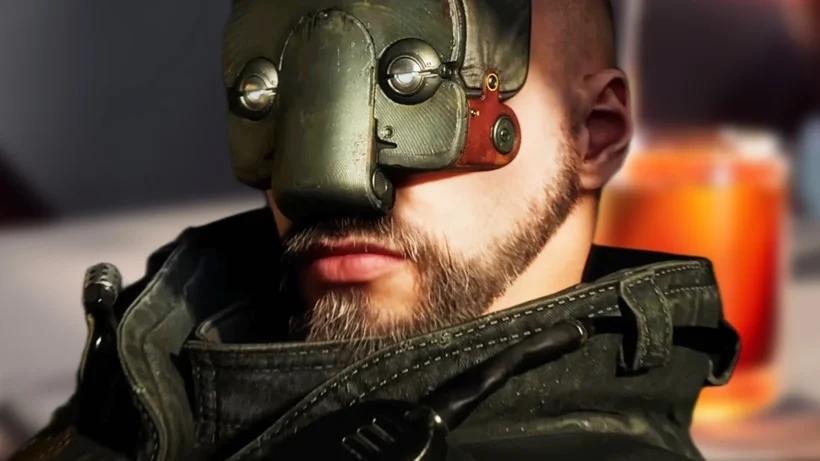
Boost your frame rate on PC in Atomic Heart 2. Adjust graphics settings, disable background applications, and optimize your system for smoother gameplay.
For PC players diving into the visually stunning and action-packed world of Atomic Heart 2, achieving a smooth frame rate is crucial for both immersion and competitive edge. Low frame rates can lead to stuttering, input lag, and a generally less enjoyable experience. This section is dedicated to providing you with a comprehensive guide on how to optimize your PC's performance to squeeze every possible frame out of the game, ensuring a fluid and responsive gameplay experience.
We will cover a range of optimizations, from in-game graphical settings adjustments to system-level tweaks. By understanding how different settings impact performance and how to configure your hardware effectively, you can significantly improve your frame rate. Whether you're running on a high-end rig or a more modest setup, these tips will help you find the optimal balance between visual fidelity and smooth gameplay in Atomic Heart 2.
In-Game Graphics Settings Optimization
The most direct way to improve frame rate is by adjusting the in-game graphics settings. Start by lowering settings that have a significant performance impact. These often include: Shadow Quality, Volumetric Fog, Screen Space Reflections, and Anti-Aliasing. Experiment with turning these down to Medium or Low. Resolution scaling options, if available, can also provide a substantial boost; consider using dynamic resolution or a lower rendering resolution if necessary. Ensure V-Sync is managed appropriately – disabling it can increase FPS but may introduce screen tearing; enabling it can cap FPS but provide a smoother image.
Driver Updates and System Configuration
Keeping your graphics card drivers up to date is paramount. Visit the websites of NVIDIA, AMD, or Intel and download the latest drivers for your specific GPU. These updates often include performance optimizations for new games. Additionally, ensure your Windows operating system is also up to date. In your graphics card's control panel (NVIDIA Control Panel or AMD Radeon Software), you can often set global performance profiles or create specific profiles for Atomic Heart 2, prioritizing performance over quality.
Hardware-Specific Tweaks and Overclocking (Advanced)
For users comfortable with advanced tweaking, consider monitoring your CPU and GPU temperatures. Overheating can lead to thermal throttling, significantly reducing performance. Ensure adequate cooling. If you have a compatible system and are experienced, mild overclocking of your CPU or GPU can yield performance gains, but proceed with caution and research thoroughly, as improper overclocking can lead to instability or hardware damage. Closing unnecessary background applications while gaming also frees up system resources.
100% Human-Written. AI Fact-Checked. Community Verified. Learn how AntMag verifies content