
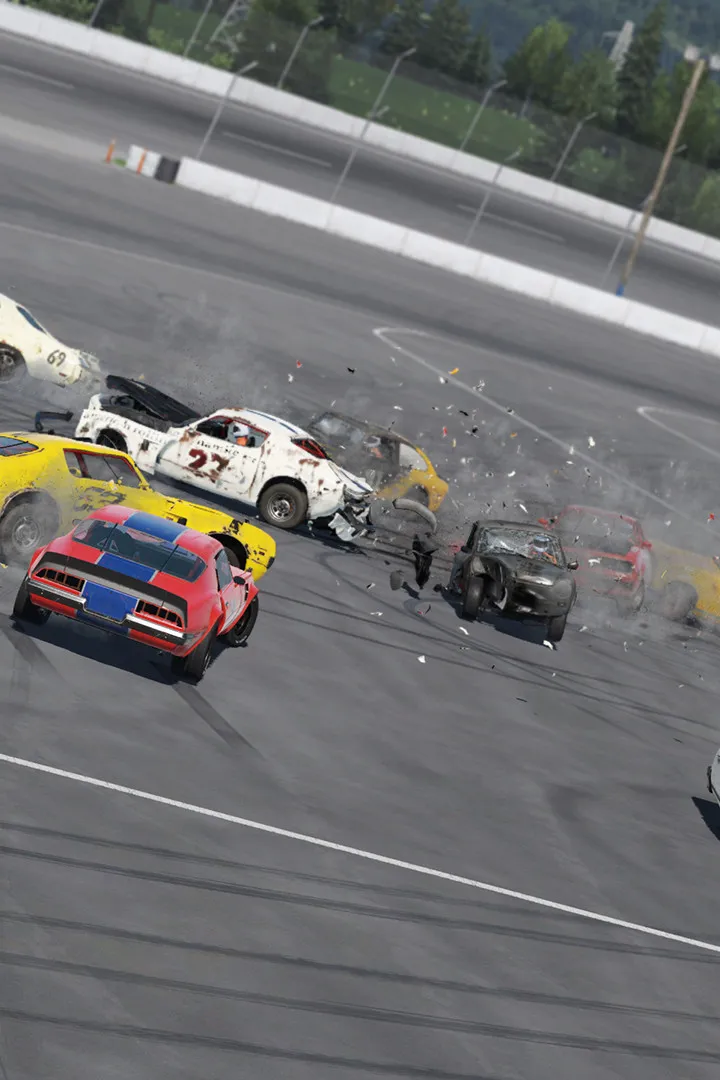
Fine-tune Wreckfest game settings beyond controls for competitive edge. Optimize visual fidelity and gameplay mechanics for enhanced destruction.
While mastering your vehicle's handling is paramount in Wreckfest, optimizing your game settings and understanding the deeper customization options can provide a significant competitive edge and enhance your overall experience. This section delves into the often-overlooked menus that allow you to fine-tune everything from visual fidelity to gameplay assists.
Graphics Settings: Visual Fidelity vs. Performance
Access these settings from the Main Menu by navigating to Options > Graphics. Balancing visual quality with a smooth framerate is crucial for competitive play. Experiment with these settings to find your sweet spot:
- Resolution: Always aim for your monitor's native resolution for the sharpest image. Lowering this can significantly boost performance on less powerful hardware.
- Texture Quality: Affects the detail of surfaces. High settings look great but can consume VRAM. If you experience stuttering, try Medium.
- Shadow Quality: Shadows are resource-intensive. Lowering this from "High" to "Medium" or even "Low" can provide a noticeable FPS increase with minimal visual impact during intense racing.
- Post-Processing Effects: Includes bloom, depth of field, and motion blur.
- Motion Blur: Often a personal preference. Disabling it can make the action clearer, especially during high-speed collisions.
- Bloom: Controls the intensity of light sources. Can be reduced for a less 'glowy' look.
- Anti-Aliasing: Smooths jagged edges. Options like FXAA or TAA offer different performance/quality trade-offs. TAA generally provides better quality but can introduce a slight blur.
- View Distance: Determines how far into the distance objects are rendered. Crucial for seeing upcoming track layouts and opponents. Keep this as high as your system allows.
Strategy: For competitive multiplayer, prioritize a stable 60+ FPS over ultra-high graphics. During single-player campaigns or for recording cinematic replays, you might push settings higher.
Gameplay Settings: Tailoring the Experience
Found under Options > Gameplay, these settings directly impact how you interact with the game world and its physics.
- Damage Model: This is a core Wreckfest mechanic.
- Normal: Standard damage, cars can be totaled.
- Realistic: Enhanced damage model, components like suspension and steering can be more severely affected, leading to unpredictable handling. Recommended for veterans seeking a challenge.
- Visual Only: Damage is cosmetic, no impact on performance. Ideal for casual play or learning new tracks.
- AI Difficulty: Adjusts the skill of computer-controlled opponents.
- Easy/Normal: Good for new players or practicing.
- Hard/Expert: Provides a significant challenge, requiring precise driving and strategic wrecking.
- Driving Assists:
- Traction Control: Helps prevent wheelspin. Useful for beginners, but experienced players often disable it for more direct control and faster acceleration out of corners.
- Stability Control: Assists in keeping your car straight. Disabling it allows for more aggressive cornering and drifting, but requires more skill.
- ABS (Anti-lock Braking System): Prevents wheels from locking up under heavy braking. Generally recommended to keep on unless you're an advanced driver looking for specific braking techniques.
- Camera Settings:
- Field of View (FOV): Adjusts how much of the environment is visible. A higher FOV can provide better situational awareness but might make distant objects appear smaller.
- Camera Shake: Controls the intensity of camera movement during collisions and bumps. Reducing it can make the action feel less disorienting.
Strategy: Gradually reduce driving assists as your skill improves. This allows for greater car control and faster lap times, especially in competitive scenarios.
Audio Settings: Hearing the Destruction
Located in Options > Audio, these settings allow you to balance the roar of engines with the crunch of metal and the game's soundtrack.
- Master Volume: Overall game volume.
- Music Volume: Controls the in-game soundtrack. Many players prefer to lower this to better hear engine sounds and collision cues.
- SFX Volume: Crucial for hearing impacts, tire squeals, and engine notes. Keep this relatively high.
- Engine Volume: Specifically controls the volume of vehicle engines. Maxing this out can help you gauge RPMs and shift points.
Strategy: Pay attention to engine sounds. They often provide critical feedback on your current speed, gear, and whether your engine is struggling or about to blow!
HUD & Display Settings: Information at a Glance
Under Options > Display, you can customize your Heads-Up Display (HUD) to show the information most relevant to you.
- HUD Visibility: Toggle various elements like the mini-map, lap timer, damage indicator, and speed display.
- Damage Indicator: Highly recommended to keep on. It provides a visual representation of your car's health, allowing you to anticipate critical failures.
- Lap Timer: Essential for time trials and competitive races.
Strategy: Keep essential HUD elements visible. Knowing your damage status and lap times is vital for strategic racing and managing your vehicle's lifespan in chaotic events.
100% Human-Written. AI Fact-Checked. Community Verified. Learn how AntMag verifies content