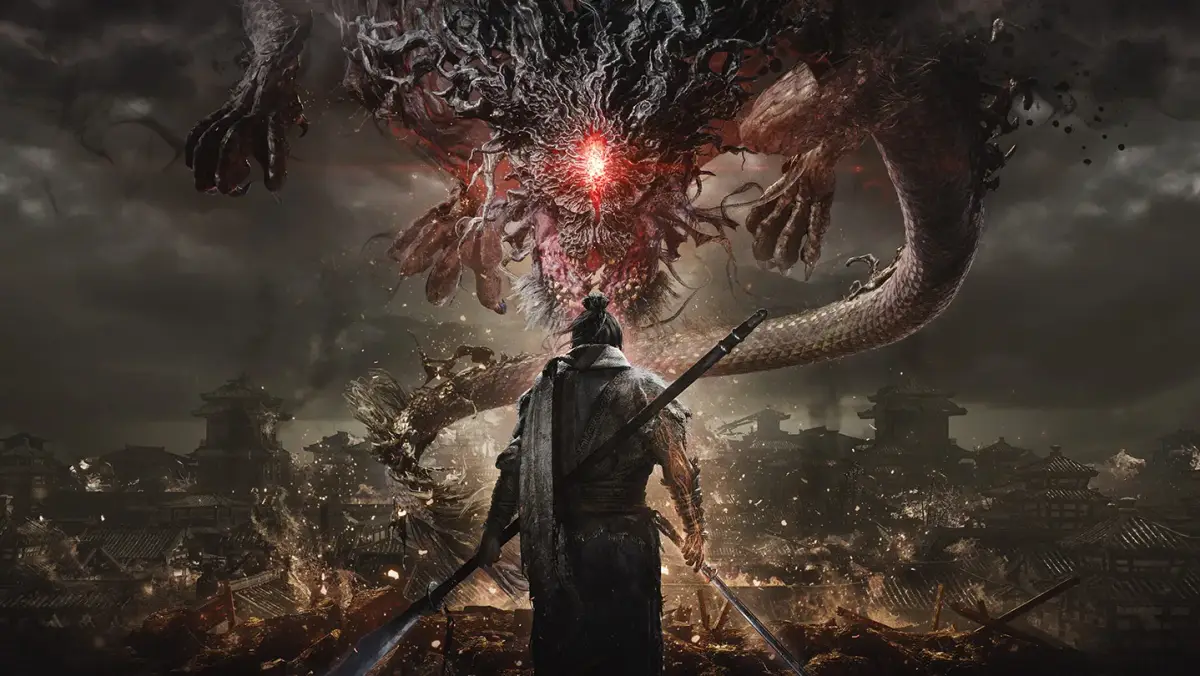
Struggling with Wo Long: Fallen Dynasty on PC? Learn how to boost FPS by tweaking in-game settings, adjusting your Nvidia/AMD control panel, and more for smoother gameplay.
Hey there! So, you're diving into Wo Long: Fallen Dynasty on PC and hitting some performance snags? Don't worry, it happens! Let's get this game running smoother so you can focus on kicking demon butt. We've got a few tricks up our sleeve to help boost your FPS.
First off, the game has a setting that's a bit hidden but makes a huge difference. You'll want to head into the main settings menu, then dive into Graphics Settings. Look for an option called 'Mode'. By default, it might be set to 'Prioritize Resolution,' which looks pretty, but can tank your frame rate. Change this to 'Prioritize FPS'. Yeah, it might slightly dial back some textures, but trust me, the boost to your FPS is usually well worth it, especially in a fast-paced game like this.
If that's not quite cutting it, we've got another trick, and this one isn't even in the game itself. You'll need to open up your Nvidia Control Panel (or the AMD equivalent if you're rocking an AMD card). Inside the 'Manage 3D settings,' find the 'Power management mode'. It's probably set to 'Normal' right now, but you'll want to change that to 'Prefer maximum performance'. This basically tells your GPU to go all out for Wo Long, unlocking its full potential. We found this actually unlocked a higher FPS setting in-game, like 120 FPS, which wasn't visible before!
One last thing to try is disabling Ambient Occlusion. This setting can sometimes cause weird white flickering for some players, and turning it off might just smooth things out visually without hurting your FPS too much. If you're still having trouble after all that, a simple GPU driver update can often work wonders for game performance, no matter what game you're playing.
100% Human-Written. AI Fact-Checked. Community Verified. Learn how AntMag verifies content