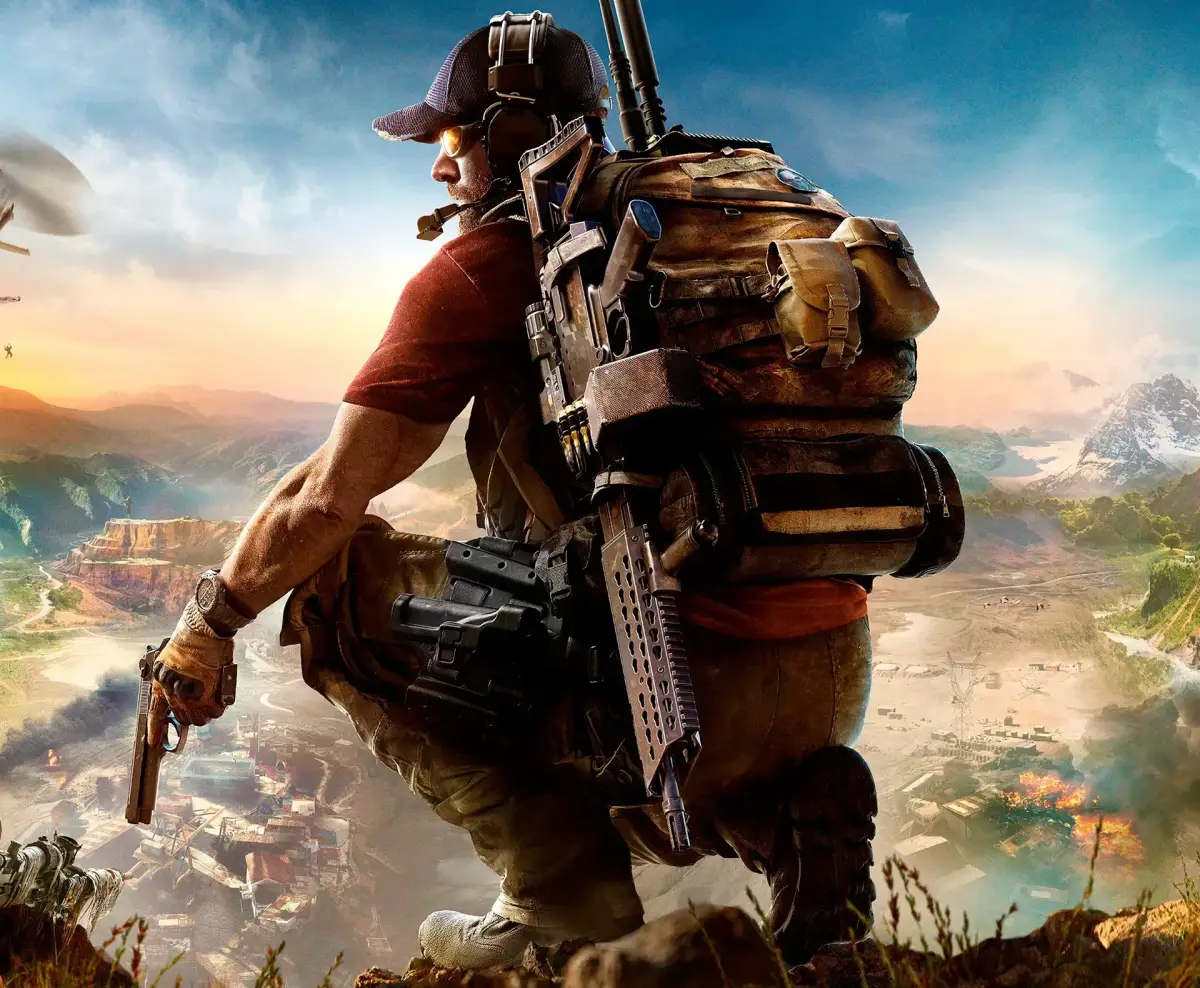
Adjust Brightness, Full HUD, Auto-Aim, and Combat Points in Tom Clancy's Ghost Recon Wildlands. Learn how to cycle options on/off.
Brightness
This setting affects how bright or dark the game appears. Pressing the A Button increases brightness, while pressing the Y Button decreases it.
Full HUD
Pressing the A Button cycles this option on or off. When on, all elements on the action interface (the display of information during gameplay) are present. When off, some elements fade out and only appear when you change soldiers or equipment, or exit the command interface.
Auto-Aim
Pressing the A Button cycles this option on or off. By default, Recruit and Veteran difficulties have auto-aim turned on, but this option overrides that setting.
Combat Points
Pressing the A Button cycles this option between Manual and Automatic. If set to Automatic, combat points are automatically assigned to soldiers on quick missions and in the campaign. If set to Manual, you must assign combat points to soldier skills before missions.
- Experiment with the Brightness setting to find what works best for your display and preference.
- Turn Full HUD off if you prefer a cleaner screen and only want essential information displayed.
- Disable Auto-Aim if you want more control over your aiming, especially on higher difficulties.
- Consider setting Combat Points to Manual if you want to strategically allocate skill points to your soldiers.
100% Human-Written. AI Fact-Checked. Community Verified. Learn how AntMag verifies content