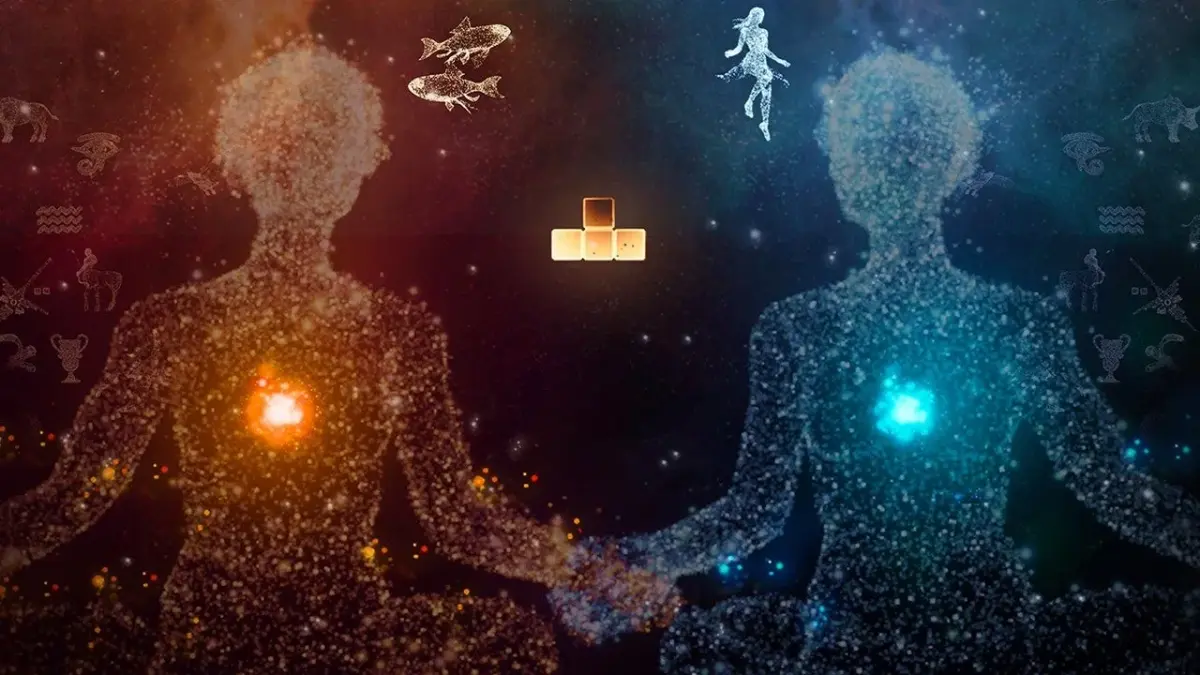
Explore Tetris Effect: Connected settings for gameplay, visuals, and audio. Customize controls, adjust HUD, and more.
Gameplay Settings:
- Next Queue (0 to 4): Adjust how many pieces are displayed in the Next Queue.
- Hold Queue (ON / OFF): Enable or disable the Hold Piece feature.
- Ghost Piece Display (ON / OFF): Toggle the visibility of the Ghost piece, which shows the piece's potential landing position below it.
- Tetrimino Colors (Customized / Traditional): Choose between Customized colors that match the background of each stage or Traditional, standard Tetris piece colors.
- Initial Rotation (ON / OFF): Enable this to help rotate a piece right before it appears.
- Initial Hold (ON / OFF): Enable this to automatically hold a piece right before it appears.
- Adjustable Camera (ON / OFF): Turn on or off the ability to move the in-game camera.
- Camera Zoom (Default / Zoomed In / Zoomed Way In): Select the camera's zoom level. Default shows the entire playfield, Zoomed In gets you closer, and Zoomed Way In provides the closest view.
Customize Controls: Assign two inputs for each action.
- Move Left: Left button
- Move Right: Right button
- Rotate Clockwise: O button
- Rotate Counterclockwise: X button
- Soft Drop: Down button
- Hard Drop: Up button
- Hold: L1 / R1 button
- Activate Zone / (Playlists: Change BGM): L2 / R2 button
- Camera Zoom In: Left analog stick with up direction
- Camera Zoom Out: Left analog stick with down direction
Visual Settings:
- Brightness (1 to 10): Adjust the in-game brightness.
- HUD (ON / OFF): Enable or disable the appearance of HUD (Heads-Up Display) elements like score, lines, and zone.
- HDR (ON / OFF): Enable or disable the HDR Effect. This will be disabled if your monitor does not support HDR.
- Line Clear Effects (MIN / MID / MAX): Set the intensity of particle effects when clearing lines.
- Mino Strobe (ON / OFF): Enable or disable an effect where pieces flash periodically in sync with the music.
- Zone Brilliance (MIN / MID / MAX): Adjust the brightness of the screen when it turns white during the Zone state.
- Matrix Visibility (Transparent / Opaque): Set the grid within your playfield to be transparent or fully visible.
Audio & Vibration Settings:
- Master Volume (0 to 10): Control the overall game volume.
- Music Volume (0 to 10): Adjust the music volume.
- SFX Volume (0 to 10): Adjust the sound effect volume.
- Vibration (ON / OFF): Enable or disable controller vibration, which syncs to music/SFX.
- Secondary Vibration (ON / OFF): Enable or disable secondary controller vibration.
Tutorials: Access tutorials to learn the basics of Tetris and techniques specific to Tetris Effect: Connected.
Credits: View the game credits.
100% Human-Written. AI Fact-Checked. Community Verified. Learn how AntMag verifies content