
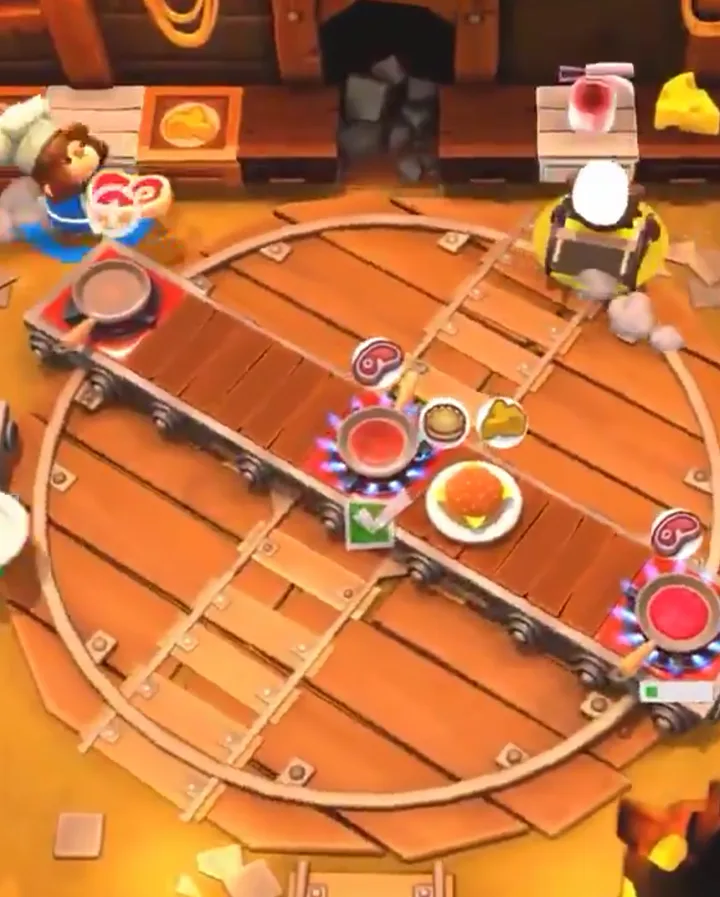
Learn the ins and outs of the Overcooked! 2 user interface, including controls, game mechanics, and essential tips for mastering the chaotic kitchens.
This guide will help you understand the user interface and controls for Overcooked! 2. Mastering these elements is crucial for success in the game's chaotic kitchens.
| Action | Button/Control |
|---|---|
| Move Chef | Left Stick / WASD |
| Interact / Pick Up / Drop | A Button / Spacebar |
| Dash | B Button / Left Shift |
| Throw Ingredient | X Button / Left Click |
| Chop Ingredient | Y Button / Right Click |
| Use Appliance (e.g., Stove, Blender) | A Button / Spacebar |
| Dodge Obstacle | B Button / Left Shift |
| Pause Game | Start Button / Escape |
Key UI Elements:
- Order Queue: Displays the dishes that need to be prepared, along with their timers.
- Score/Star Rating: Shows your current score and progress towards earning stars.
- Timer: Indicates the remaining time for the current level.
- Chef Indicators: Shows which chef is performing which action.
- Ingredient/Recipe Icons: Visual representations of ingredients and the dishes you need to cook.
- Special Mechanics Indicators: Icons or prompts that appear when new mechanics like throwing or dynamic level changes are introduced.
Tips for UI Mastery
- Always keep an eye on the order queue to prioritize tasks.
- Pay attention to the timers on each order to avoid running out of time.
- Utilize the throwing mechanic effectively to speed up ingredient delivery.
- Understand how dynamic level changes affect your workflow and adapt quickly.
- Communicate with your teammates about UI information, especially in multiplayer.
100% Human-Written. AI Fact-Checked. Community Verified. Learn how AntMag verifies content