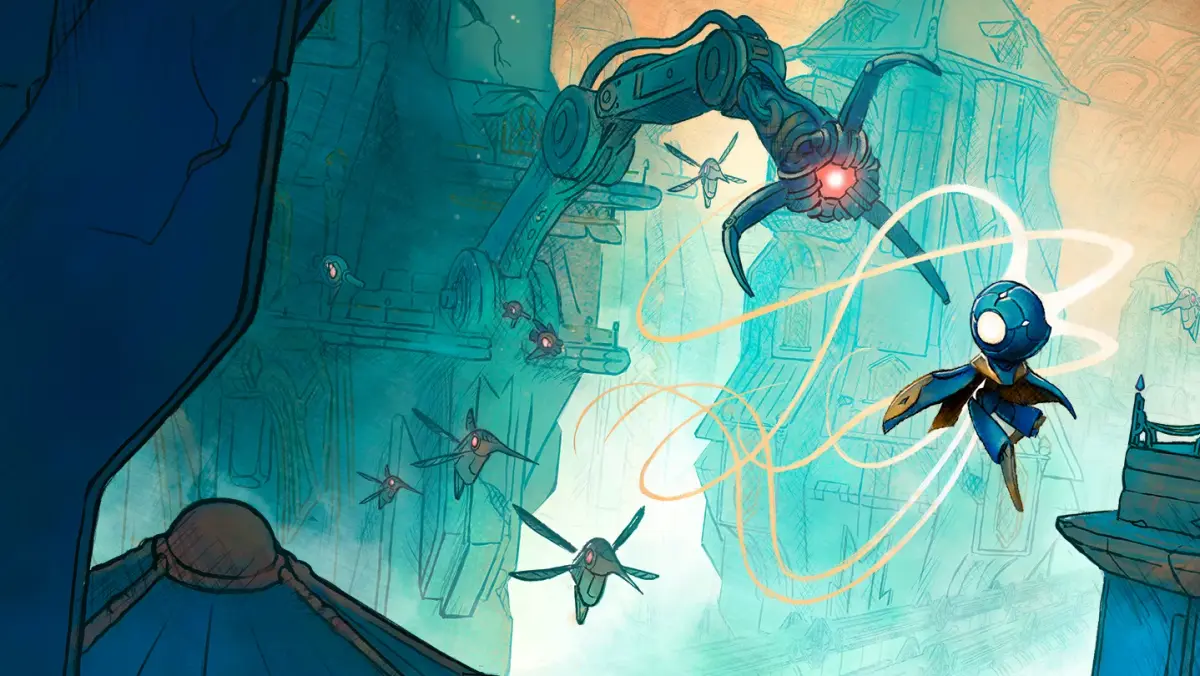
MIO: Memories in Orbit drops you into the decaying, overgrown technological ark known as the Vessel as a nimble robot with extraordinary abilities. Your mission: unravel the mysteries of this colossal, forgotten space station before its imminent shutdown. The Pearls, the Vessel's AI caretakers, have gone silent, leaving you to explore its depths, overcome rogue machines, and discover what led to its decline. It's a mesmerizing, intertwined world that rewards exploration and mastery of movement.
This guide will help you conquer the Vessel by mastering MIO's unique movement mechanics. We'll dive deep into the 'Aerial Jump Reset,' teaching you how to chain mid-air hits on enemies and environmental objects to keep your double jump active indefinitely. You'll also learn to leverage the Hairpin Grapple not just for traversal, but as a tool to chain swings and maintain momentum across vast distances. Stop treating the floor as your only option and start flying through the Vessel like a pro.
Installation & System Requirements
Get MIO: Memories in Orbit up and running! This guide covers installation and system requirements, helping you dive into the game smoothly. Learn what you need to play.
Hey there! So you're ready to jump into the world of MIO: Memories in Orbit? Awesome! Before we get into the nitty-gritty of the game itself, let's make sure your system is all set up and ready to go. Think of this as getting your spaceship prepped for launch – we want everything to be smooth sailing.
This guide is here to walk you through the installation process and make sure your PC meets the requirements to run MIO: Memories in Orbit without a hitch. We'll cover everything you need to know so you can start your adventure as soon as possible.
About MIO: Memories in Orbit
MIO: Memories in Orbit is an exciting new action-adventure game where you'll explore vast new lands, discover unique powers, and battle challenging foes. As the protagonist, you'll uncover ancient mysteries tied to your past and embark on a thrilling journey.
The game was released on 09/04/2025 and is available on multiple platforms, including PC.
System Requirements
To ensure you have the best experience, here are the system requirements you'll need to meet:
- Minimum Requirements:
- OS: Windows 10 64-bit
- Processor: Intel Core i5-4460 or AMD FX-8350
- Memory: 8 GB RAM
- Graphics: NVIDIA GeForce GTX 960 or AMD Radeon R9 280
- DirectX: Version 11
- Storage: 15 GB available space
- Recommended Requirements:
- OS: Windows 10 64-bit
- Processor: Intel Core i7-4770 or AMD Ryzen 5 1500X
- Memory: 16 GB RAM
- Graphics: NVIDIA GeForce GTX 1060 or AMD Radeon RX 580
- DirectX: Version 11
- Storage: 15 GB available space
Installation Guide
Getting MIO: Memories in Orbit installed is pretty straightforward. Just follow these steps:
- Purchase and Download: First, you'll need to purchase the game from your preferred digital storefront (like Steam, Epic Games Store, etc.). Once purchased, initiate the download. Make sure you have enough disk space (around 15 GB) free on your drive.
- Run the Installer: After the download is complete, locate the installer file (it's usually in your Downloads folder or wherever your launcher saves game files) and run it.
- Follow On-Screen Prompts: The installer will guide you through the process. You'll typically need to agree to the license agreement and choose an installation location. We recommend installing on an SSD if you have one for faster loading times!
- Launch the Game: Once the installation is finished, you can launch MIO: Memories in Orbit directly from your game library or the desktop shortcut.
Troubleshooting Tips
- Driver Updates: Always make sure your graphics card drivers are up to date. Outdated drivers are a common cause of performance issues.
- Verify Game Files: If you encounter any errors or crashes, try verifying the integrity of your game files through your game launcher. This will check for any corrupted or missing files and redownload them if necessary.
- Close Background Applications: Before launching the game, close any unnecessary background applications that might be consuming system resources.
That's it! With your system ready and the game installed, you're all set to dive into the incredible world of MIO: Memories in Orbit. Happy gaming!
PC Controls
Get a grip on MIO: Memories in Orbit PC controls! Learn essential keybinds and actions to navigate the game world like a pro. Your ultimate guide to PC gameplay.
Hey there! So you're diving into MIO: Memories in Orbit and want to get a handle on the PC controls? Smart move! Knowing your way around the keyboard and mouse will make your journey through the orbital station way smoother. This guide will break down the essentials so you can focus on the memories, not fumbling with the keys.
While the game is designed with a controller in mind, the PC controls are pretty well laid out. You'll be moving, interacting, and fighting your way through the station in no time. Let's get you set up!
| Action | Default PC Keybind |
| Movement | WASD |
| Jump | Spacebar |
| Interact | E |
| Dash | Shift |
| Aim | Right Mouse Button |
| Fire | Left Mouse Button |
| Reload | R |
| Melee Attack | F |
| Use Ability 1 | 1 |
| Use Ability 2 | 2 |
| Use Ability 3 | 3 |
| Use Item | Q |
| Inventory | Tab |
| Map | M |
| Pause Menu | Escape |
A quick tip: Don't feel locked into these defaults! If something feels awkward, head into the game's settings menu. You can usually rebind most of these keys to whatever feels most comfortable for you. Experiment a bit – finding your perfect control scheme is part of the fun!
PlayStation Controls
Navigate the world of MIO: Memories in Orbit with our comprehensive PlayStation controls guide. Learn every button and action to master your gameplay.
This guide provides a comprehensive overview of the PlayStation controls for MIO: Memories in Orbit. Understanding these controls is essential for navigating the game world and executing actions effectively.
| Action | PlayStation Button |
|---|---|
| Movement | Left Analog Stick |
| Camera Control | Right Analog Stick |
| Jump | X Button |
| Interact / Confirm | Circle Button |
| Dash / Dodge | Square Button |
| Use Ability / Special Action | Triangle Button |
| Open Menu / Inventory | Touchpad Button |
| Map | R1 Button |
| Target Lock | R2 Button |
| Primary Attack | L1 Button |
| Secondary Attack / Ability | L2 Button |
| Quick Select / Cycle Items | D-Pad (Up, Down, Left, Right) |
| Pause Game | Options Button |
Mastering these controls will allow for smoother traversal and more efficient combat encounters in MIO: Memories in Orbit.
Xbox Controls
Unlock the full potential of MIO: Memories in Orbit with our comprehensive Xbox controls guide. Learn every button and action to navigate the game with ease.
This guide provides a detailed breakdown of the Xbox controller layout for MIO: Memories in Orbit. Understanding these controls is essential for navigating the game's world and mastering its mechanics.
| Action | Button |
|---|---|
| Movement | Left Stick |
| Camera Control | Right Stick |
| Jump | A Button |
| Dodge/Dash | B Button |
| Interact/Confirm | X Button |
| Use Ability/Item | Y Button |
| Map | View Button |
| Inventory | Menu Button |
| Special Ability 1 | Left Bumper (LB) |
| Special Ability 2 | Right Bumper (RB) |
| Target Lock | Left Trigger (LT) |
| Secondary Action | Right Trigger (RT) |
| Quick Select Up | D-Pad Up |
| Quick Select Down | D-Pad Down |
| Quick Select Left | D-Pad Left |
| Quick Select Right | D-Pad Right |
100% Human-Written. AI Fact-Checked. Community Verified. Learn how AntMag verifies content