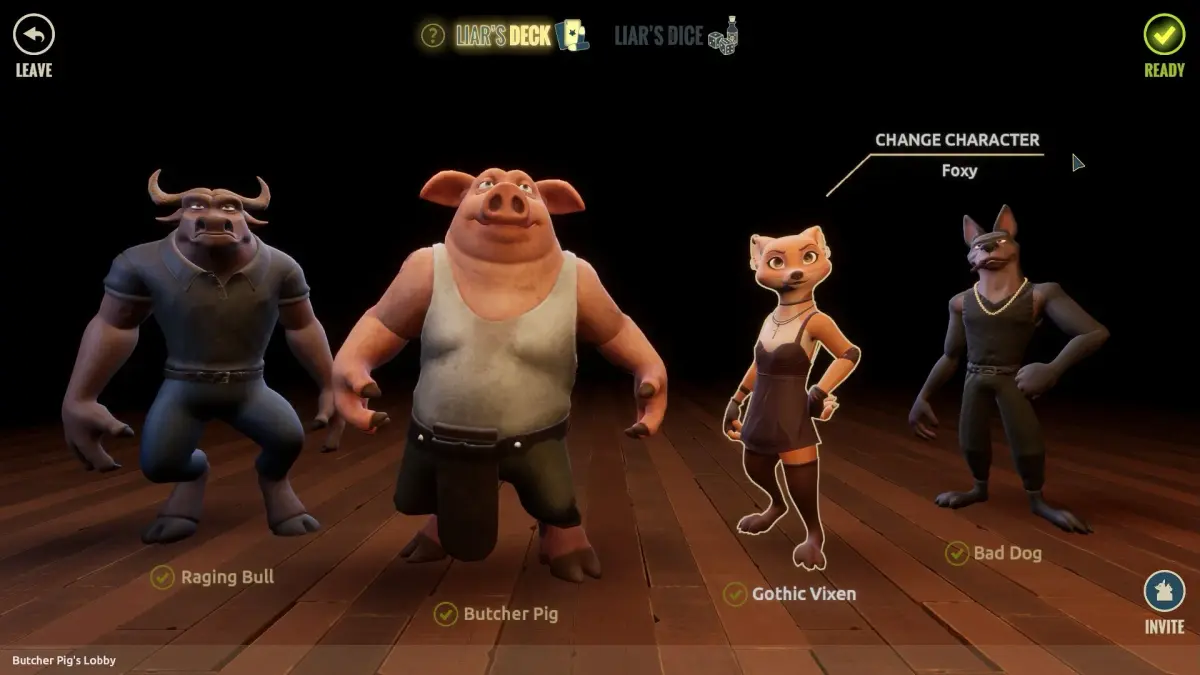
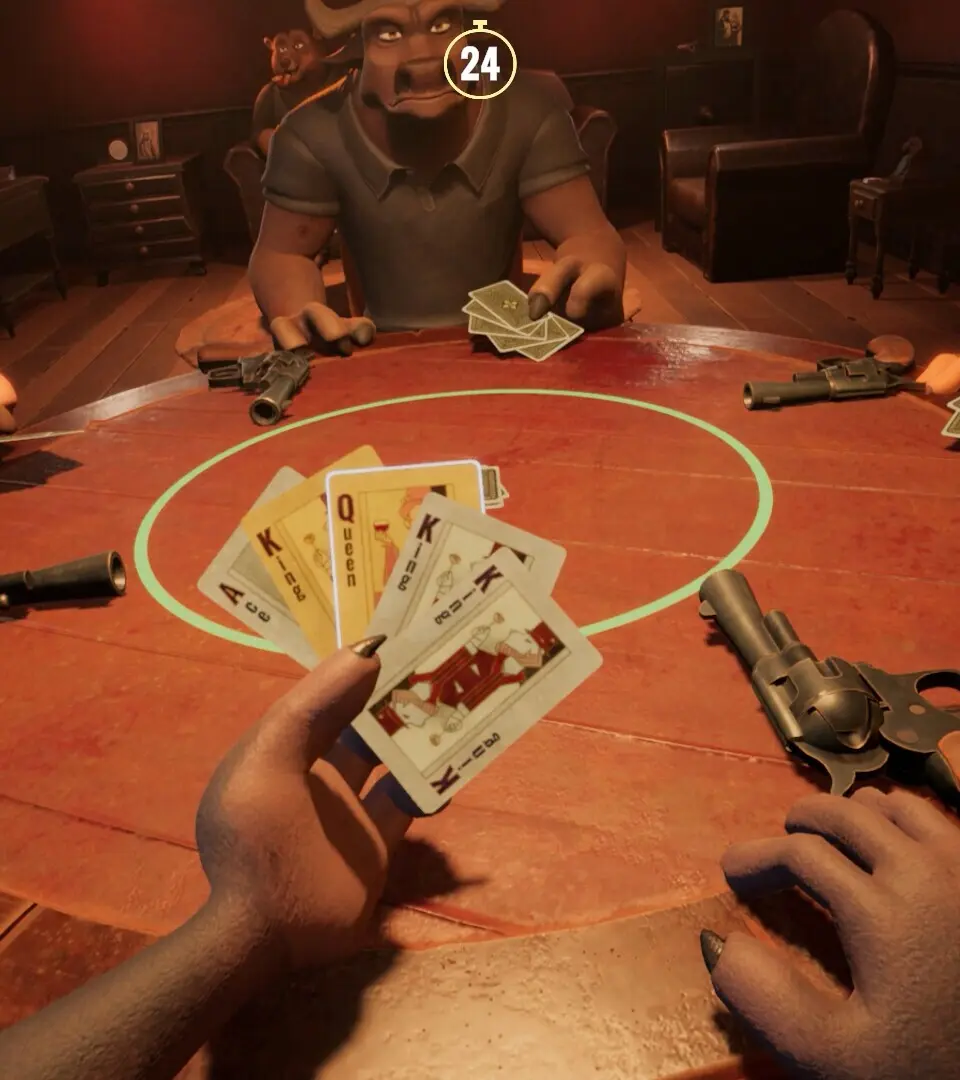
Get started with Liar's Bar by mastering its core first-person controls. Learn movement and interaction to navigate this tense game of deception.
Welcome to Liar's Bar, a vibrant and deceptive establishment where your wits and a steady hand with dice and cards are your greatest assets. As a first-person experience, Liar's Bar immerses you directly into the smoky atmosphere and tense negotiations. Mastering the controls is your first step to becoming a legendary patron, or perhaps, the most notorious swindler the bar has ever seen.
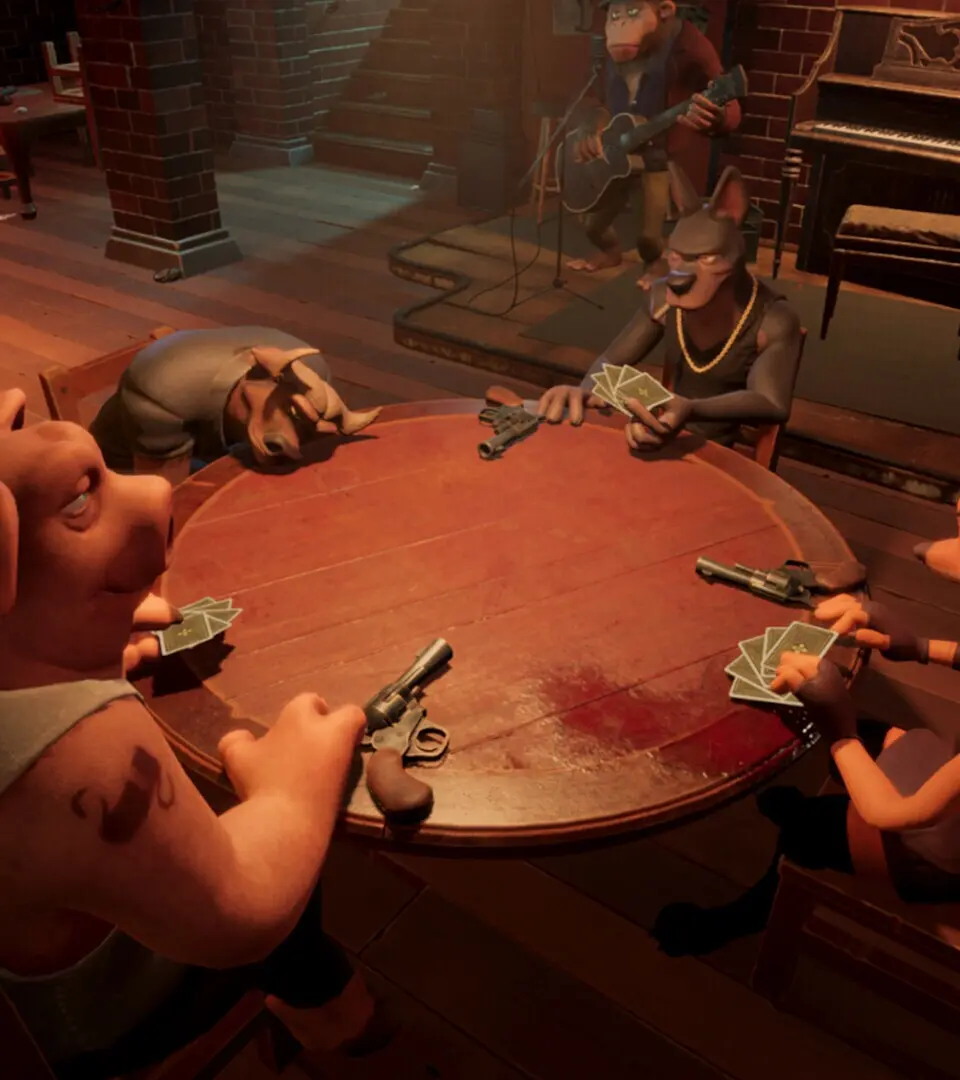
First-Person Navigation
Movement and exploration in Liar's Bar are handled with standard PC first-person controls, allowing for intuitive and immersive navigation of the bar's various nooks and crannies.
- Movement: Use the W, A, S, D keys to move your character forward, left, backward, and right, respectively. Holding down the Shift key while moving will allow you to sprint, useful for quickly moving between tables or making a hasty exit. Pressing the Spacebar will allow your character to crouch, which can be useful for stealth or to avoid drawing unwanted attention.
- Looking Around: Control your camera and field of view by moving the mouse. This allows you to survey your surroundings, observe other patrons, and spot opportunities for interaction or deception.
- Interacting with the Environment: The Left Mouse Button (LMB) is your primary tool for interacting with the world. Clicking on objects, characters, or interactive elements will initiate an action, such as picking up an item, initiating a conversation, or activating a game mechanic.
- Contextual Actions: When your cursor hovers over an interactable object or character, it will often change to indicate the type of action available. For example, hovering over a dice game might show a dice icon, while hovering over a drink might show a glass.
Core Game Mechanics: Dice and Cards
Liar's Bar revolves around high-stakes games of chance and skill, primarily involving dice and cards. Understanding how to manipulate these elements is paramount.
- Initiating a Game: To start a dice or card game with another patron, approach their table and Left-Click on them or the game setup. A prompt will appear, allowing you to accept or decline the challenge.
- Rolling Dice: During a dice game, you will typically need to roll your dice. This is usually done by clicking a dedicated "Roll Dice" button that appears on your UI, or by performing a specific mouse gesture (e.g., a flicking motion) if the game supports it. The game will then simulate a dice roll, with the outcome displayed on screen.
- Playing Cards: In card games, your hand will be displayed on the screen. To play a card, Left-Click on the card you wish to play from your hand, and then Left-Click on the designated play area on the table. Some games may require specific sequences or combinations, so pay close attention to the game's rules.
- Bluffing and Deception: The core of Liar's Bar lies in deception. During games, you will have opportunities to bluff. This is often initiated by pressing a dedicated "Bluff" button or by making a specific dialogue choice that implies confidence or a strong hand, even when you don't have one. Conversely, you'll need to read your opponents' tells and dialogue to detect their bluffs.
Inventory and Item Management
While not a traditional inventory-heavy game, you will acquire and use certain key items that can influence your games or interactions. These are managed through a streamlined interface.
- Accessing Your Items: Your inventory is typically accessed by pressing the [I] key or by clicking an "Inventory" icon, usually located in the bottom corner of the screen. This will bring up a visual representation of the items you possess.
- Using Items: To use an item, open your inventory, Left-Click on the item you wish to use, and then Left-Click on the target in the game world or within a game interface where it can be applied. For example, you might use a "Lucky Charm" before a dice roll or a "Whiskey Shot" to boost your charisma for a negotiation.
- Item Descriptions: Hovering your mouse cursor over an item in your inventory will display a tooltip with its description and potential uses. This is crucial for understanding the subtle advantages items can provide.
Dialogue and Social Interaction
Conversations are as important as the games themselves. Your dialogue choices can open up new opportunities, forge alliances, or create bitter rivalries.
- Initiating Conversation: To speak with a patron or bartender, Left-Click on them when they are interactable.
- Dialogue Options: A dialogue wheel or list of text options will appear. Use the Mouse to select your desired dialogue choice or press the corresponding number key if available.
- Reading the Room: Pay attention to the characters' reactions. Their body language, tone of voice, and the dialogue options available will change based on your previous interactions and the current game state.
- Persuasion and Intimidation: Certain dialogue options will be tied to your character's stats or the items you possess. Successfully using these can sway opinions, gain you advantages, or even resolve conflicts without resorting to games.
Menu and Game Management
Accessing the game's menu allows you to save your progress, adjust settings, and quit the game.
- Accessing the Menu: Press the [Esc] key to bring up the main game menu.
- Saving Your Game: From the menu, select "Save Game." You will be presented with available save slots. Click on a slot to save your current progress. It is highly recommended to save frequently, especially before engaging in high-stakes games or making critical dialogue choices.
- Loading Your Game: Select "Load Game" from the menu and click on the desired save slot to resume your adventure.
- Settings: The "Settings" option allows you to adjust graphical options, audio levels, and control sensitivity to your preference.
100% Human-Written. AI Fact-Checked. Community Verified. Learn how AntMag verifies content