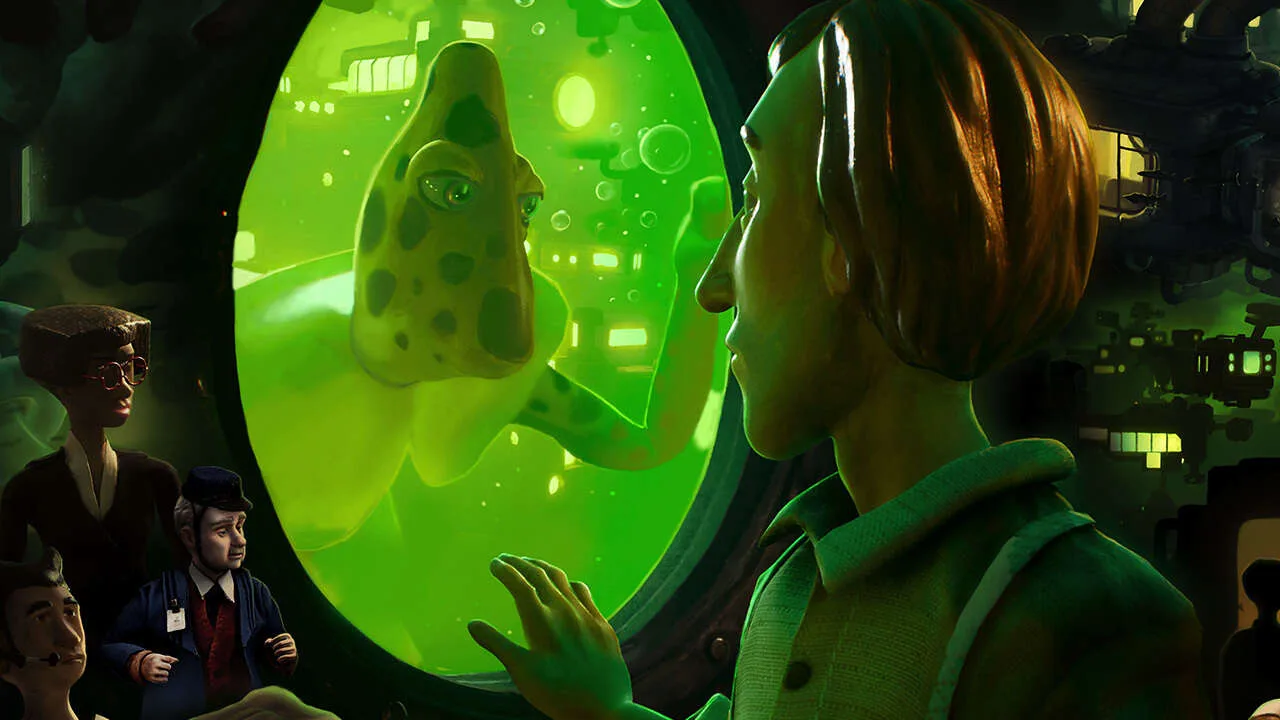
Master Harold Halibut's controls and UI. Learn movement, interaction, and how to navigate the minimalist interface for an immersive experience.
Navigating the unique world of Harold Halibut is intuitive, thanks to its well-designed controls and user interface. The game prioritizes immersion, ensuring that the UI elements are present but never intrusive. Understanding these basics will allow you to focus on the story and the beautifully crafted environments. Whether you're walking, interacting, or managing your inventory, the controls are designed to feel natural.
The user interface in Harold Halibut is minimalist, designed to keep the focus on the game's stunning stop-motion aesthetic and narrative. You'll find that most information is conveyed through visual cues and contextual prompts rather than extensive HUD elements. This approach enhances the feeling of being present in Harold's world. Familiarizing yourself with the button mapping and the purpose of each UI element will make your journey smoother.
Here's a breakdown of the typical controls and UI elements you'll encounter:
Movement and Interaction
- Movement: Typically controlled with the left analog stick (or WASD keys on PC). Harold walks at a deliberate pace, reflecting the game's contemplative nature.
- Camera Control: The right analog stick (or mouse) allows you to look around and adjust the camera.
- Interaction: A dedicated button (e.g., 'A' on Xbox controller, 'E' on keyboard) is used to interact with objects, characters, and dialogue options. A prompt will usually appear when an interaction is possible.
- Contextual Actions: Some interactions might have specific button prompts that appear on screen, such as picking up an item or operating machinery.
User Interface Elements
| Element | Description |
|---|---|
| Dialogue Box | Appears when speaking with characters, displaying conversation options and subtitles. |
| Interaction Prompts | Icons or text indicating that an object or character can be interacted with. |
| Objective Tracker | A subtle display, often in a corner, showing your current main or side quest objective. |
| Inventory/Item Display | Accessed through a menu, showing collected items. This is usually not a persistent HUD element. |
Keybindings (Example - may vary by platform):
- Left Stick/WASD: Move Harold
- Right Stick/Mouse: Camera Control
- 'A'/'E': Interact
- 'B'/'Esc': Back/Cancel
- 'X'/'Tab': Open Menu/Inventory (if applicable)
The game's UI is designed to be as unobtrusive as possible, allowing the stunning visuals and narrative to take center stage. Pay attention to subtle visual cues, as they often indicate interactive elements or important information. Mastering these controls will ensure a smooth and immersive experience as you explore the Alba and its surrounding environments.
100% Human-Written. AI Fact-Checked. Community Verified. Learn how AntMag verifies content