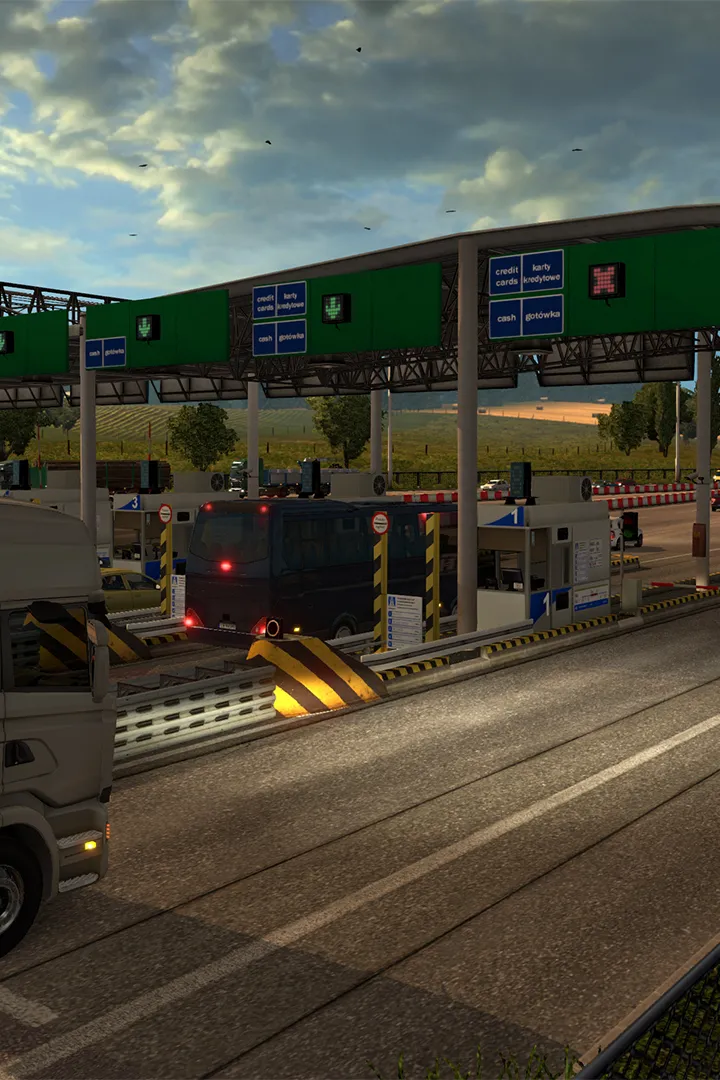
Fix Euro Truck Simulator 2 performance issues and graphics glitches. Get solutions to common problems to keep your trucking empire thriving.
Even the most seasoned virtual truckers can hit a snag on the open road. This section aims to equip you with solutions to common problems encountered in Euro Truck Simulator 2, ensuring your deliveries stay on schedule and your trucking empire thrives.
Performance & Graphics Glitches
Experiencing stuttering, low frame rates, or visual anomalies can severely impact your immersion. Here's how to diagnose and potentially fix these issues:
- Update Graphics Drivers: This is often the first and most crucial step. Visit the official website of your graphics card manufacturer (NVIDIA, AMD, Intel) and download the latest drivers for your specific model. A fresh driver installation can resolve many performance hiccups.
- Adjust In-Game Graphics Settings: Navigate to the Options menu from the main screen, then select Graphics.
- Scaling: This is arguably the most impactful setting. If you're experiencing low FPS, try reducing the "Scaling" percentage. While it might make the image slightly softer, it can significantly boost performance, especially on less powerful hardware.
- Texture Quality: Lowering this from "High" or "Ultra" to "Medium" can free up VRAM and improve stability.
- Shadow Quality: Shadows are resource-intensive. Experiment with "Medium" or "Low" settings.
- Vegetation Draw Distance: Reducing this can help in densely forested areas or cities.
- Traffic Car Density: Fewer AI vehicles mean less processing power needed.
- Verify Game Files (Steam): If you're playing on Steam, corrupted game files can lead to various issues.
- Right-click on Euro Truck Simulator 2 in your Steam Library.
- Select Properties.
- Go to the Local Files tab.
- Click Verify integrity of game files... Steam will then check for and repair any corrupted files.
- Check for Background Applications: Close any unnecessary programs running in the background that might be consuming system resources, such as web browsers, streaming services, or other games.
Controller & Input Problems
Having trouble with your steering wheel, gamepad, or even keyboard inputs? Here's what to check:
- Recalibrate Your Controller: If your steering wheel or gamepad isn't responding correctly, or if the steering feels off-center, recalibration is key.
- From the main menu, go to Options, then Controls.
- Ensure your preferred input device is selected under the "Controller" dropdown.
- Click on Wizards and follow the on-screen prompts to recalibrate your steering, pedals, and other axes.
- Pay close attention to the deadzone and linearity settings for your steering. A small deadzone can prevent unwanted wobbling, while adjusting linearity can make steering more responsive or smoother depending on your preference.
- Check Key Bindings: Sometimes, key assignments can get reset or conflict with other actions.
- In the Controls menu, scroll down to review all your assigned keys and buttons.
- Ensure critical functions like "Engine Start/Stop," "Lights," "Wipers," and "Gear Up/Down" are correctly bound.
- If you're using a keyboard, make sure you haven't accidentally rebound essential driving controls (e.g., W, A, S, D) to other functions.
- Driver Software for Peripherals: For advanced steering wheels (e.g., Logitech G29/G920, Thrustmaster T300RS), ensure you have the manufacturer's specific driver software installed and up-to-date. This often provides additional calibration and force feedback options that enhance the experience.
Game Crashes & Freezes
Unexpected crashes can be frustrating, especially mid-delivery. Here are some common culprits and solutions:
- Mod Conflicts: If you're using community-made modifications (mods), they are a frequent cause of instability.
- Disable All Mods: Go to the Mod Manager from the profile selection screen. Deselect all active mods and try launching the game. If the crash stops, a mod is the culprit.
- Re-enable Mods One by One: Reactivate your mods individually, testing the game after each one, to pinpoint the problematic mod.
- Check Mod Compatibility: Always ensure your mods are compatible with your current game version. Outdated mods are a common source of crashes.
- Outdated Game Version: Ensure your game is fully updated. Steam usually handles this automatically, but if you're playing an older retail version, check the official SCS Software website for patches.
- Corrupted Save Game: Rarely, a save file can become corrupted. If you suspect this, try loading an older autosave or creating a new profile to see if the issue persists. You can access your save files in your documents folder:
Documents\Euro Truck Simulator 2\profiles. - Overheating: If your computer components (CPU, GPU) are overheating, it can lead to crashes. Monitor your system temperatures using third-party software while playing. Ensure your PC has adequate ventilation.
Sound Issues
No engine roar or radio tunes? Let's get your audio back on track:
- Check In-Game Audio Settings: Navigate to Options, then Audio.
- Ensure the "Master Volume" is not muted and is set to an audible level.
- Check individual volume sliders for "Engine," "Truck Interior," "Music," and "Radio" to ensure they are not set to zero.
- Verify the correct "Audio Output Device" is selected if you have multiple sound devices.
- System Audio Mixer: Sometimes, Euro Truck Simulator 2 might be muted in your operating system's volume mixer.
- While the game is running, right-click the speaker icon in your Windows taskbar.
- Select Open Sound settings or Open Volume Mixer.
- Locate Euro Truck Simulator 2 and ensure its volume is turned up.
- Driver Issues: Similar to graphics drivers, outdated or corrupted audio drivers can cause problems. Update your sound card drivers from your motherboard or sound card manufacturer's website.
100% Human-Written. AI Fact-Checked. Community Verified. Learn how AntMag verifies content