
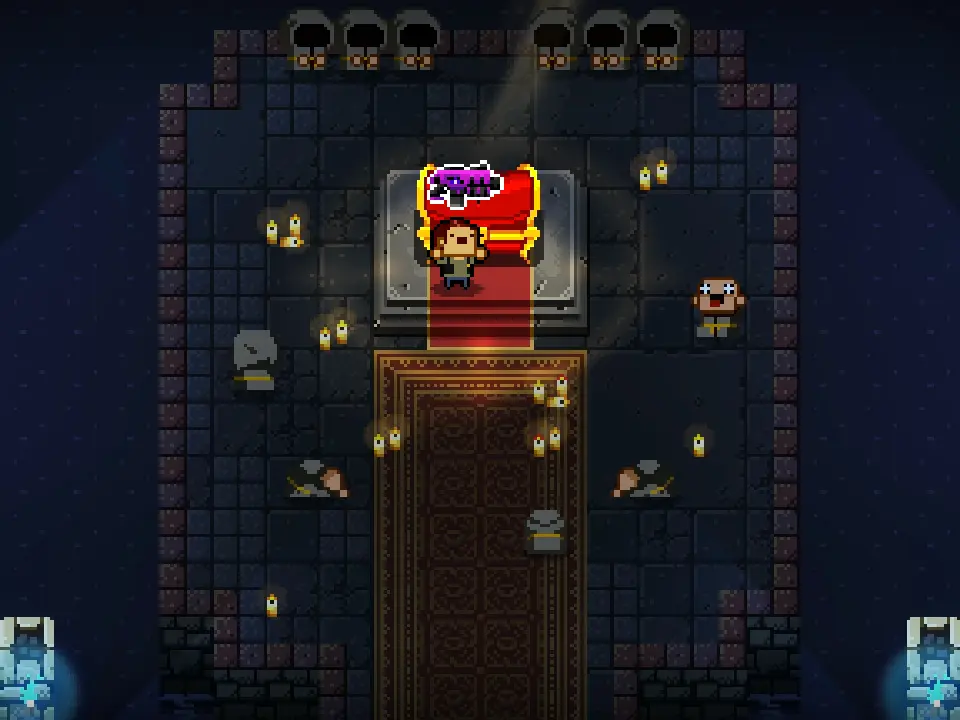
Learn the essential controls and understand the user interface in Enter the Gungeon. Master movement, combat, and item usage to conquer the Gungeon.
Enter the Gungeon is a bullet-hell dungeon crawler with a complex control scheme and a detailed user interface. Mastering both is crucial for survival and success as you delve deeper into the Gungeon.
This guide will break down the essential controls and explain the various elements of the user interface, helping you navigate the challenges ahead.
Controls Overview:
| Action | Default PC Controls | Console Controls (Example) |
|---|---|---|
| Movement | WASD | Left Analog Stick |
| Dodge Roll | Spacebar / Shift | B Button / Circle Button |
| Shoot | Left Mouse Button / Ctrl | Right Trigger / R2 |
| Aim | Mouse | Right Analog Stick |
| Reload | R | X Button / Square Button |
| Use Active Item | Q | Left Trigger / L2 |
| Drop Weapon | G | Y Button / Triangle Button |
| Interact | E | A Button / X Button |
| Map | Tab | Select / Touchpad |
| Inventory | I | D-Pad Up |
| Pause | Esc | Start / Options |
User Interface Elements:
- Health Bar: Displays your current health (hearts) and armor (shields).
- Ammo Count: Shows the current ammo for your equipped weapon.
- Active Item Slot: Indicates if you have an active item equipped and its cooldown.
- Weapon Slots: Displays your currently held weapons.
- Minimap: Provides a small overview of the current floor layout.
- Currency: Shows the amount of casings (money) you possess.
- Room Information: Displays the name of the current room or its type.
Understanding these controls and UI elements will significantly improve your gameplay experience and help you overcome the many challenges that the Gungeon throws at you.
100% Human-Written. AI Fact-Checked. Community Verified. Learn how AntMag verifies content