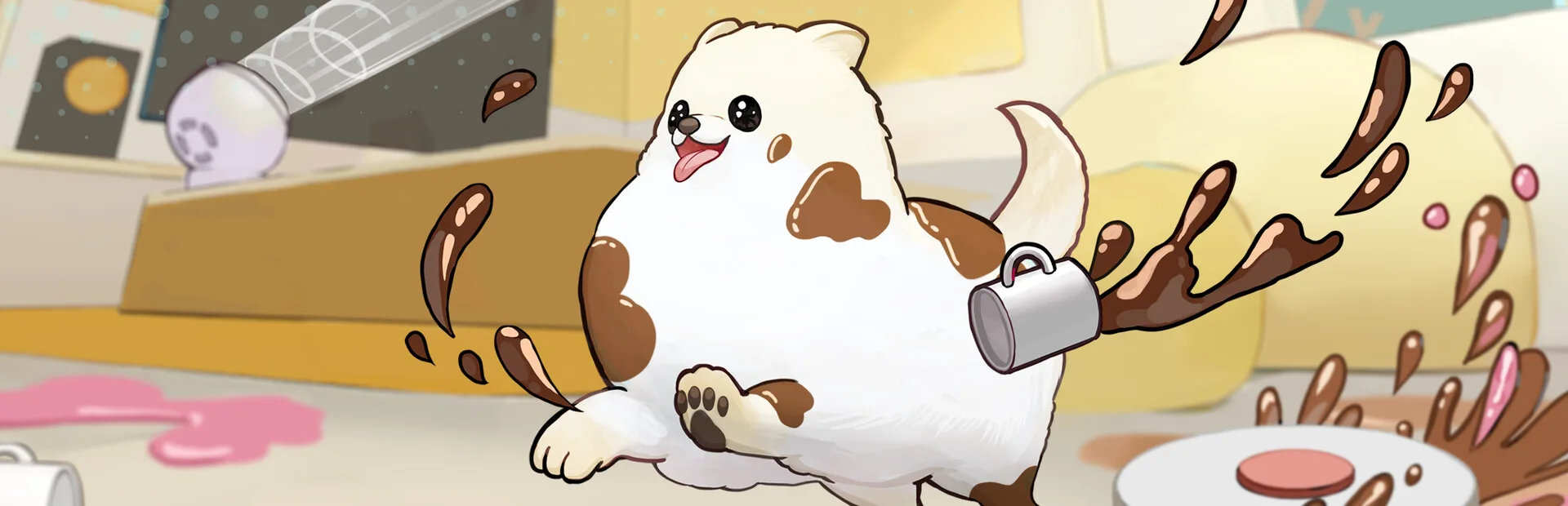

Master Doronko Wanko's controls and UI for intuitive movement and interaction. Learn how to navigate and cause delightful canine chaos.
Navigating the delightful chaos of Doronko Wanko is made intuitive through its straightforward controls and user interface. Designed to be accessible and fun, the game allows players to embody their chosen canine companion with ease. Understanding these basic controls and UI elements is the first step to unleashing your inner mess-maker and exploring the game's charming environments.
The core gameplay revolves around movement and interaction. You'll use the analog stick to guide your dog around the various rooms and outdoor spaces. A dedicated button will be used for actions such as jumping, barking, or interacting with objects. The UI is kept clean and unobtrusive, ensuring that your focus remains on the messy fun. Key information, such as your current objective or any special abilities you might have, is presented clearly without cluttering the screen.
Here's a breakdown of typical controls and UI elements you'll encounter:
- Movement: Typically controlled by the left analog stick. This allows for free-roam exploration of the environments.
- Action Button(s): A primary button (often 'A' or 'X') is used for interacting with objects, jumping, or performing specific dog actions like barking. Context-sensitive actions will be indicated on screen.
- Camera Control: The right analog stick usually controls the camera, allowing you to get a better view of your surroundings and plan your messy endeavors.
- UI Elements:
- Objective Indicator: A small icon or text that reminds you of your current goal.
- Sticker Collection Progress: Often displayed in a menu, showing how many stickers you've collected and how many are available.
- Item Prompts: When near an interactive item, a prompt will appear, indicating which button to press to use it.
The game's UI is designed to be as unobtrusive as possible, allowing the vibrant and messy world to take center stage. Pay attention to subtle visual cues that indicate interactable objects or potential mess-making opportunities. Mastering these controls will allow you to efficiently spread paint, track mud, and generally cause delightful mayhem!
100% Human-Written. AI Fact-Checked. Community Verified. Learn how AntMag verifies content