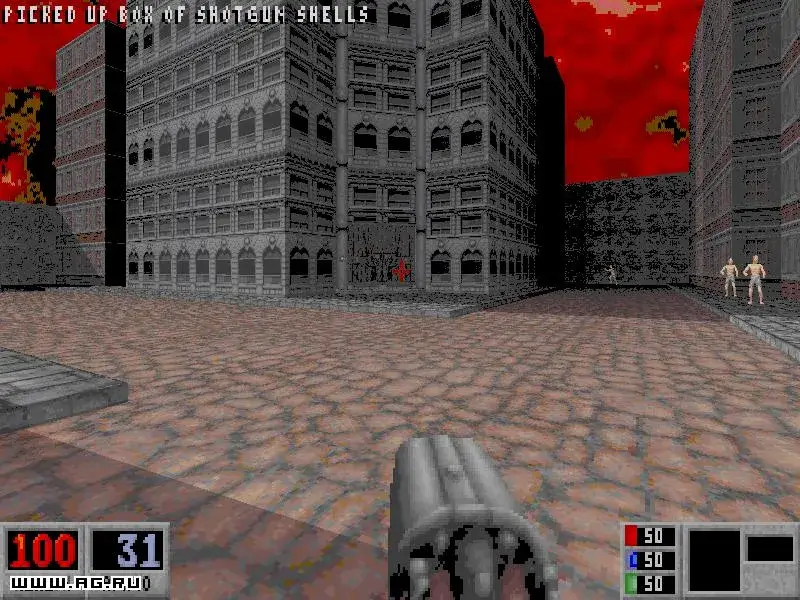
Master the Blood Options Menu! Learn how to adjust mouse sensitivity, key bindings, graphics detail, audio, and more for the best Blood experience.
Alright, so you've jumped into the dark, gothic world of Blood, and you're probably wondering how to tweak things to make it feel just right. That's where the Options Menu comes in! Think of it as your personal control center to fine-tune your experience. Let's break down what each setting does so you can get the most out of Caleb's gruesome journey.
Mouse Sensitivity: If you're playing with a mouse, this is your go-to. It controls how quickly your view spins around. Crank it up if you like to snap around fast, or lower it if you prefer a more controlled, deliberate aim. It's all about finding that sweet spot for your reflexes.
Invert Mouse Aim: This one's a classic for a reason. It flips the vertical look controls. If you're used to games where moving the mouse up looks down (and vice-versa), this is for you. If it feels weird, just leave it off!
Key Turn Speed: For all you keyboard warriors out there! This setting is basically the mouse sensitivity equivalent for keyboard controls. It helps make sure you're not getting left in the dust by mouse users – giving you a fighting chance to turn and aim effectively.
Configure Keys: This is where you can really make the game your own. If a certain keybind feels awkward or you just want to set things up your way, head in here. You can reassign pretty much any action to a key that feels comfortable for you.
Detail: Experiencing some choppy framerates or stuttering? This is your first stop. Lowering the detail level can significantly smooth out the gameplay, especially if your system is struggling a bit. It's a trade-off between visual fidelity and performance, so find the balance that works best for your rig.
Gamma: Blood can get seriously dark, right? If you're finding yourself bumping into walls or missing enemies in the shadows, the Gamma setting is your best friend. Adjusting the screen brightness will help you see more clearly in those pitch-black areas without making the whole screen washed out.
Music, Sound, and CD Audio: These are your audio controls. You can independently adjust the volume for the game's ambient sounds, the sound effects (like gunfire and screams), and the CD audio tracks. Want to hear those spooky tunes louder or turn down the constant gunfire? This is where you do it.
Crosshair: This option is pretty straightforward. When it's on, you get a visual aiming reticle on your screen, which definitely helps with precision. If you're going for a more hardcore, immersive feel, or just want to test your raw aiming skill, turning it off is the way to go.
Auto-Aim: Some weapons in Blood have a bit of built-in auto-aim to make things a tad easier. If you find yourself struggling to keep your sights on enemies, especially with certain weapons, enabling this can be a real help. It's not on by default for everything, so you can choose when to let the game lend you a hand.
Show Weapons: This is a neat little feature specifically for multiplayer, particularly in BloodBath mode. If you're playing with friends, turning this on lets you see what weapon they currently have equipped above their heads. Handy for knowing if your buddy is about to unleash a rocket or just a pistol round!
Slope Tilting: Ever feel like the world is tilting around you when you walk on uneven ground? This option controls that. If you prefer a stable, horizon-locked view regardless of the terrain, disable slope tilting. Otherwise, leave it on to get that more immersive, grounded feel.
View Bobbing and View Swaying: These two settings control the subtle camera movements that simulate walking. View Bobbing adds that up-and-down motion, while View Swaying adds a bit of side-to-side movement. Turning them off can make the game feel a bit more stable and less nauseating for some players, while leaving them on adds to the immersion.
Parental Lock: Blood is definitely not for the faint of heart, and this feature is there to help manage access if needed. You can set up a parental lock to control who can access certain features or the game itself.
100% Human-Written. AI Fact-Checked. Community Verified. Learn how AntMag verifies content