
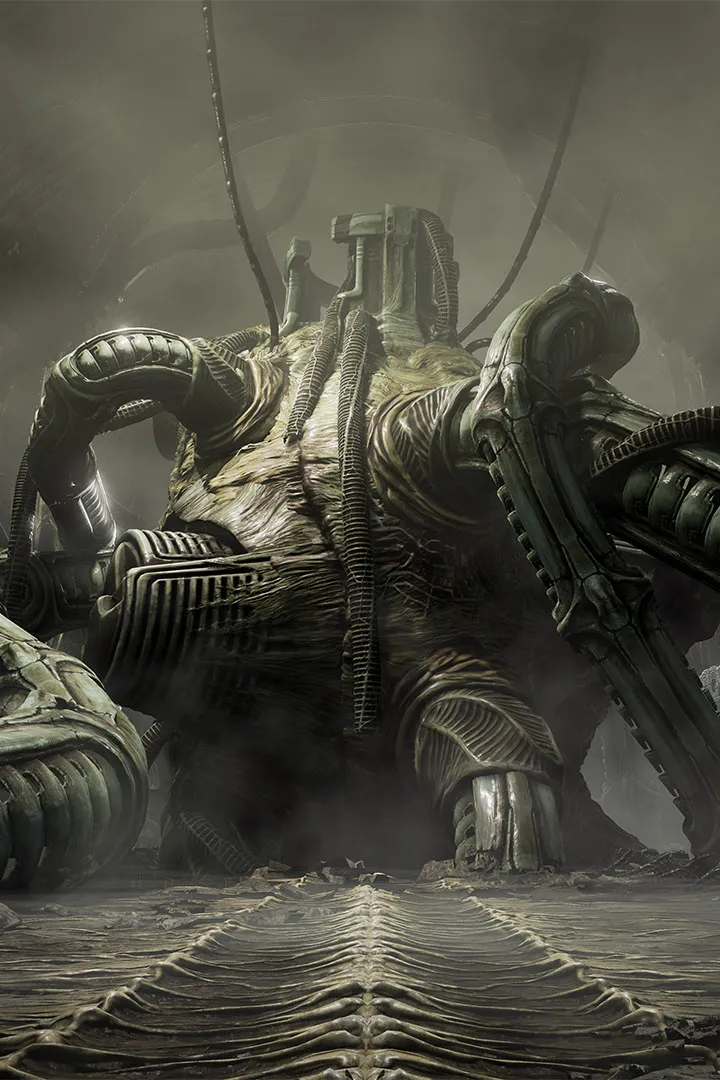
Optimize your Scorn graphics settings for peak performance. Adjust resolution, textures, and shadows for a smooth, atmospheric experience.
Optimizing your graphics settings in Scorn is crucial for achieving a balance between visual fidelity and smooth performance, especially given the game's intricate H.R. Giger-inspired art style and deliberate pacing. The game's atmospheric environments and detailed machinery can be demanding on your hardware, and fine-tuning these settings can significantly enhance your experience, whether you're navigating vast deserts or solving complex puzzles. This section provides actionable advice on adjusting various graphical options to ensure you can appreciate the game's unsettling beauty without encountering frustrating frame rate drops or visual glitches. A well-optimized setup allows you to fully immerse yourself in the game's oppressive atmosphere and focus on the challenges presented.
Scorn's visual presentation is a cornerstone of its identity, and understanding how different graphics settings impact performance is key to a satisfying playthrough. This guide aims to offer practical tips for tweaking these options, ensuring that you can experience the game's unique world as intended. By adjusting settings like texture quality, shadow detail, and anti-aliasing, you can tailor the game to your specific hardware capabilities. This optimization process is vital for a smooth introduction to the game's mechanics, puzzle solutions, and any combat encounters you may face. A stable frame rate is particularly important in a game that relies on careful observation and precise interaction with its complex machinery.
Key Graphics Settings and Their Impact
- Resolution: Setting the resolution to match your monitor's native resolution (e.g., 1920x1080, 2560x1440) will provide the sharpest image. Lowering the resolution is a significant performance booster if you are experiencing frame rate issues.
- Texture Quality: This setting affects the detail of surfaces and objects. High textures require more VRAM. If you have limited VRAM, lowering this setting can improve performance without drastically altering the game's overall look.
- Shadow Quality: Shadows can be very performance-intensive. Lowering shadow quality from "High" to "Medium" or "Low" can yield substantial frame rate gains.
- Anti-Aliasing: This technique smooths out jagged edges. While it improves visual clarity, it can impact performance. Experiment with different anti-aliasing options (e.g., FXAA, TAA) or disable it if performance is a priority.
- Ambient Occlusion: This setting adds depth and realism by simulating how light is blocked in crevices and corners. It can be quite demanding; consider lowering or disabling it if you need more frames.
- Post-Processing Effects: Settings like Bloom, Motion Blur, and Depth of Field can be adjusted. While they contribute to the atmosphere, disabling them can sometimes improve performance.
Recommended Optimization Strategy
- Start with Presets: Begin by selecting a preset (e.g., "High," "Medium," "Low") that best matches your hardware.
- Benchmark and Monitor: Use an in-game benchmark tool if available, or monitor your frame rate using external software (e.g., MSI Afterburner, Nvidia GeForce Experience overlay).
- Prioritize Resolution and Frame Rate: Ensure your resolution is set appropriately. If performance is below your target (e.g., 60 FPS), start by lowering shadow quality and ambient occlusion.
- Adjust Textures and Anti-Aliasing: If performance is still an issue, consider lowering texture quality or anti-aliasing.
- Fine-tune Post-Processing: Adjust post-processing effects last, as their impact on performance can vary.
- Test in Different Areas: Test your settings in various environments, such as open areas like the vast desert and more complex, enclosed puzzle rooms, as performance can differ.
100% Human-Written. AI Fact-Checked. Community Verified. Learn how AntMag verifies content