
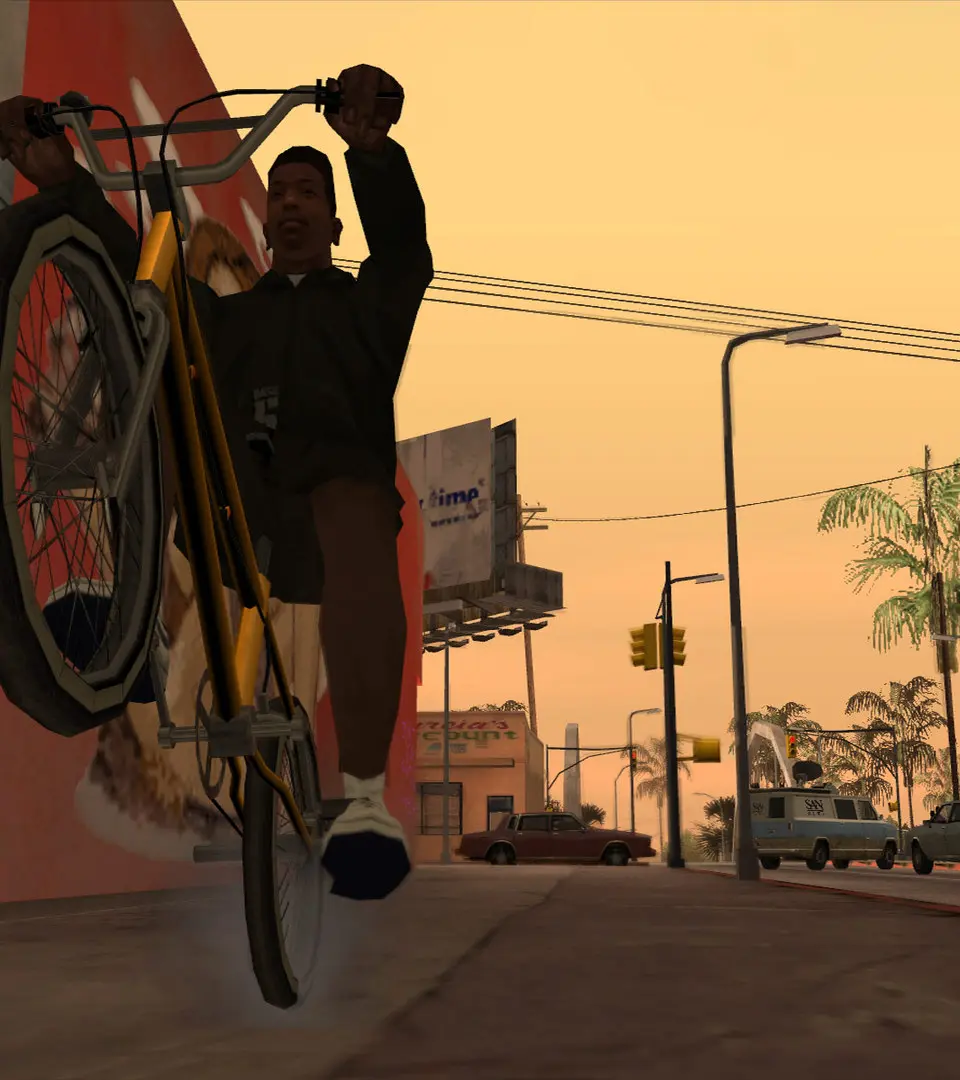
Get your copy of Grand Theft Auto: San Andreas installed and ready to play! This guide walks you through the installation and setup process, so you can start causing chaos in Los Santos.
Getting Started with Grand Theft Auto: San Andreas
Alright, so you've got your hands on Grand Theft Auto: San Andreas – awesome choice! Before you can start cruising through Los Santos, hitting up Grove Street, or causing mayhem in the countryside, you'll need to get the game installed and set up. Don't worry, it's pretty straightforward, and I'll walk you through it step-by-step.
Installation
The installation process can vary a bit depending on how you got your copy of the game. Here are the most common scenarios:
Disc Version:
If you're using the original PC discs (or a digital copy that requires disc authentication), you'll need to insert the first disc into your drive. The installer should launch automatically. If it doesn't, just navigate to your disc drive in 'My Computer' or 'This PC' and double-click the setup executable (it's usually named something like setup.exe or install.exe).
Follow the on-screen prompts. You'll be asked to accept the license agreement, choose an installation directory (the default is usually fine, often in C:\Program Files\Rockstar Games\Grand Theft Auto San Andreas), and then the installer will copy the game files. You might be prompted to insert Disc 2 and Disc 3 at different points during the installation – just swap them out as requested.
Digital Download Version (e.g., Steam, Rockstar Games Launcher):
If you purchased the game through a digital storefront like Steam or the Rockstar Games Launcher, the process is even simpler.
- Steam: Go to your Steam Library, find Grand Theft Auto: San Andreas, and click the 'Install' button. Steam will handle the download and installation for you.
- Rockstar Games Launcher: Open the Rockstar Games Launcher, navigate to your library, find San Andreas, and click 'Download' or 'Install'.
Make sure you have enough free space on your hard drive. The game itself is around 4.7 GB, but it's always good to have a bit of extra room.
Initial Setup and Configuration
Once the installation is complete, it's time for a few quick setup steps:
Running the Game for the First Time:
Locate the game's shortcut on your desktop or in the Start Menu and double-click it. The first time you run it, you might see a configuration window pop up. This is where you'll set your display options.
Display Settings:
- Resolution: Choose a resolution that matches your monitor's native resolution for the best picture quality.
- Graphics Settings: You can usually leave these on default or adjust them based on your PC's power. Higher settings look nicer but require a stronger system.
- Aspect Ratio: Select 'Widescreen' if your monitor is widescreen, or 'Normal' if it's a 4:3 display.
Click 'OK' or 'Start' to launch the game.
Important Notes & Potential Pitfalls:
- Compatibility Mode: For older versions of Windows, you might need to run the game in compatibility mode. Right-click the game's executable (
gta-sa.exe, usually found in the game's installation folder), go to 'Properties', then the 'Compatibility' tab, and check 'Run this program in compatibility mode for:' selecting 'Windows XP (Service Pack 3)' or 'Windows 7'. - No-CD Patch (Disc Version): If you're using the disc version and encounter issues with the game asking for a specific disc even after installation, you might need to look into a 'No-CD' patch. Be cautious where you download these from, as they can sometimes contain malware. It's generally safer to use a digital version if possible.
- Modern Systems: San Andreas is an older game, and sometimes modern operating systems or hardware can cause issues. If you run into crashes or graphical glitches, searching for community patches or mods designed for modern systems can often fix them.
That's it! You should now be ready to jump into the massive world of Grand Theft Auto: San Andreas. Enjoy your time in San Andreas!
100% Human-Written. AI Fact-Checked. Community Verified. Learn how AntMag verifies content