
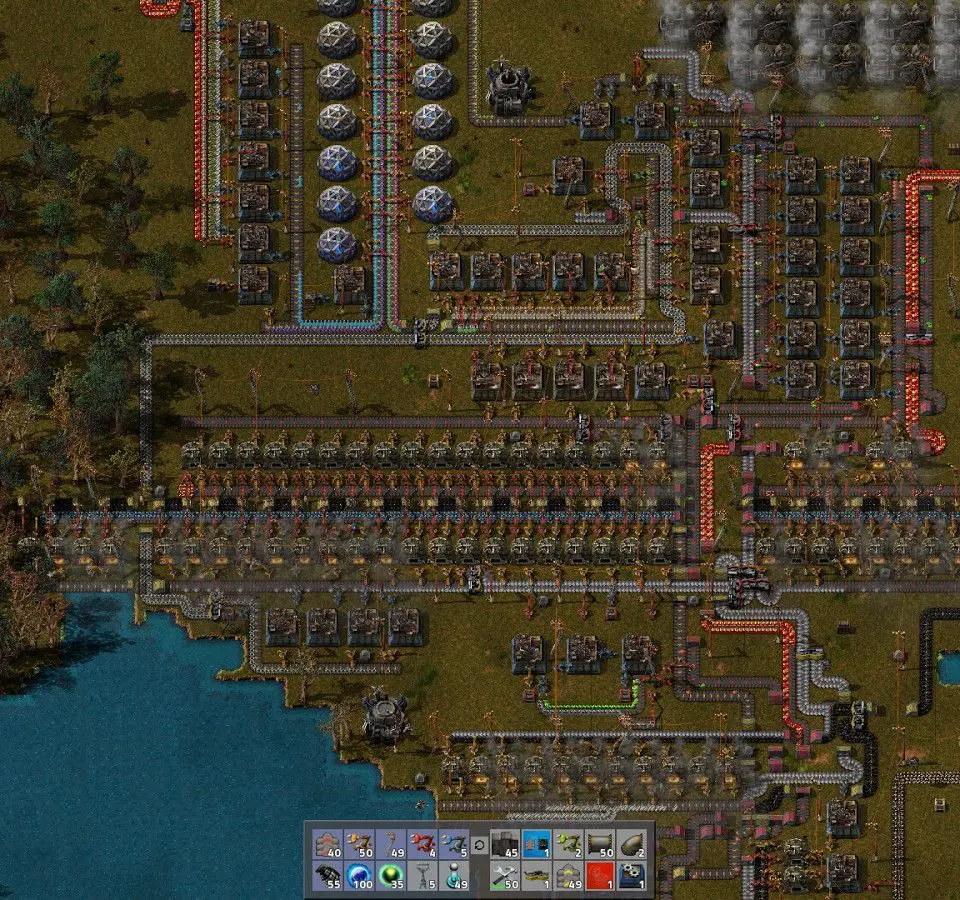
Manage your Factorio blueprint library to save and reuse factory designs, organizing them for efficient building.
The Blueprint Library, accessed by pressing B, is an indispensable tool for any seasoned Factorio engineer. It allows you to save, organize, and reuse your factory designs, from simple smelter arrays to complex megabase modules. Mastering its features is crucial for efficient expansion and collaborative play.
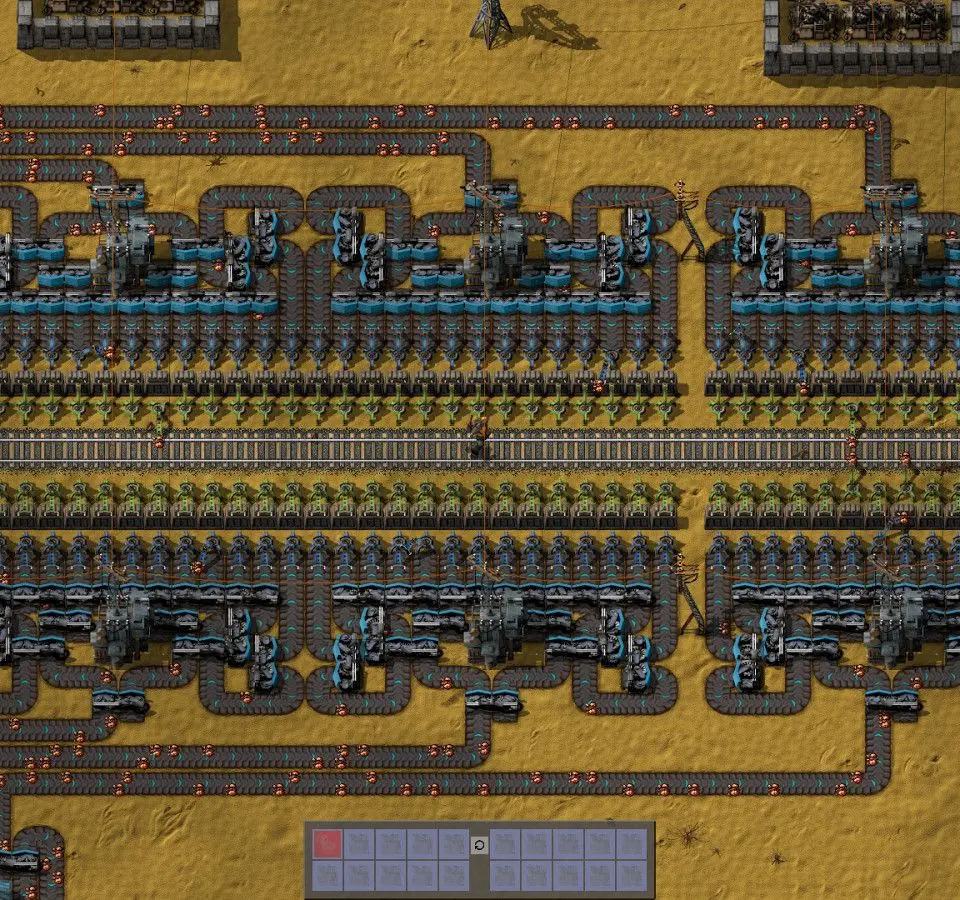
Effective blueprint management not only streamlines your personal gameplay but also facilitates sharing innovative designs within the Factorio community. This section will guide you through comprehensive strategies for organizing, sharing, and leveraging your blueprint collection.
Organizing Your Blueprint Library
A well-structured library saves countless hours of searching. The in-game library supports folders and blueprint books, providing powerful organizational tools.
1. Using Folders for Categorization
Folders are your primary method for segmenting your blueprints. Think of them as broad categories for your designs.
- Creating a Folder:
- Open the Blueprint Library (
B). - Click the "New Folder" icon (looks like a folder with a plus sign) in the top-left panel.
- Enter a descriptive name for your folder (e.g., "Smelting", "Science Production", "Train Stations").
- Open the Blueprint Library (
- Moving Blueprints/Books: Simply drag and drop blueprints or blueprint books into the desired folder in the left-hand navigation pane.
- Best Practices for Folder Structures:
- By Function: Group blueprints by their primary purpose (e.g., "Power Generation", "Oil Processing", "Defense"). This is often the most intuitive approach.
- By Tier/Level: For designs that evolve, you might have "Early Game", "Mid Game", "Late Game" folders, or "Red/Green Science", "Blue/Purple Science", etc.
- By Scale: "Compact Designs", "Modular Segments", "Megabase Blocks".
- Temporary/WIP: Create a "Scratchpad" or "Work In Progress" folder for designs you're still iterating on, keeping your main library clean.
2. Leveraging Blueprint Books
Blueprint Books are essential for grouping multiple related blueprints together, allowing you to deploy complex modules with a single drag-and-drop operation. They are particularly useful for multi-step processes or interconnected designs.
- Creating a Blueprint Book:
- Open the Blueprint Library (
B). - Click the "New Blueprint Book" icon (looks like a book with a plus sign) in the top-left panel.
- Give it a meaningful name (e.g., "Iron Smelter Block 2-4", "Compact Science 1-3", "Rail Network Standards").
- Drag individual blueprints from your library or inventory into the newly created book.
- Open the Blueprint Library (
- Advantages of Blueprint Books:
- Batch Placement: Place all blueprints within a book sequentially without having to select each one individually.
- Logical Grouping: Keep all components of a larger system together (e.g., a train station blueprint, its loading/unloading blueprints, and associated rail segments).
- Version Control: You can have multiple versions of a design within a book, or create separate books for different iterations.
3. Naming Conventions for Clarity
Consistent naming is paramount, especially as your library grows. A good naming convention allows you to quickly locate specific designs.
- Prefixes/Suffixes:
[Type]_[Function]_[Size/Ratio]: e.g.,[Smelter]Iron_Plate_12-12,[Train]4-Car_Unload_Iron,[Science]Red_Green_Compact.[Ratio]_[Item]_[Version]: e.g.,450_GreenCircuits_v2.1.[Mod]_[Design]: If you use modded components, prefixing with the mod name can be helpful (e.g.,[Krastorio]Advanced_Furnace_Block).
- Abbreviations: Use common abbreviations where appropriate (e.g., "GC" for Green Circuits, "SP" for Science Pack).
- Descriptive but Concise: Aim for names that convey the blueprint's purpose and key characteristics without being excessively long.
Sharing and Importing Blueprints
Factorio's blueprint system is designed for easy sharing, fostering a vibrant community of design exchange.
1. Exporting Blueprints (Blueprint Strings)
To share a blueprint or blueprint book, you convert it into a "blueprint string" – a long string of characters that encodes all the design information.
- Steps to Export:
- Open the Blueprint Library (
B). - Select the blueprint or blueprint book you wish to export.
- Click the "Export Blueprint" icon (looks like a clipboard with an arrow pointing out) in the blueprint's detail panel on the right.
- A text box will appear containing the blueprint string. Click "Copy" to copy it to your clipboard.
- Open the Blueprint Library (
- Sharing the String: You can now paste this string into online forums (like the Factorio subreddit or official forums), Discord servers, or text files to share with others.
2. Importing Blueprints (Blueprint Strings)
To use a blueprint string shared by someone else, you import it into your game.
- Steps to Import:
- Copy the blueprint string from its source (e.g., a website, chat).
- Open the Blueprint Library (
B). - Click the "Import Blueprint" icon (looks like a clipboard with an arrow pointing in) in the top-left panel.
- A text box will appear. Paste the copied blueprint string into this box.
- Click "Import". The blueprint or blueprint book will appear in your library, usually in the root directory or the last folder you viewed.
- Placement: After importing, remember to drag the new blueprint or book into the appropriate folder for organization.
Cloud Sync and Library Management
Factorio's in-game blueprint library offers cloud synchronization, ensuring your precious designs are backed up and accessible across different Factorio installations or computers.
- Automatic Cloud Sync: The blueprint library is automatically synced with your Factorio account (linked to your Factorio.com purchase). As long as you are logged into your Factorio account within the game, your library changes are saved to the cloud.
- Benefits:
- Backup: Protects your designs from local file corruption or loss.
- Cross-Device Access: Access your entire blueprint collection from any computer where you log into Factorio.
- Seamless Updates: Any changes you make to your blueprints (editing, adding, deleting) are reflected across all synced instances.
- Troubleshooting Sync Issues:
- Ensure you are logged into your Factorio account in the game (check the main menu or multiplayer lobby).
- Verify your internet connection.
- If issues persist, check the Factorio forums for known issues or contact support.
Practical Tips for Blueprint Management
- Iterate and Refine: Don't be afraid to create multiple versions of a blueprint. As your factory grows and your understanding deepens, you'll find ways to optimize. Use blueprint books to store these iterations.
- Document Your Blueprints: While Factorio doesn't have built-in rich text descriptions for blueprints, you can use the blueprint's name and icon to convey information. For complex designs, consider keeping external notes or diagrams.
- Use the Blueprint Editor: The in-game blueprint editor (accessible by right-clicking a blueprint in your inventory or library) allows you to modify existing blueprints without placing them. This is invaluable for minor tweaks or upgrading components.
- Clear Out Obsolete Designs: Periodically review your library and delete blueprints or books that are no longer useful. A cluttered library is a slow library.
- Test Before Deploying Widely: Especially for complex or community-sourced blueprints, test them in a sandbox or creative mode map before integrating them into your main factory. This helps identify potential issues like missing resources, incorrect ratios, or power bottlenecks.
- Consider Blueprint String Websites: Websites like FactorioPrints or Factorio School are excellent resources for finding and sharing blueprints, often with detailed descriptions and discussions.
By diligently applying these management strategies, your Factorio blueprint library will transform from a chaotic collection into a powerful, organized arsenal of factory designs, ready to be deployed at a moment's notice, accelerating your progress towards the rocket launch and beyond.
100% Human-Written. AI Fact-Checked. Community Verified. Learn how AntMag verifies content