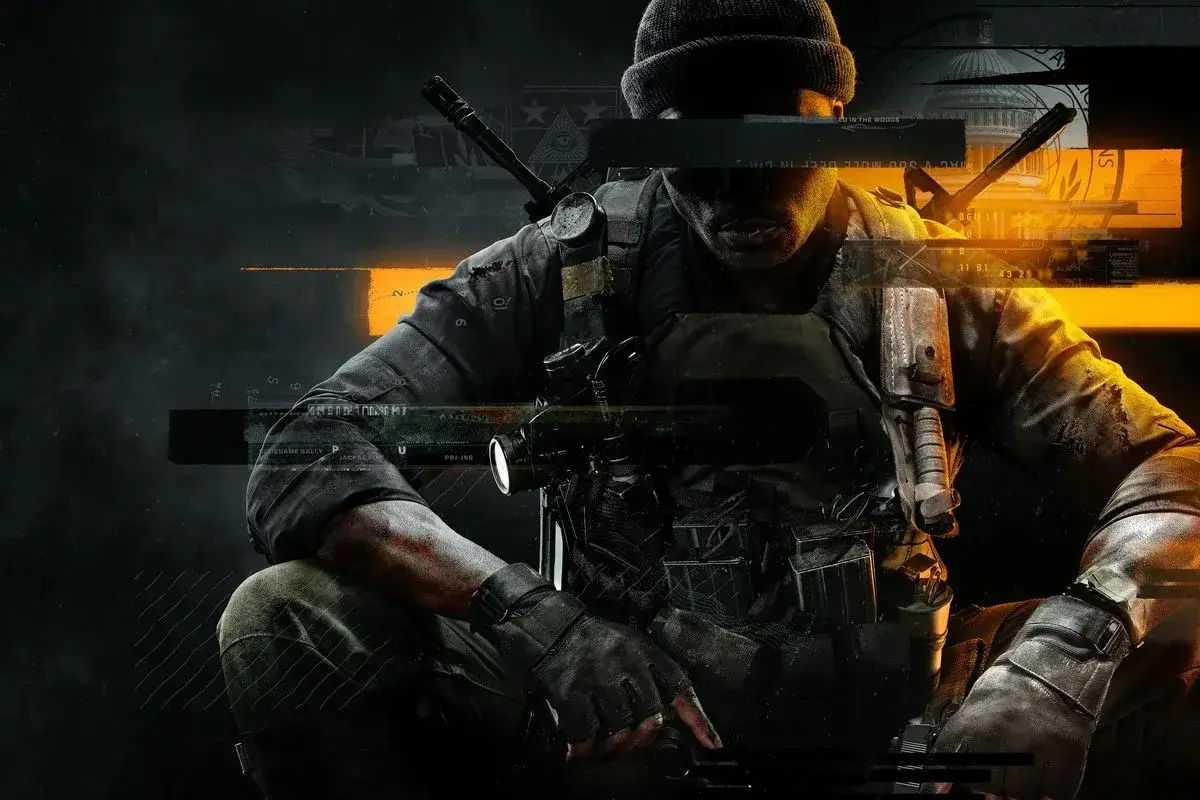
Navigate the Options menu in Call of Duty: Black Ops 6. Customize your gameplay experience from controls to graphics. Your friendly guide to settings.
Call of Duty: Black Ops 6 - Options Guide
Alright, let's get your game dialed in just right. The Options menu is where you'll fine-tune everything from how you aim to how the game looks and sounds. Think of it as your personal command center for making sure Call of Duty: Black Ops 6 plays exactly how you want it to.
Getting Started: The Basics
When you first dive into the Options, you'll see a few main categories. We'll break them down so you know what's what:
- Gameplay: This is where you'll find settings that directly affect how you play. Think things like aim assist, sprint options, and how your weapon behaves.
- Controls: Crucial stuff here! You can rebind buttons, adjust sensitivity for your sticks, and even set up custom layouts if the default ones aren't cutting it.
- Audio: Want to crank up the music or make sure you hear enemy footsteps? This is your section. Adjust master volume, music, dialogue, and sound effects to your preference.
- Graphics: This is all about how the game looks. You can tweak settings like texture quality, anti-aliasing, and field of view (FOV). Higher settings can look amazing but might impact performance, so it's a balancing act.
- Interface: Customize HUD elements, subtitles, and other on-screen information. Make sure you can see what you need to see, when you need to see it.
- Account & Network: Here you'll manage your online profile, privacy settings, and network options.
Key Settings to Consider
Sensitivity and Aiming
This is probably the most personal setting. If you find yourself overshooting targets or struggling to keep up, adjusting your controller sensitivity is the first step. Most players find a sweet spot between 4-7, but there's no right or wrong answer. Experiment! You might also want to look into Aim Response Curve Type to see how the aiming reticle feels when you move the stick.
Field of View (FOV)
This setting determines how much of the game world you can see on screen. A wider FOV (higher number) lets you see more peripherally, which can be great for situational awareness, especially in faster-paced modes. However, a very wide FOV can sometimes make targets appear smaller and further away. A good starting point is usually around 90-100, but play around with it to find what feels comfortable.
Audio Mix
For competitive play, many players prefer to boost the 'Sound Effects' volume and slightly lower 'Music' and 'Dialogue'. This helps you pinpoint enemy locations by sound. Give it a try and see if it helps you react faster.
Graphics Settings (PC Players)
If you're on PC, you have a lot more granular control. Start with presets like 'High' or 'Medium' and then fine-tune individual settings. If you're experiencing low frame rates (FPS), try lowering settings like shadows, anti-aliasing, or texture quality first, as these often have the biggest impact. Aim for a smooth experience over the absolute highest fidelity if your hardware struggles.
Pro-Tips for Tweaking
- Don't be afraid to experiment! What works for a pro player might not work for you. Spend some time in the firing range or a private match to test out new settings.
- Save your settings. If you make a change and don't like it, you can always revert. Some games even let you save multiple profiles.
- Check for updates. Sometimes, game updates can reset or change certain options. It's a good idea to quickly check your settings after a major patch.
Getting your options set up correctly is a big part of enjoying Call of Duty: Black Ops 6. Take your time, play around, and make the game your own!
100% Human-Written. AI Fact-Checked. Community Verified. Learn how AntMag verifies content