
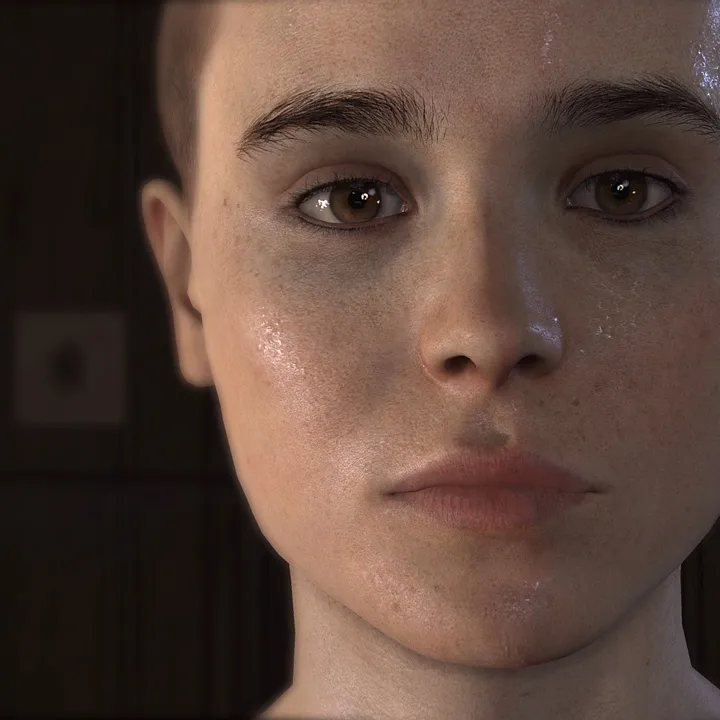
Adjust Beyond: Two Souls settings for an enhanced experience. Configure controls, visual preferences, and accessibility options for Jodie's journey.
Beyond: Two Souls offers a range of settings to tailor your experience, from visual preferences to control schemes and accessibility features. Taking the time to adjust these can significantly enhance your immersion and enjoyment of Jodie and Aiden's journey. You can access these options from the main menu before starting a new game or by pausing gameplay at any point.
Accessing the Settings Menu
- From the Main Menu, navigate to "Options."
- During gameplay, press the Pause button (typically the 'Start' or 'Options' button on your controller) to bring up the in-game menu, then select "Options."
General Settings
These settings cover broad aspects of your gameplay experience.
- Difficulty:
- Easy: Recommended for players new to interactive dramas or those who prefer a more narrative-focused experience. Quick Time Events (QTEs) have longer reaction windows, and Aiden's controls are more forgiving.
- Normal: The standard experience, offering a balanced challenge for QTEs and Aiden's abilities.
- Hard: For seasoned players seeking a greater challenge. QTE windows are tighter, and Aiden's control requires more precision.
- Subtitles: Toggle subtitles On or Off. Highly recommended to keep these on for full story comprehension, especially during intense scenes or when character dialogue might be obscured by sound effects.
- Language: Change the spoken language and subtitle language for the game.
Control Settings
Customize how you interact with Jodie and Aiden.
- Control Type:
- Standard: The default control scheme, utilizing analog sticks for movement and camera, and face buttons for interactions.
- Simplified: Reduces the complexity of certain QTEs and interactions, often requiring fewer precise inputs. This is a great accessibility feature for players with motor control challenges.
- Invert Y-Axis (Camera): Toggle this option to invert the vertical movement of the camera. Choose On if pushing the stick up makes the camera look down, and vice-versa.
- Invert X-Axis (Camera): Toggle this option to invert the horizontal movement of the camera. Choose On if pushing the stick left makes the camera look right, and vice-versa.
- Vibration: Turn controller vibration On or Off. Vibration adds to immersion during key moments and QTEs but can be disabled if preferred.
Display Settings
Adjust visual aspects of the game to your preference.
- Brightness: Adjust the overall brightness of the game. If scenes appear too dark or washed out, fine-tune this slider until details are clear without being overly bright.
- Gamma: Similar to brightness, gamma affects the luminance of mid-tones. Adjust this in conjunction with brightness for optimal visual clarity.
Audio Settings
Control the game's soundscape.
- Master Volume: Adjust the overall volume of all game audio.
- Music Volume: Control the volume of the game's musical score. Lowering this can help you focus on dialogue, while raising it enhances the cinematic feel.
- SFX Volume: Adjust the volume of sound effects, such as footsteps, environmental noises, and combat impacts.
- Dialogue Volume: Control the volume of character voices. Crucial for understanding the narrative, so ensure this is set to a comfortable level.
Accessibility Features
Beyond: Two Souls includes several features designed to make the game more playable for a wider audience.
- Simplified Controls: As mentioned under "Control Settings," selecting Simplified controls can reduce the complexity of QTEs and interactions, making them easier to execute for players who may struggle with rapid or precise inputs.
- QTE Assist: This option, often found under Difficulty or Control settings, can further extend the reaction windows for Quick Time Events, giving you more time to respond.
- Aiden Control Assist: For players who find Aiden's free-form movement challenging, this option can provide some guidance or auto-correction to his movements, making it easier to navigate objects and interact with the environment.
- Text Size: While not a dedicated slider, ensuring Subtitles are enabled is paramount. The game's default text size is generally legible, but if you have visual impairments, playing on a larger screen or sitting closer can help.
- Colorblind Mode: Unfortunately, Beyond: Two Souls does not feature a dedicated colorblind mode. However, the game primarily relies on visual cues beyond color (e.g., button prompts, directional arrows) for critical gameplay elements.
Experiment with these settings to find the configuration that best suits your playstyle and needs. A comfortable and accessible setup will allow you to fully immerse yourself in Jodie and Aiden's compelling story.
100% Human-Written. AI Fact-Checked. Community Verified. Learn how AntMag verifies content