
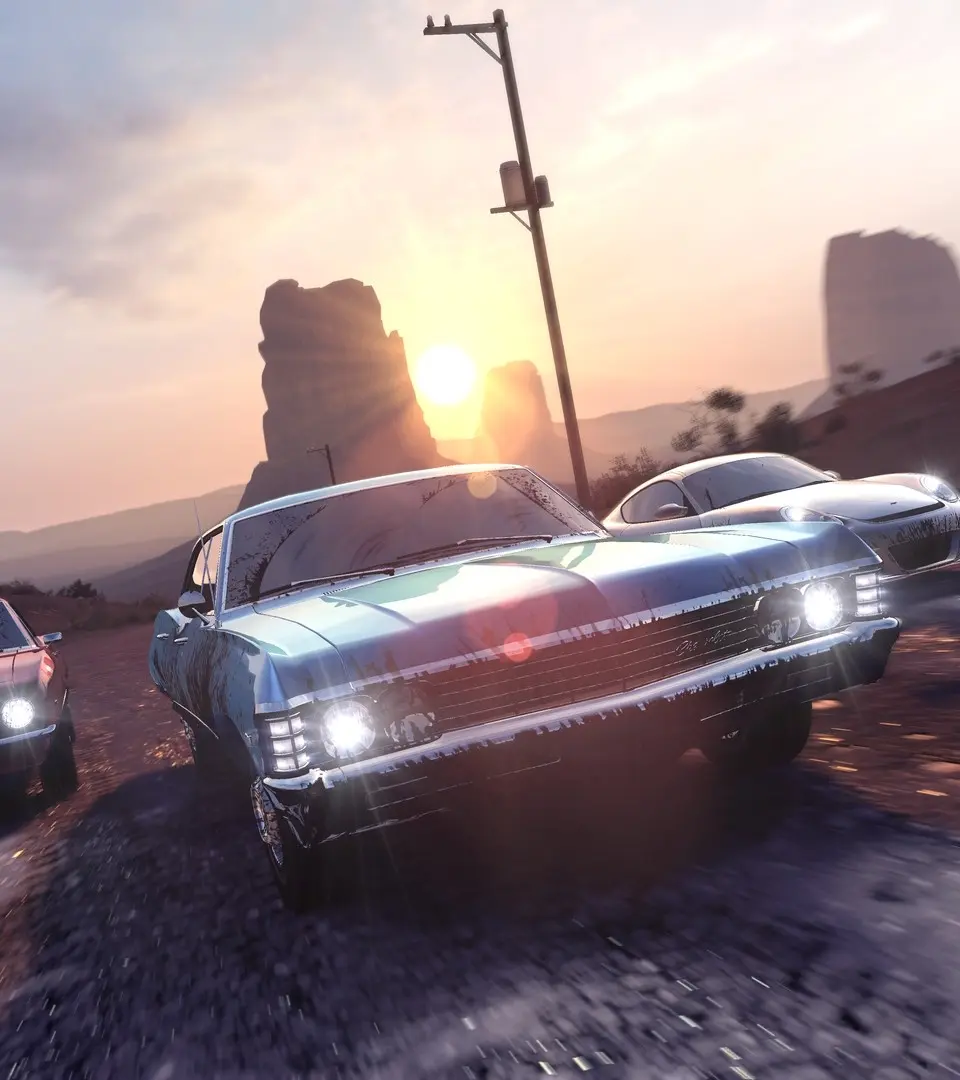
Optimize your gaming experience in The Crew. This guide covers initial setup and system requirements for smooth driving performance from the start.
Welcome to the world of The Crew! Before you hit the open roads of a sprawling, reimagined United States, you'll go through a crucial initial setup process. Taking a few moments here to optimize your settings will significantly enhance your driving experience, ensuring smooth performance and comfortable controls from the get-go.
Step 1: System Requirements & First Launch
Before even launching the game, it's always a good practice to quickly verify that your system meets or exceeds The Crew's minimum and recommended specifications. This can prevent performance issues and ensure a smoother initial setup. If you're unsure, a quick search for "The Crew PC system requirements" will provide the necessary details.
Upon your very first launch, the game will guide you through essential configurations. Don't rush this section; these foundational settings will impact your entire playthrough.
Step 2: Display Settings Optimization
The display settings are paramount for both visual fidelity and game performance. The Crew offers a range of options to tailor the experience to your hardware. You can always revisit these settings later via the main menu's 'Options' -> 'Video' section.
- Resolution: Always aim for your monitor's native resolution (e.g., 1920x1080, 2560x1440). This provides the sharpest image. If performance suffers, incrementally lower it.
- Refresh Rate: Match this to your monitor's refresh rate (e.g., 60Hz, 144Hz) for the smoothest motion.
- V-Sync (Vertical Synchronization):
- On: Eliminates screen tearing by syncing frame rate to your monitor's refresh rate. Can introduce input lag.
- Off: May cause screen tearing but offers the lowest input lag.
- Adaptive/G-Sync/FreeSync: If your monitor and GPU support these technologies, enable them for the best balance of tear-free visuals and low input lag.
- Graphics Quality (Presets: Low, Medium, High, Ultra): This controls a multitude of settings like texture quality, shadow detail, environmental effects, and draw distance. Start with a preset that matches your system's capabilities and adjust individual settings from there.
- Anti-Aliasing (AA): Reduces jagged edges on objects. Common options include FXAA, MSAA, or TXAA. Higher settings offer better visual quality but are more demanding on your GPU.
- Recommendation: If performance is key, start with FXAA or a lower MSAA setting.
- Field of View (FOV): Adjusts how much of the game world you see. A wider FOV can be beneficial for situational awareness but may distort visuals slightly. Experiment to find what's comfortable.
Optimization Tip: Start with a 'Medium' or 'High' preset and monitor your frame rate. If it's consistently above 60 FPS (or your desired target), try increasing individual settings like texture quality or anti-aliasing. If it's too low, reduce settings like shadows, environmental detail, or post-processing effects first, as these often have a significant performance impact.
Step 3: Audio Preferences
Sound is crucial for immersion and feedback in a racing game. Adjust your audio settings to ensure you can clearly hear engine sounds, tire squeals, and crucial navigation cues.
- Master Volume: The overall volume level.
- Music Volume: Controls the in-game soundtrack. Adjust to your preference; some players prefer lower music to focus on engine sounds.
- SFX Volume (Sound Effects): Crucial for engine noises, collisions, tire sounds, and environmental audio. Keep this at a level where you can clearly distinguish important cues.
- Voice Volume: Controls dialogue from NPCs and your character.
- Dynamic Range: Adjusts the difference between the loudest and quietest sounds. 'Headphones' or 'Night Mode' settings often compress this range, making quiet sounds more audible without excessively loud peaks.
Recommendation: Ensure SFX volume is prominent. Being able to hear your engine revving or tires losing grip can provide valuable feedback during races.
Step 4: Control Scheme Selection
The Crew offers flexible control options to suit various playstyles and hardware. This is arguably the most personal setting, as it directly impacts your ability to control your vehicle.
- Keyboard & Mouse: The default for PC players. While functional, precise steering can be challenging.
- Recommendation: Consider remapping keys for comfort, especially for nitro, handbrake, and camera controls. Adjust mouse sensitivity for menu navigation.
- Gamepad (Controller): Highly recommended for a more intuitive and nuanced driving experience. The analog sticks provide precise steering and throttle/brake control.
- Supported Controllers: Xbox controllers (Xbox One, Xbox 360) are natively supported on PC. PlayStation controllers (PS4) often work with third-party software or Steam's controller configuration.
- Vibration Feedback: Enable this for enhanced immersion, as it provides tactile feedback for collisions, engine revs, and road surfaces.
- Steering Wheel & Pedals: For the ultimate simulation experience. The Crew supports a range of popular racing wheels.
- Calibration: Ensure your wheel and pedals are properly calibrated within the game's settings. Check for dead zones and linearity to match your preference.
- Force Feedback: Adjust force feedback strength to feel the road and car behavior. Too strong can be fatiguing, too weak can lack immersion.
Tip: If you're new to racing games, start with a gamepad. The learning curve is generally smoother than with a keyboard, and it offers better control than a keyboard without the complexity of a full wheel setup.
Step 5: Character Creation (Avatar Selection)
Unlike traditional RPGs, The Crew's character creation is a streamlined process focused on selecting a pre-designed avatar to represent you in cutscenes and certain in-game menus. This choice is purely cosmetic and has no impact on gameplay, stats, or story progression.
- Avatar Options: You will be presented with a selection of approximately 8-10 distinct male and female avatars. These are fixed models with pre-set appearances (hair, clothing, facial features).
- No Customization: There are no sliders, color palettes, or individual clothing options to modify your chosen avatar. What you see is what you get.
- Impact: Your chosen avatar will appear in narrative cutscenes, particularly during the game's main story campaign, and occasionally in your garage or challenge screens. They do not have unique voice lines based on selection, nor are there any unlockable avatars.
Recommendation: Simply pick the avatar whose aesthetic you find most appealing. Since it's a cosmetic choice with no gameplay implications, don't overthink it. Your true identity in The Crew is forged through your driving prowess, your ever-expanding car collection, and your reputation on the streets!
Once these initial steps are complete, you'll be ready to dive into the expansive world of The Crew and begin your journey to dominate the American racing scene!
100% Human-Written. AI Fact-Checked. Community Verified. Learn how AntMag verifies content