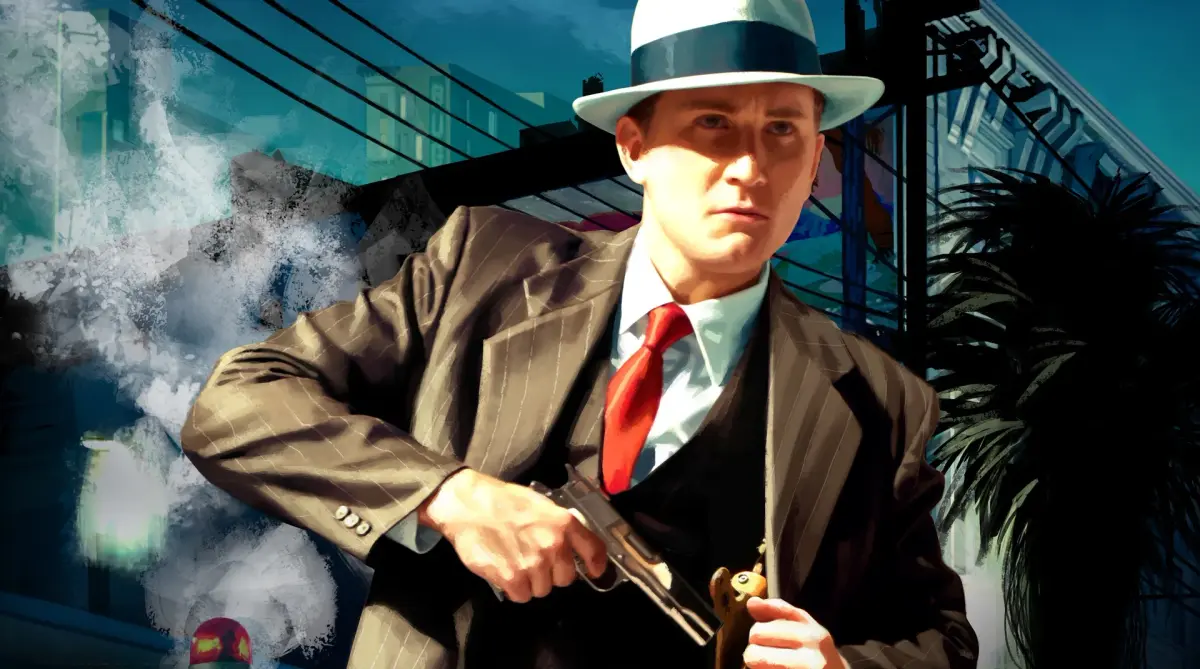
Resolve L.A. Noire's technical snags and gameplay glitches. Find solutions for common issues like graphical artifacts affecting your investigation.
Even the most seasoned detective can hit a snag in the sprawling, sometimes glitchy, streets of 1947 Los Angeles. This section aims to help you navigate common technical difficulties and gameplay quirks that might impede your investigation. From persistent graphical anomalies to elusive collectibles, we've got you covered.
Common Technical Hiccups
Graphical Artifacts & Texture Pop-In
Players occasionally report flickering textures, objects appearing suddenly, or strange graphical distortions, particularly during high-speed chases or when transitioning between areas like the Central Police Station and the open world. While often minor, these can be immersion-breaking.
- Actionable Steps:
- Restart the Game: A full restart of the application can often clear temporary rendering issues.
- Check System Drivers: Ensure your graphics card drivers are up to date. Consult your GPU manufacturer's website (NVIDIA, AMD, Intel) for the latest versions.
- Adjust Graphics Settings: Navigate to the Options Menu from the main title screen. Under Display, try lowering settings such as "Texture Quality," "Shadow Detail," or "Ambient Occlusion." Experiment with these to find a stable balance.
- Verify Game Files: On PC platforms (Steam, Rockstar Games Launcher), use the respective client's function to verify the integrity of game files. This can repair corrupted assets.
Audio Desynchronization & Missing Dialogue
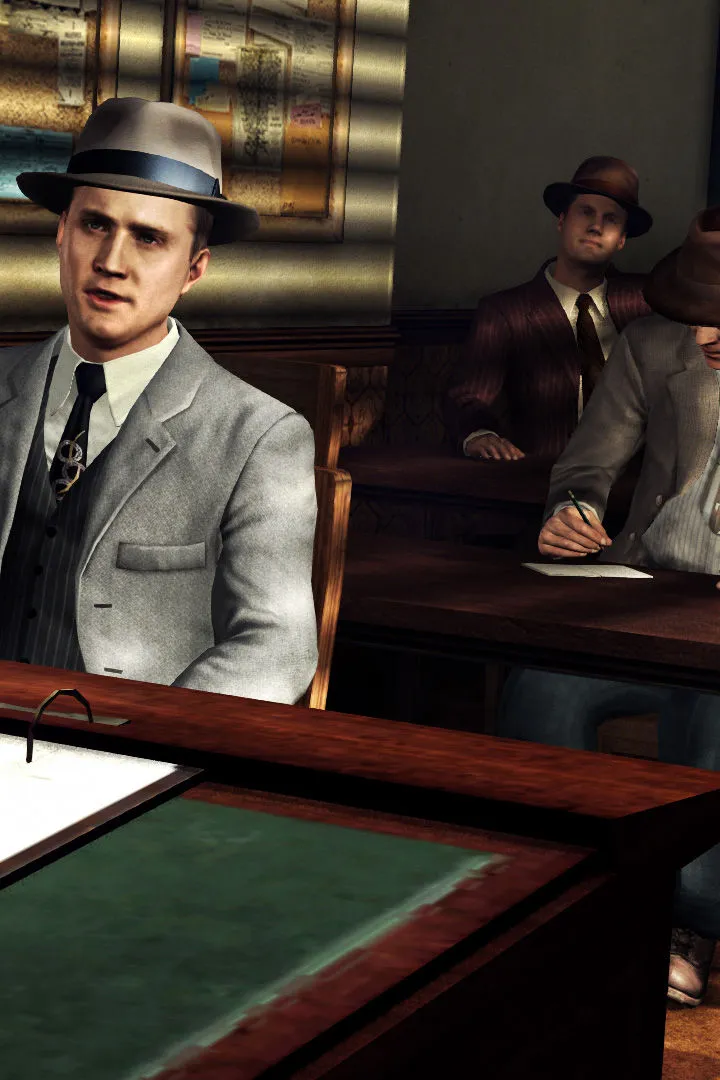
During interrogations or cutscenes, you might encounter instances where character dialogue doesn't match their lip movements, or entire lines of dialogue are missing. This is particularly frustrating during crucial moments like questioning suspects in cases such as "The Red Lipstick Murder" or "The Fallen Idol."
- Actionable Steps:
- Pause and Unpause: Briefly pausing the game (via the Start/Options button) and then resuming can sometimes resynchronize audio tracks.
- Check Audio Output: Ensure your audio output device (headphones, speakers) is correctly configured and not experiencing any external interference.
- Restart the Current Scene/Case: If the issue persists, consider reloading your last save or, in extreme cases, restarting the current case from the Case Select menu. Be aware this will reset your progress for that particular case.
- Install Patches: Ensure your game client is fully updated. Rockstar Games has released several patches addressing audio issues across various platforms.
Game Crashes & Freezes
Unexplained crashes to the desktop or complete game freezes can occur, especially during intense action sequences or loading screens. This is a critical issue that can lead to lost progress.
- Actionable Steps:
- Save Frequently: Utilize the manual save function whenever possible, particularly before major investigations, interrogations, or driving long distances. The game autosaves frequently, but manual saves provide a fallback.
- Close Background Applications: On PC, close any unnecessary applications running in the background that might be consuming system resources.
- Monitor System Temperatures: Overheating hardware can cause instability. Use monitoring software (e.g., MSI Afterburner, HWMonitor) to check CPU and GPU temperatures.
- Update Operating System: Ensure your operating system (Windows, macOS, console firmware) is fully updated.
- Reinstall the Game: As a last resort, a clean reinstallation of the game can resolve deeply rooted file corruption issues.
Gameplay Specific Issues
Investigation Glitches: Uninteractable Clues
Occasionally, a crucial clue might become uninteractable, preventing you from progressing in a case. For example, the "Golden Butterfly" brooch in "The Golden Butterfly" case might not register your interaction, or a document in "The Studio Secretary Murder" could be unresponsive.
- Actionable Steps:
- Move Away and Return: Walk a significant distance from the clue (e.g., leave the room or even the crime scene) and then return. This can sometimes reset its interaction state.
- Reload Checkpoint: If the clue remains unresponsive, pause the game and select "Reload Last Checkpoint." This will typically place you back at the start of the current investigation segment.
- Consult Your Notebook: Double-check your Notebook (accessible via the Back/View button) to ensure you haven't missed a prerequisite action or another clue that unlocks the current one. The game often requires a specific sequence of interactions.
Vehicle Control Oddities
While driving, players sometimes report unresponsive steering, sudden acceleration/deceleration, or vehicles getting stuck in environmental geometry. This is particularly noticeable during pursuits in cases like "Armed and Dangerous" or "The Black Caesar."
- Actionable Steps:
- Switch Vehicles: If your current vehicle feels buggy, abandon it and commandeer another civilian car.
- Restart the Pursuit: If you're in a chase and experiencing issues, intentionally fail the pursuit (e.g., crash your car repeatedly) to restart the sequence.
- Check Controller/Keyboard Input: Ensure your controller or keyboard is functioning correctly and there are no sticky buttons or connectivity issues.
Missing Street Crimes/Side Missions
Some players report that certain Street Crimes (optional side missions) do not appear on the map or fail to trigger when driving past their designated locations. For example, the "Upon Reflection" or "Warrants Outstanding" street crimes might not pop up as expected.
- Actionable Steps:
- Advance Main Story: Some Street Crimes are locked behind main story progression. Continue with your current desk's primary cases; they may appear later.
- Drive Around the Area: Sometimes, you need to drive very close to the trigger point for a Street Crime to initiate. Circle the general vicinity marked on maps for known Street Crime locations.
- Revisit Previous Desks: Certain Street Crimes are tied to specific desks (Patrol, Traffic, Homicide, Vice, Arson). If you've moved to a new desk, try revisiting the areas associated with previous desks.
Should you encounter an issue not listed here, or if the provided solutions do not resolve your problem, we recommend checking the official Rockstar Support website or community forums for further assistance. Keep your wits about you, detective, and don't let a few technical hiccups deter you from bringing justice to the City of Angels!
100% Human-Written. AI Fact-Checked. Community Verified. Learn how AntMag verifies content