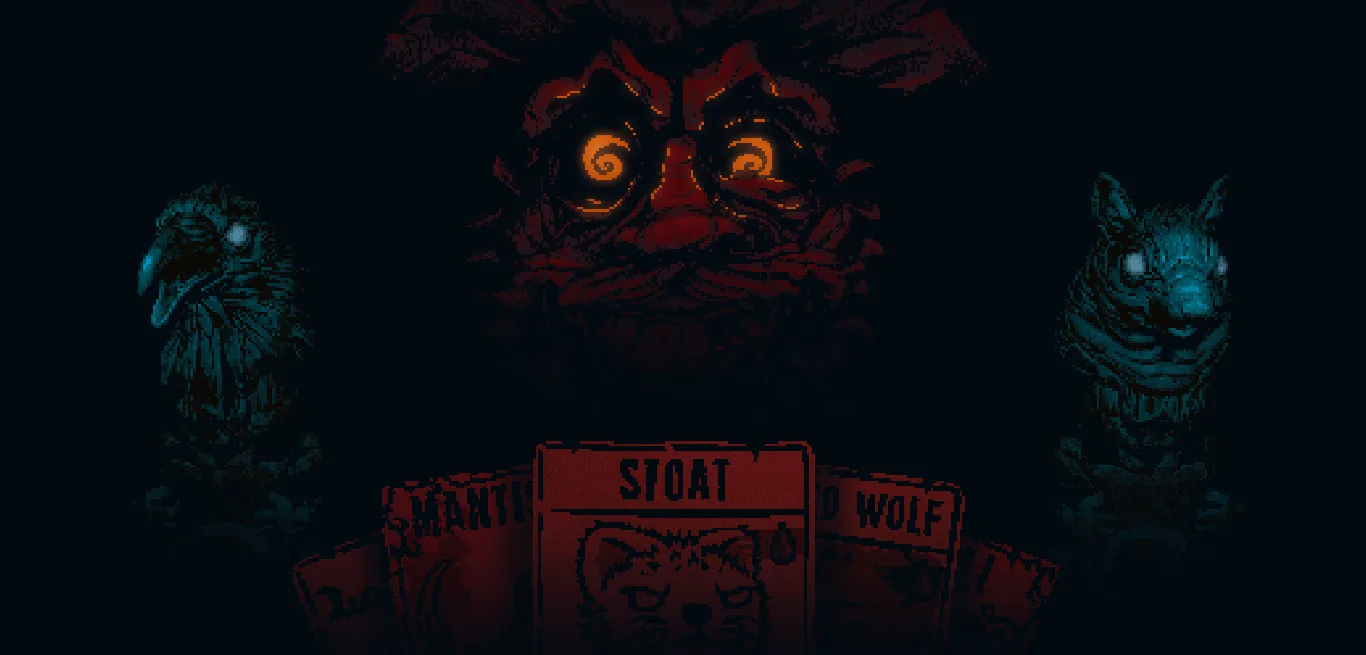
Master the controls and user interface in Inscryption. Learn PC mouse and keyboard inputs for navigating the eerie cabin and engaging in intense card battles.
Navigating the mysterious world of Inscryption, whether through the eerie cabin or the intense card battles, requires a firm grasp of its control schemes and user interface. While this guide primarily focuses on the PC experience with mouse and keyboard, Inscryption is also available on PlayStation (PS5, PS4) and Nintendo Switch, offering full controller support. The core interactions remain consistent across platforms, with button presses mirroring mouse clicks.
PC Controls (Mouse & Keyboard)
The PC version of Inscryption is designed for intuitive point-and-click interaction, making it accessible to players of all skill levels. Precision and quick decision-making are often key, especially during battle sequences.
- Left-Click (Mouse 1): This is your primary interaction button.
- General Interaction: Select cards, click on objects in the cabin (e.g., drawers, safe, puzzles), choose dialogue options, confirm actions in menus.
- Card Play: Drag and drop cards from your hand onto the board, select targets for sigils or abilities, confirm sacrifices.
- Movement (Cabin): Click on areas of the cabin to move your perspective or interact with objects.
- Right-Click (Mouse 2): Often serves as a secondary or contextual action.
- Cancel/Back: Deselect a card, exit a menu, or cancel an ongoing action (e.g., if you've picked up a card but haven't placed it yet).
- Inspect Card: In your hand or on the board, right-clicking a card will often bring up a detailed view of its stats, sigils, and flavor text. This is crucial for understanding new cards or recalling complex interactions.
- Escape (Esc) Key:
- Pause Menu: Opens the main game menu, allowing you to save your progress, adjust settings, or exit the game. This is your primary way to access system-level options.
- Back/Close: Can also function as a 'back' button to close open menus or dialogue boxes.
- Spacebar:
- End Turn: During card battles, pressing the Spacebar will conclude your turn once all desired actions have been taken. This is a quick alternative to clicking the 'End Turn' button on the UI.
- Arrow Keys / WASD:
- While not strictly used for direct character movement (as the game is largely point-and-click), these keys can sometimes be used for menu navigation or puzzle interactions, particularly in certain cabin segments.
Console Controls (Controller)
For players on PlayStation or Nintendo Switch, the control scheme is adapted to a standard gamepad layout. While specific button assignments may vary slightly between consoles, the general principles remain the same:
- Primary Action Button (e.g., X on PlayStation, A on Switch): Functions like the Left-Click, used for selecting, confirming, and interacting.
- Secondary Action Button (e.g., Circle on PlayStation, B on Switch): Functions like the Right-Click, used for canceling, going back, or inspecting cards.
- Menu Button (e.g., Options on PlayStation, Plus on Switch): Opens the main game menu, similar to the Escape key on PC.
- Directional Pad (D-Pad) / Left Analog Stick: Used for navigating menus, selecting cards, and sometimes for puzzle interactions within the cabin.
- Shoulder/Trigger Buttons: May be used for quick access to certain actions or for cycling through options in menus.
Regardless of your platform, the game provides clear on-screen prompts for actions, especially during tutorials and new mechanics, ensuring a smooth learning curve.
User Interface (UI) Elements
The UI in Inscryption is minimalist yet highly functional, designed to immerse you in the game's unique atmosphere while providing all necessary information at a glance. Understanding these elements is crucial for strategic play.
Battle UI
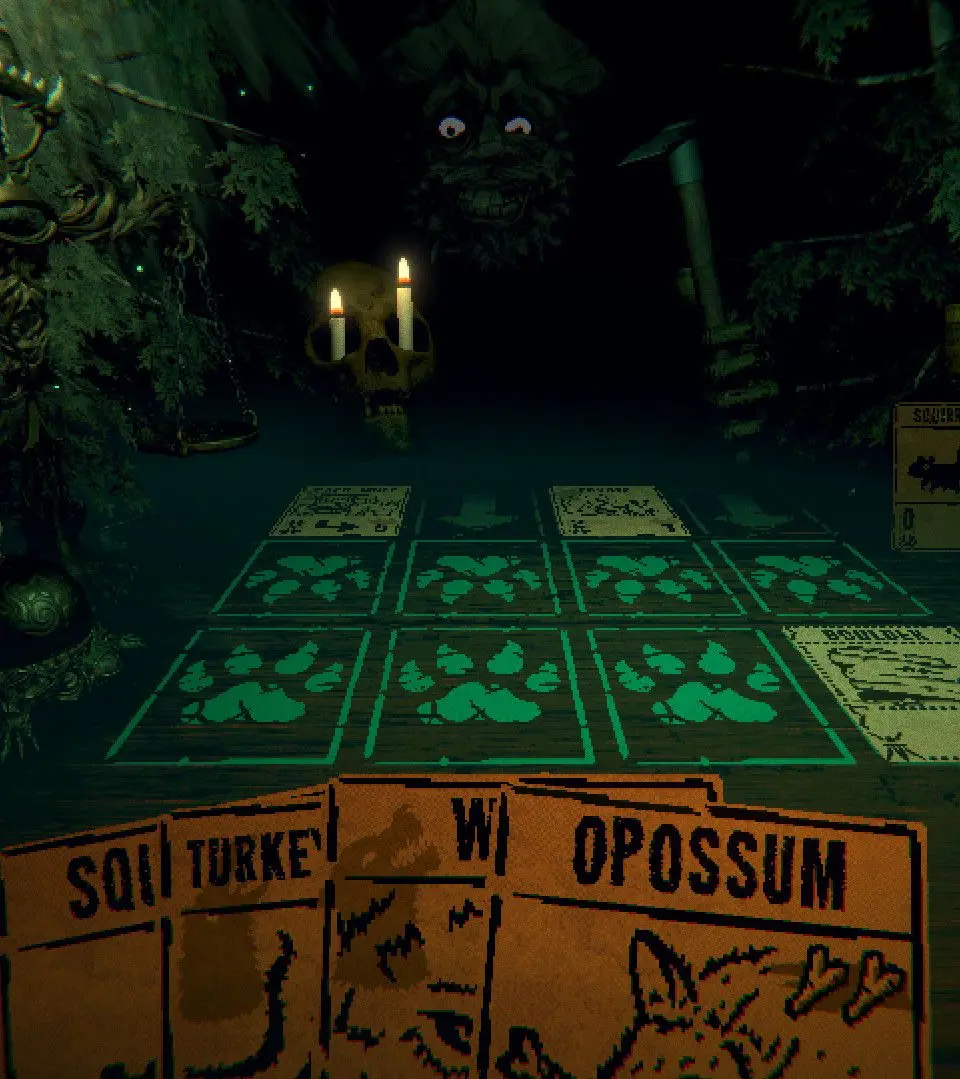
During card battles, the screen is divided into several key areas:
- Your Hand (Bottom Center): Displays the cards currently available for you to play. You can drag these cards onto the board.
- Your Board (Middle, Lower Half): This is where you play your creature cards. Each slot represents a space on the battlefield. Pay attention to the number of available spaces and the lane each creature occupies.
- Leshy's Board (Middle, Upper Half): Shows the cards Leshy (your opponent) has played. Observe their stats, sigils, and upcoming moves.
- Leshy's Hand (Top Center): Often obscured, but sometimes you can glimpse the number of cards Leshy holds.
- Scales of Balance (Center, Below Boards): This is perhaps the most critical UI element.
- Function: The scales visually represent the current damage advantage. Each point of damage dealt to Leshy directly translates to a weight on his side of the scale.
- Victory Condition: If your creatures deal enough damage to tip the scales by 5 points in your favor, you win the round. Conversely, if Leshy deals 5 points of damage to you, you lose a life.
- Strategic Importance: Constantly monitor the scales to assess the immediate threat and plan your offensive and defensive plays.
- Candle Icons (Bottom Left/Right): These represent your lives.
- Life System: In the first act, you typically start with two candles. Each time Leshy tips the scales by 5 points against you, one candle is extinguished. Losing all candles results in a game over, though death is often a mechanic in itself within Inscryption.
- Tracking Progress: Keep an eye on these to understand your remaining chances in a run.
- Bell (Right Side of Scales): Used to signify the end of your turn. Clicking this (or pressing Spacebar) will pass the turn to Leshy.
- Card Details Panel (Contextual): When you hover over a card (PC) or inspect it (console), a small pop-up window will appear, displaying detailed information such as:
- Attack and Health: The card's power and durability.
- Sigils: Unique abilities that define a card's function (e.g., Flying, Fecundity, Mighty Leap). Understanding sigils is paramount to success.
- Tribe: Some cards belong to specific tribes, which can have synergistic effects.
- Cost: What resources (blood, bones, energy) are required to play the card.
Cabin UI
When exploring the cabin between battles, the UI is even more minimal, focusing on immersion:
- Cursor (PC) / Reticle (Console): Your primary means of interaction. It will often change shape or highlight objects you can interact with.
- Interaction Prompts: When hovering over an interactable object (e.g., a drawer, a map, a puzzle), a text prompt will usually appear, indicating what action you can take (e.g., "Open Drawer," "Examine Map").
- Inventory/Map (Contextual): Certain interactions might bring up a temporary inventory screen for items you've collected or a map to plan your route.
- Menu Button (Esc/Options/Plus): Always available to access game settings, save, or quit.
Mastering these controls and understanding the UI is the first step to unraveling the many secrets and challenges Inscryption has to offer. Take your time to familiarize yourself with the layout, and soon, interacting with the game will become second nature, allowing you to focus on the deep strategic gameplay.
Compare controls and user interface inSatisfactory100% Human-Written. AI Fact-Checked. Community Verified. Learn how AntMag verifies content