Master Dance Dance Revolution's standard Game Mode! Learn about panel styles, difficulty levels (Beginner to Oni), Groove Radar, and arrow options like Speed, Appearance, and Modify.
This section covers the standard Game Mode in Dance Dance Revolution, ideal for newcomers before tackling more complex modes like Quest Mode.
Game Mode Setup:
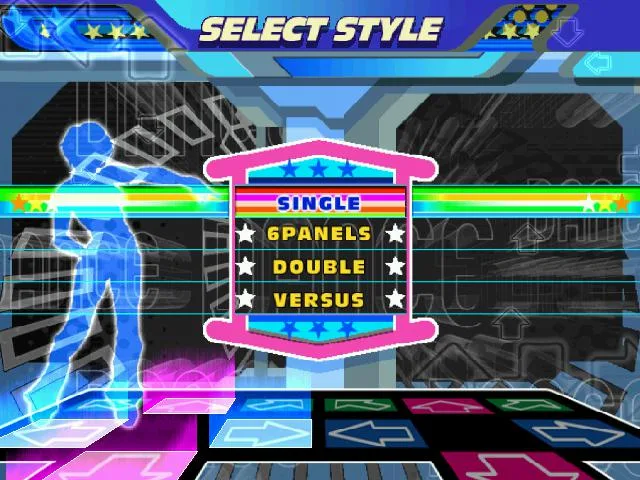
- Select Style:
- 4 PANELS: Standard gameplay with one dance pad per player.
- 8 PANELS: Each player uses two pads. This is a one-player mode on PS2 but can be played with two players on other consoles. Note that song step charts differ from 4 Panels mode.
- Setup Players Screen:
- Press 'A' to join as additional players.
- Use 'X' and 'Y' to select characters.
- Use Up and Down to choose the difficulty level.
Difficulty Levels:
- BEGINNER: Very easy, suitable for absolute beginners. Not recommended for skill improvement.
- BASIC: Easiest normal difficulty (2-5 feet). Steps are mostly on the beat.
- DIFFICULT: Moderate difficulty (4-7 feet). Steps follow the music more closely.
- EXPERT: High difficulty (6-9 feet). Steps closely match the song or are significantly challenging.
- ONI: An alternate, often harder, Expert chart (true 10-footers). Some Oni charts can be easier than their Expert counterparts.
Select Music Screen:
- Use Left and Right to switch songs.
- Up and Down can change difficulty without returning to the previous screen.
- Groove Radar: A graphical representation of song difficulty across five attributes:
- STREAM: Total number of steps.
- VOLTAGE: Density of steps within a given time.
- AIR: Number of double steps (jumps).
- FREEZE: Number and duration of Freeze Arrows.
- CHAOS: Number of non-standard steps (not quarters/eighths) or steps requiring turns.
- Press 'A' to confirm song and difficulty.
- Select 'Random' to let the game choose.
- Song Ordering:
- Default Order: Standard logical order.
- ABC Order: Songs organized alphabetically in folders.
- BPM Order: Songs sorted by maximum Beats Per Minute (fastest to slowest).
- Artist Order: Songs sorted alphabetically by artist name.
Arrow Options (Hold 'A' when selecting a song):
- SPEED: Adjusts arrow scroll speed (0.5x to 8x) to improve readability.
- BOOST: Arrows gradually speed up as they approach the step zone.
- APPEARANCE:
- Visible: Default.
- Hidden: Arrows vanish halfway up.
- Sudden: Arrows appear halfway up.
- Phantom: Arrows appear very briefly halfway up.
- Stealth: Arrows are completely invisible.
- TURN:
- Off: Default.
- Mirror: Rotates arrows 180 degrees.
- Left: Rotates arrows 90 degrees left.
- Right: Rotates arrows 90 degrees right.
- Shuffle: Reverses positions of two random sets of arrows.
- OTHER:
- Off: Default.
- Flat: All arrows are the same color.
- Solo: Different colors for different note types.
- Dark: Removes the step zone from the screen.
- Help: Certain arrows glow yellow to restore more dance gauge.
- MODIFY:
- Off: Default.
- Cut: Removes non-quarter notes.
- LR-only: Converts all steps to left or right arrows.
- All jump: Converts every pair of steps into a jump.
- All freeze: Converts every step into a freeze arrow.
- No jump: Removes all jump steps.
- No freeze: Removes all freeze steps.
- REVERSE: Arrows scroll from top to bottom.
Gameplay: Step on arrows as they reach the step zone. Accuracy is rated with 'PERFECT' being the highest.
100% Human-Written. AI Fact-Checked. Community Verified. Learn how AntMag verifies content